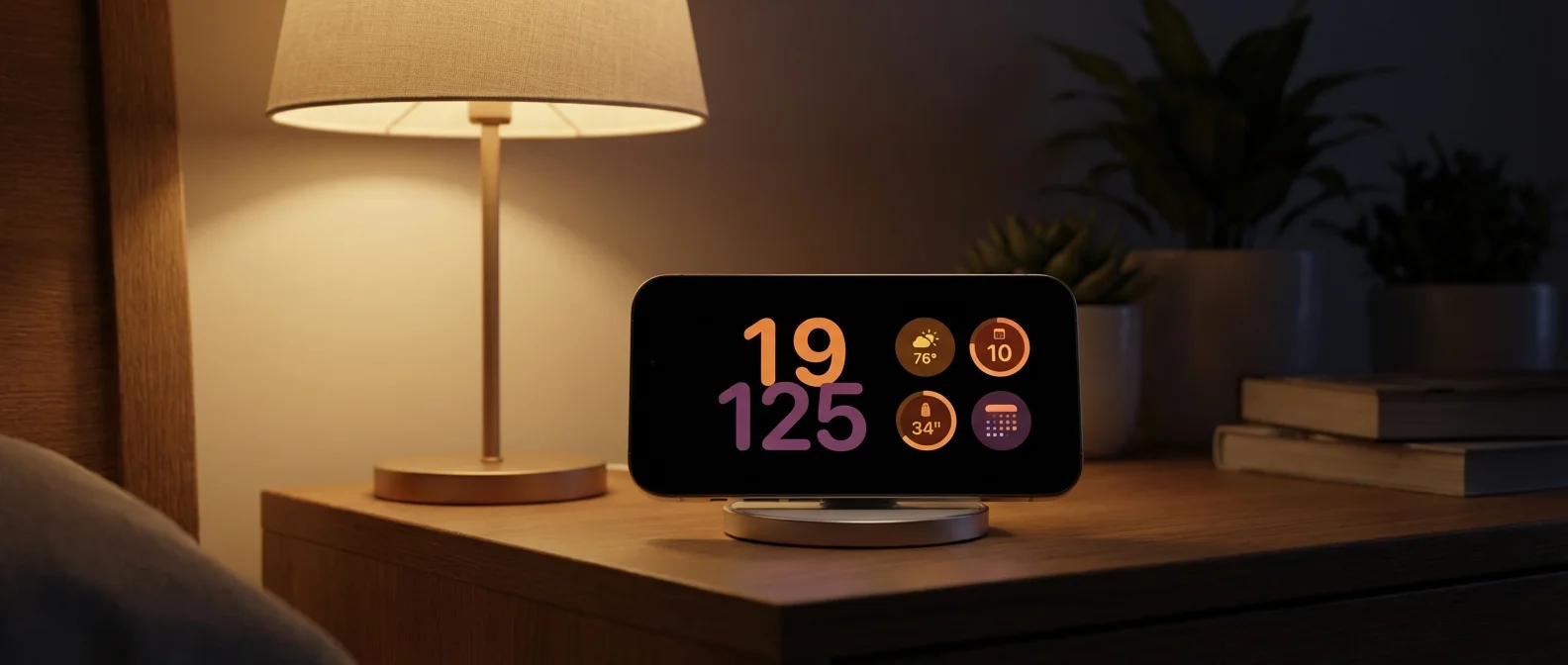
StandBy Mode transforms your iPhone into a smart display while charging in landscape. Perfect for your nightstand, desk, or kitchen counter — with fully customizable widgets, photos, and full-screen clocks that adapt to your needs.
📖 Read more: MagSafe Accessories iPhone 2026: 10 Must-Haves
How to Activate StandBy
StandBy is enabled by default starting from iOS 17. To trigger it, your iPhone must meet three conditions simultaneously: it must be locked, charging (MagSafe, Qi, or wired), and positioned horizontally (landscape) at an angle — not flat on a surface. This is why a charging stand is almost essential. If it doesn't appear, check: Settings → StandBy and make sure the toggle is on.
The 3 StandBy Screens
Swipe left/right on the StandBy display to switch between three main views:
1. Widgets
Two interactive Smart Stacks side by side. You can swipe up/down on each stack independently. Widgets are fully functional — for example, you can check off tasks in Reminders without opening the app. Long-press a stack to add/remove widgets, enable Smart Rotate or Widget Suggestions.
📖 Read more: Qi2.2: 25W Wireless Charging on iPhone – Complete Guide
2. Photos
Automatic slideshow with photos from your library. Long-press to choose a theme: Featured, Nature, Pets, Cities, People or specific albums. Tapping the date/location of a photo takes you to the Photos app (after Face ID authentication).
3. Clocks
Full-screen clock in 5 themes: Digital (bold numbers), Analog (classic), World (world map with your location), Solar (solar flare aesthetic), Float (large colorful bubble numbers). Long-press to change colors — only World doesn't support custom colors. Some themes also display temperature or your next alarm.
Night Mode
📖 Read more: iPhone Full? 10 Ways to Free Up Storage Space
Always-On Display & Compatible Models
StandBy works on all iPhones with iOS 17+, but the Always-On capability (screen stays on continuously) is only available on iPhone 14 Pro, 15 Pro, 16 Pro and later. On other models, a tap is needed to wake the display. Note: if Low Power Mode is active, the screen turns off after a moment of inactivity even on Pro models.
Notifications & Live Activities
Incoming notifications appear full-screen during StandBy. For privacy, enable: Settings → StandBy → Show Preview on Tap Only. Live Activities (e.g., delivery tracking or sports scores) and Siri results also display in full-screen style.
📖 Read more: 15 Hidden iOS 26 Features You Didn't Know About
MagSafe Location Awareness
A clever feature: your iPhone remembers which screen and widget configuration you use at each MagSafe charging location. For example, it might show calendar widgets at your desk and the clock on your nightstand. This only works with MagSafe charging.
Best Stands for StandBy
For the best experience, you need a MagSafe stand that holds your iPhone horizontally at an angle. Popular choices: Belkin BoostCharge Pro 2-in-1 (~$50), Anker MagGo 3-in-1 (~$30), Twelve South Forte (~$45). Even a simple Qi2 stand with a tilt will work.