📖 Read more: ProRAW & ProRes iPhone: Professional Shooting Guide
How Portrait Mode Works
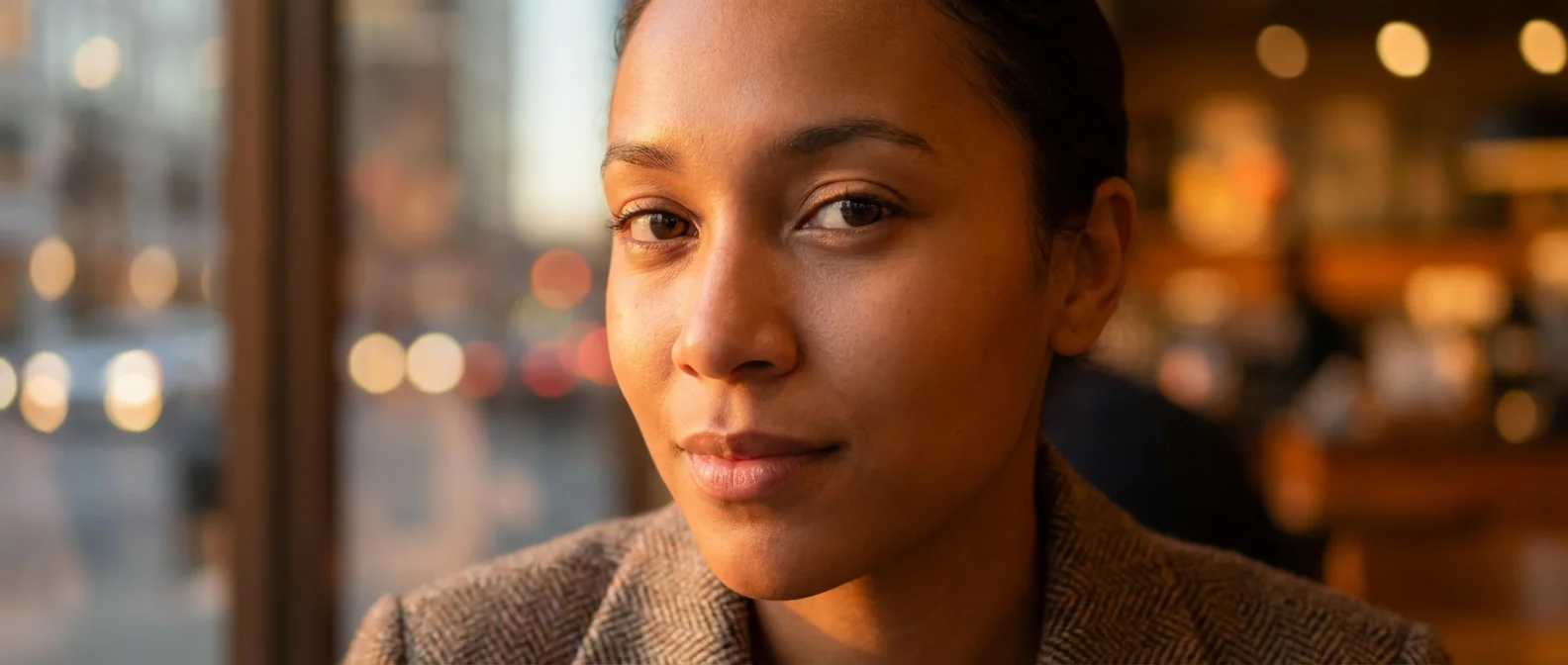
Portrait Mode uses a combination of hardware depth sensing and machine learning segmentation to create natural bokeh. The camera analyzes the scene, identifies the main subject (face, pet, or object) and blurs the background with an algorithm that simulates large DSLR lenses. On Pro models, the LiDAR Scanner provides even more accurate depth mapping, especially in low light.
Automatic Portrait Detection
Starting with iPhone 15, you don't even need to select Portrait Mode before shooting. Just take a regular photo — if the camera detects a face or pet, it automatically saves depth data in the background. Later, you can enable the Portrait effect through Edit in the Photos app and adjust bokeh as you wish. This feature even works on Night Mode shots and supports Portrait Lighting effects.
Ideal Distance and Lighting
The ideal distance for Portrait Mode is 3-8 feet from your subject. If you're too close, the camera can't create a proper depth map. If you're too far, the effect loses intensity. For lighting, natural light from a window or the golden hour (just before sunset) delivers the most flattering results. If shooting indoors, position your subject facing a light source, never with light behind them.
📖 Read more: Screen Protector iPhone 2026: Nano-Texture & Matte
The 6 Portrait Lighting Effects
Natural Light
The default effect. It adds only bokeh without any changes to the face's lighting. Ideal for outdoor photos where natural lighting is already good.
Studio Light
Illuminates the face like a studio softbox, increasing brightness on facial features. Perfect for social media profile photos.
Contour Light
Adds dramatic shadows that emphasize facial structure. Suitable for striking, theatrical portraits.
Stage Light and Stage Light Mono
Stage Light places the subject against a completely black background with a spotlight effect — like a theatrical stage. The Mono version does the same in black and white, creating classic, impressive portraits.
High-Key Light Mono
Unlike Stage, it places the subject against a white background in black and white. Ideal for clean, modern editorial-style portraits.
📖 Read more: Top 50 Best iPhone Apps 2026: The Ultimate Guide
Depth Control (f-stop Adjustment)
After capture, you can adjust the amount of blur by opening the photo in Photos → Edit. The f-stop slider ranges from f/1.4 (maximum bokeh, very blurry background) to f/16 (almost no blur). On iPhone 16, you can adjust depth of field directly from the Camera Control button — a simple swipe changes aperture value without even opening settings.
Portrait with Pets and Objects
Portrait Mode now recognizes cats, dogs, food, and objects — not just human faces. Automatic depth data detection works on pets, while objects require enough contrast between subject and background. Make sure there's at least 3 feet of distance between the subject and background for the best results.
📖 Read more: Android to iPhone 2026: Complete Switching Guide
Night Mode Portraits
The latest iPhones support Night Mode Portraits. On Pro models, the LiDAR Scanner enables accurate depth mapping even in very low light, something impossible with older models. The camera combines multiple exposures and then applies the depth effect, giving you portraits with a sharp subject even at night.
Tips for Better Backgrounds
The background plays a huge role in the final result. Backgrounds with color variety and detail (leaves, fairy lights, architecture) create impressive bokeh. In contrast, plain monochrome walls don't give the algorithm enough material. Subject-to-background distance is key: the farther the background, the blurrier and more impressive it becomes.