Got an Apple Watch and an iPhone? Then you’re holding the most powerful wearable-smartphone combo on the planet. But are you actually using them to their full potential? Here are 10 tricks that most users never discover — from camera remote to Double Tap and Smart Stack.
Why Apple Watch + iPhone Is the Ultimate Combo
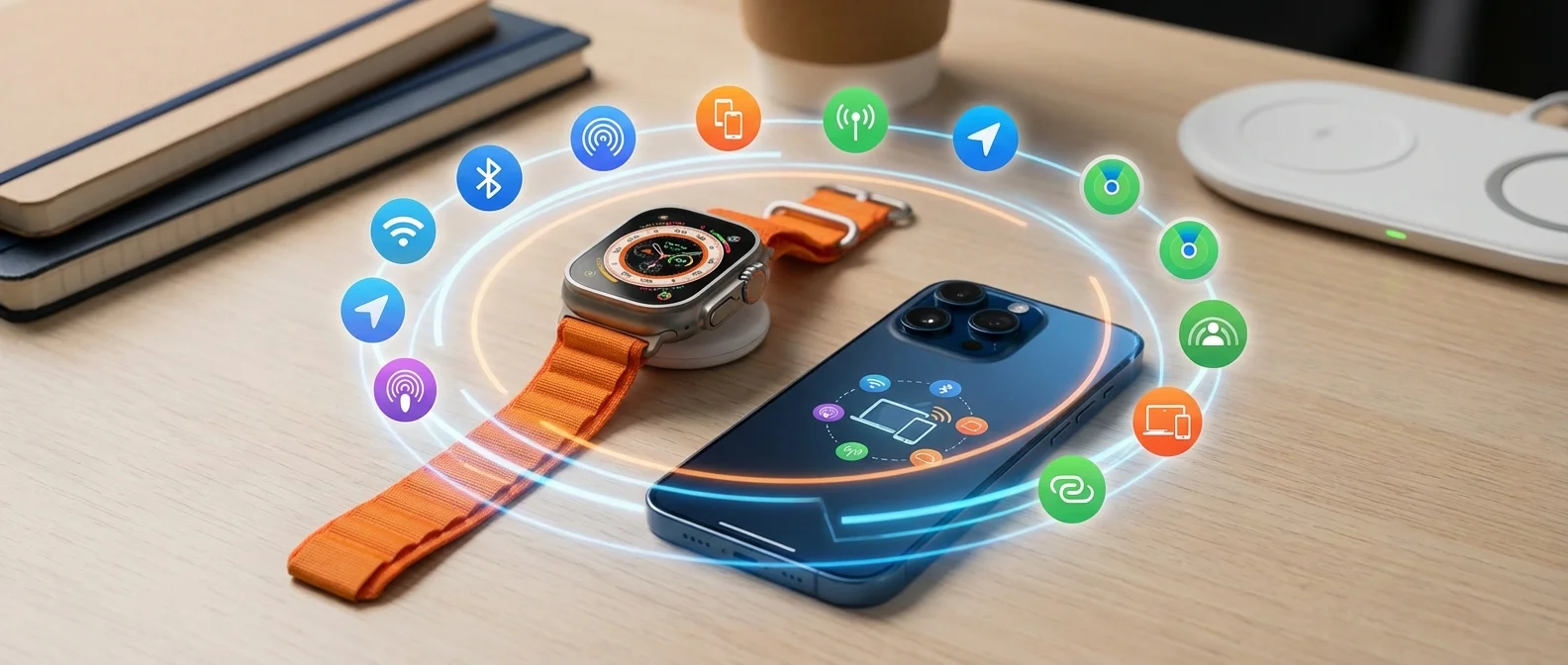
The Apple Watch isn’t just a fitness tracker. It’s an extension of your iPhone on your wrist. With watchOS 11, the two devices communicate constantly: notifications, health data, apps, and settings sync automatically. However, many of the best features are hidden or not obvious. Here are the 10 most useful ones.
1. Camera Remote — Take Photos From Your Wrist
One of the most practical features: open Camera Remote on your Apple Watch and control your iPhone’s camera from across the room. You get a live preview on your wrist, can set a 3-second timer, and take perfect group photos or selfies. You can even switch between the front and rear cameras from your watch!
2. Unlock Your Mac With Apple Watch
Forget passwords! With your Apple Watch on your wrist, your Mac unlocks automatically when you approach it. This also works for confirming purchases and changing settings that require authentication.
Setup: Mac → System Settings → Login Password → Enable “Use Apple Watch to unlock”.
3. Double Tap — Hands-Free Gestures
Since watchOS 10+, Double Tap lets you control your Watch without touching the screen. Simply pinch your index finger and thumb together twice quickly. Answer calls, pause music, dismiss notifications — perfect when your hands are busy!
Double Tap is extremely useful in the kitchen (dirty hands), at the gym (holding weights), or when carrying something. The Watch recognizes the gesture through its accelerometer and optical heart rate sensor.
4. Find Your iPhone From the Watch
Can’t find your iPhone? Raise your wrist and tap the “Ping iPhone” button in the Watch’s Control Center. Your iPhone will ring loudly even in silent mode! Press and hold the button to make your iPhone’s flash blink too — perfect in the dark.
It works the other way too: from the Find My app on your iPhone, you can ping your Apple Watch if you lose it at home. And if your Apple Watch has no network, the Find My network uses nearby Apple devices to locate it.
5. Smart Stack — Intelligent Widgets
The Smart Stack is a scrollable widget pile on Apple Watch that shows the most relevant information based on time of day and your habits. In the morning, you see weather and calendar. In the evening, it shows Activity and Sleep data. Scroll with the Digital Crown from the watch face.
The Smart Stack learns from your habits. If you check the weather every morning, that widget will be first. If you have an appointment, the calendar rises to the top. You can also pin specific widgets to stay at the top permanently.
6. Apple Pay From Your Wrist
Make payments by simply double-pressing the side button on your Watch and holding it near the payment terminal. You don't even need your iPhone nearby! It works with most major banks and retailers worldwide.
7. Walkie-Talkie With Friends
The Walkie-Talkie app turns your Apple Watch into a push-to-talk radio. Invite a friend who also has an Apple Watch, hold the button and talk. Perfect for festivals, ski trips, or when you're in different rooms at home.
8. Handoff — Start on iPhone, Continue on Watch
Started a workout on your iPhone? Bring your Apple Watch close and the workout transfers automatically. The same works for phone calls: answer on your Watch and transfer the call to your iPhone whenever you want.
Handoff works with other apps too: music playing on the Watch can transfer to your iPhone or HomePod. Timers, podcasts, and even Maps navigation transfer seamlessly between devices. These small integrations make the Apple ecosystem so enjoyable.
9. Automatic Workout Detection
Apple Watch detects when you start exercising and asks “Are you working out?”. If you confirm, it retroactively records data from the moment you started. You never lose fitness data even if you forget to tap Start.
The watch recognizes over 10 workout types: walking, running, swimming, cycling, elliptical, rowing, and more. It also detects when you’ve stopped and asks “Did you finish?” — you don’t need to remember anything.
10. Nightstand Mode
Place your Apple Watch on its side while charging and it automatically becomes an alarm clock. It displays time, date, battery level, and your alarm — with gentle, dimmed lighting. Perfect for your bedside table!
Bonus: Best Watch Faces for Productivity
To get the most out of your Apple Watch, choose a watch face with complications. The Modular face is ideal: add weather, calendar, Activity rings, battery, and timer all on one screen.
You can set up multiple watch faces and switch between them. Create one for work (calendar, email, timer), one for exercise (Workout, Heart Rate, Activity), and one for weekends (weather, music, photos). Swipe left or right to switch watch faces in 1 second.
Safety: SOS and Crash Detection
Two features you hope to never need: Emergency SOS (press and hold the side button) and Crash Detection (automatic car accident detection). Your Watch can automatically call 911/112 and send your location to emergency services and your emergency contacts. Set these up on your iPhone via Health app → Medical ID.