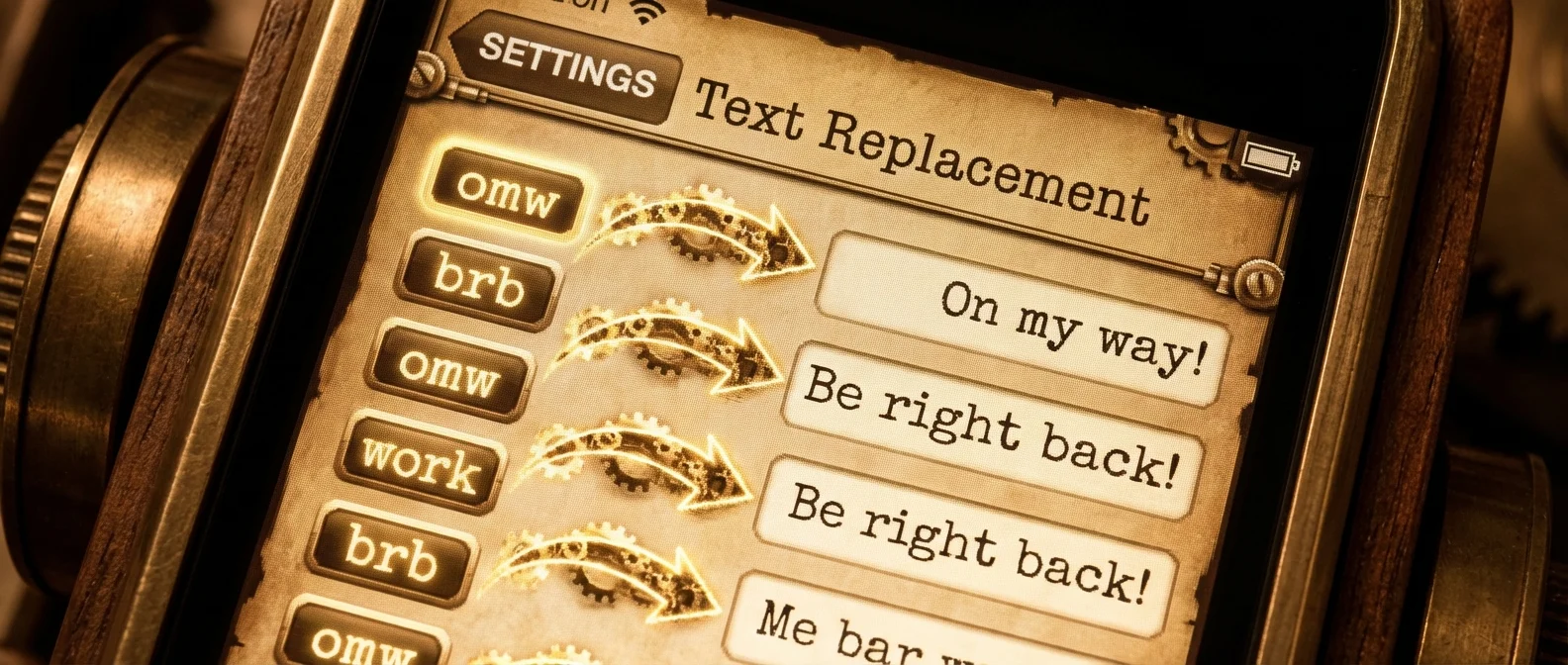
How many times a day do you type your email address, home address, or phrases like “Thank you so much” and “I'll get back to you”? Text Shortcuts (text replacements) on iPhone let you create abbreviations that expand 2-3 characters into full phrases, email addresses, or street addresses. It's one of the most underrated productivity tools in iOS — and in this guide, we'll show you how to make the most of it.
📖 Read more: Control Center iOS 26: Perfect Customization Guide
What Are Text Shortcuts?
Text Shortcuts (or text replacements) are a built-in iOS feature that lets you define small abbreviations that automatically expand into longer phrases. For example, you can set it so that every time you type "@@" your full email address appears automatically.
This feature has been in iOS for years, but very few users take advantage of it. You don't need any third-party app — it's built right into the system and works in every app that uses the keyboard: Messages, Mail, Safari, Notes, WhatsApp, Instagram, and everything else. Plus, your text replacements sync via iCloud across all your Apple devices — iPhone, iPad, and Mac.
How to Create a Text Shortcut
Creating one is incredibly easy. Follow these steps:
Step 1: Go to Settings → General → Keyboard → Text Replacement.
Step 2: Tap the "+" button in the top right.
Step 3: In the "Phrase" field, type what you want to appear (e.g., “[email protected]”).
Step 4: In the "Shortcut" field, type your abbreviation (e.g., "@@").
Step 5: Tap “Save.” That's it! Now every time you type "@@" in any app, you'll see a suggestion with your full email address.
💡 Tip: Use shortcuts that aren't real words — add symbols or unusual combinations (@@, !!a, //h) to avoid accidental triggers.
The 20 Best Text Shortcuts You Should Create
Personal Information
Start with the basics — the information you type most frequently:
@@ → Your email (e.g., [email protected]). @@2 → Your work email. addr → Your full address (e.g., “42 Athens Avenue, 10432 Athens, Greece”). phn → Your phone number (e.g., "+30 694 123 4567″). taxn → Your tax ID number. iban → Your IBAN.
These shortcuts save you dozens of seconds every day. Think about how often you fill out online forms or send your details to someone — instead of typing them out or searching through notes, two characters are all you need.
Professional Phrases
If you send lots of emails or messages at work, professional shortcuts are a game changer:
tyvm → “Thank you very much for your email. I'll get back to you shortly.” brgds → “Best regards, John Smith” (your signature). plio → “Please let me know if you have any questions.” gmrn → “Good morning, I hope this email finds you well.” srryd → “I apologize for the delayed response.”
These phrases are used so frequently in professional correspondence that the time savings add up fast. Each shortcut saves 5-10 seconds — across 20 emails a day, that's 2-3 minutes of pure typing saved.
Common Replies & Phrases
ttyl → “Talk to you later!” omw → “On my way, be there in 5 minutes!” npp → “No problem at all!” lyk → “I'll let you know.” dnk → “I'm not sure yet, I'll tell you.”
These quick replies are perfect for chat conversations. Instead of typing a full sentence, 3 letters are enough. Especially useful when you're in a hurry or typing on the go.
Technical & Special Shortcuts
shrug → ¯\_(ツ)_/¯ (shruggie). degr → ° (degree symbol). cchk → ✓ (checkmark). arro → → (arrow). bult → • (bullet point).
These are special symbols that aren't easy to find on the keyboard. Instead of hunting through special characters or copy-pasting from somewhere else, a quick shortcut saves you every time.
💡 Tip: iOS doesn't support line breaks within text replacements. If you need multi-line text, use the Shortcuts app for more complex automations.
Managing and Editing Shortcuts
You can edit or delete your text shortcuts at any time. Go to Settings → General → Keyboard → Text Replacement. There you'll see your complete list of replacements.
To delete, swipe left on a replacement and tap “Delete.” To edit, tap on the replacement and modify the phrase or shortcut. All changes sync automatically via iCloud to your Mac, iPad, and iPhone.
If you want to import many shortcuts at once, it's easier from a Mac: System Settings → Keyboard → Text Replacements. On Mac, you can even drag-and-drop a .plist file with shortcuts for bulk import.
iCloud Sync
One of the biggest advantages of text shortcuts is automatic iCloud sync. Create a replacement on your iPhone and it automatically appears on your iPad, Mac, and every other device signed in with the same Apple ID.
This means you can build a complete shortcut library on one device and use them everywhere. Make sure iCloud Drive is enabled: Settings → [Your Name] → iCloud → iCloud Drive. If a shortcut isn't syncing, try restarting the device or signing out/in to iCloud.
Stop Auto-Correct from Changing Words
Here's a bonus trick: if your iPhone keeps auto-correcting a word you actually want to type (like slang or a name), you can use Text Shortcuts to prevent it.
Create a new text replacement: in the "Phrase" field, type the word exactly as you want it, and leave the "Shortcut" field empty. This tells iOS to never auto-correct that word. Super useful for names, nicknames, and slang!
💡 Tip: This trick works in reverse too: if you want to ensure a word is always spelled correctly, put the correct spelling in “Phrase” and your common misspelling in “Shortcut.”
Advanced Automations with the Shortcuts App
If you want even more powerful text automations, the iOS Shortcuts app takes things to the next level. You can create automations that insert text based on date, location, or other conditions.
For example, you could build a Shortcut that copies a template email reply to your clipboard with today's date automatically inserted: “Dear [Name], I'm writing to inform you on [today's date] that...” Or a Shortcut that asks for the recipient's name and generates an entire email.
Shortcuts can even send messages automatically at specific times, create notes, and execute multiple steps with one tap. When a simple text replacement isn't enough, level up your workflow with Shortcuts.
Summary and Best Practices
Text Shortcuts are a small tool with a massive impact on daily productivity. Follow these best practices:
1. Start with the basics — email, phone number, address. 2. Use unusual character combinations as shortcuts. 3. Update your shortcuts monthly — add new phrases you use frequently. 4. Take advantage of iCloud sync for consistency across all devices. 5. For complex needs, combine text shortcuts with the Shortcuts app.
Spend 10 minutes today creating your first 10 shortcuts. Within a week, you'll wonder how you ever lived without them!
"Every second you save while typing is a second you gain in your life. Text shortcuts are the simplest productivity upgrade you can make."
— OnOff.gr Team