The Action Button is one of the most underrated features on modern iPhones. It replaced the legendary Ring/Silent switch that had been a fixture since the original iPhone in 2007, offering dozens of customization options. Yet most users still only use it to toggle silent mode. In this guide, you'll discover 15 Action Button uses you probably didn't know about — plus everything about the iPhone 16's Camera Control button.
What Is the Action Button?
The Action Button debuted on the iPhone 15 Pro and iPhone 15 Pro Max in September 2023. With the iPhone 16 lineup, Apple expanded it to all models — iPhone 16, 16 Plus, 16 Pro, and 16 Pro Max. It's a physical button on the left side of the device, above the volume buttons, replacing the traditional Ring/Silent switch.
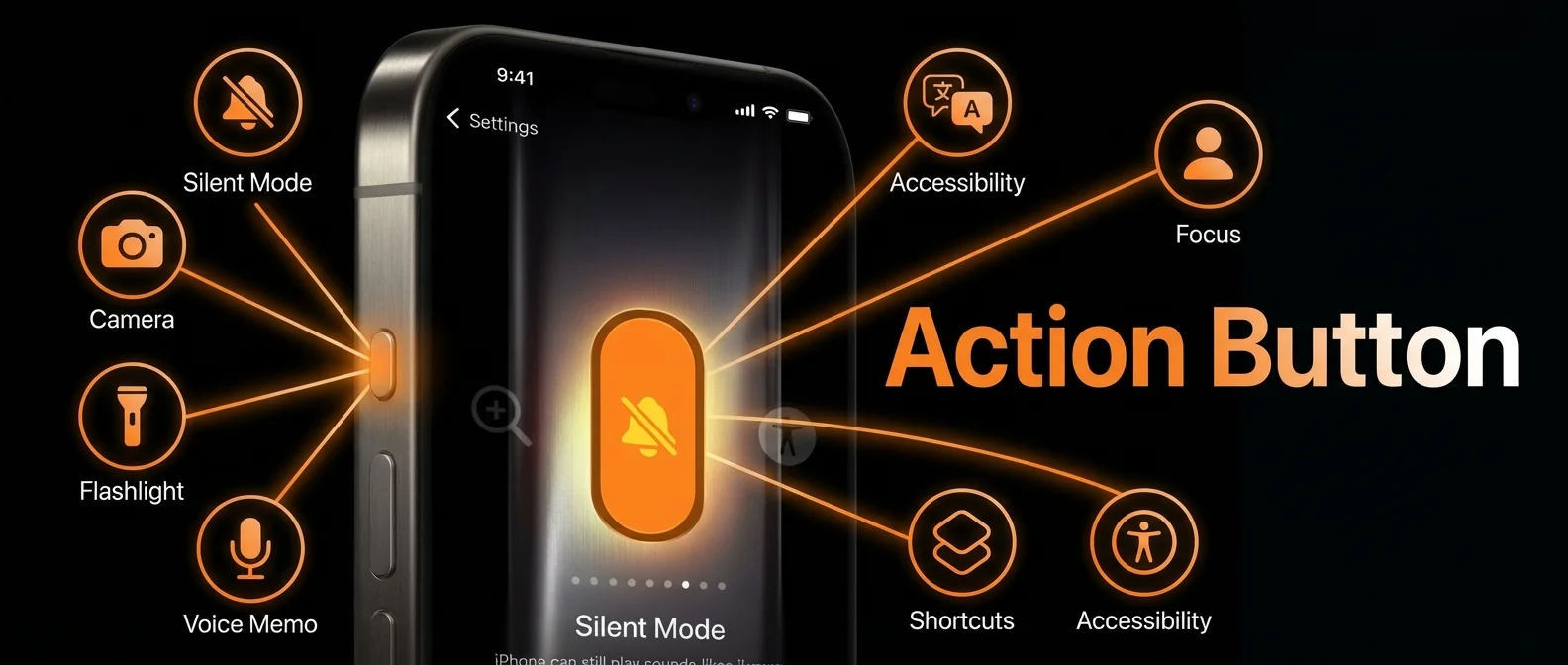
Unlike the old switch that had a single function (ring or silent), the Action Button can be programmed to perform virtually any action you want. Configuration is done through Settings > Action Button, which presents a visual carousel of all available options. Activation requires a long press of the button.
1. Silent Mode — The Classic
The default Action Button function toggles between Ring and Silent modes. When you long-press, haptic feedback confirms the state change. The Dynamic Island or lock screen displays a bell or mute icon. If you miss the physical switch, you can hide the silent mode icon from the status bar through Settings > Sounds & Haptics.
2. Camera — Instant Launch
Setting the Action Button to Camera lets you launch the camera app instantly, even from the lock screen. You can choose which shooting mode it opens in: Photo, Selfie, Video, Portrait, or Panorama. If the camera is already open, pressing the Action Button takes a photo — it doubles as a physical shutter button. Perfect for street photography when you need to capture a moment without unlocking your phone.
3. Flashlight
If you use the flashlight frequently, this setting saves precious time. Instead of pulling down Control Center or hunting on the lock screen, one long press instantly activates the flashlight. Press again to turn it off. Especially useful in dark spaces, while camping, or when searching under furniture.
4. Focus Modes — Instant Activation
The Focus setting lets you toggle a Focus mode with a single press. You can choose any Focus: Do Not Disturb, Work, Personal, Sleep, or any custom Focus you've created. For instance, if you have a “Meeting” Focus that blocks all notifications except calls from your boss, you can activate it instantly when you walk into the office.
5. Translate — Live Speech Translation
One of the most impressive uses. Setting the Action Button to Translate enables real-time conversation translation. Long-press, speak in your language, release the button, and your iPhone automatically translates to your target language. Apple supports over 20 languages, including Greek, English, French, German, Spanish, and Chinese. Translation works even offline, as long as you've downloaded the offline language packs.
Pro Tip: The translation feature is ideal for traveling abroad. Download your destination's language pack offline before you leave through Settings > Translate > Downloaded Languages.
6. Voice Memos
The Voice Memos setting lets you start recording immediately. Long-press and recording begins. Press again to stop. The recording saves automatically to the Voice Memos app. This is excellent for journalists, students recording lectures, or anyone who wants to quickly capture an idea before forgetting it.
7. Magnifier
The Magnifier function turns your iPhone's camera into a magnifying glass. It's particularly useful for people with vision difficulties, or anyone who needs to read fine print — on medication labels, restaurant menus, or tiny text. You can adjust zoom, brightness, contrast, and even color filters for better readability.
8. Accessibility Features
Apple offers a suite of accessibility features assignable to the Action Button: AssistiveTouch, VoiceOver, Zoom, Detection Mode (recognizing objects, text, and people through the camera), and Live Speech (converting text to speech in real time). Detection Mode is particularly impressive — it can identify doors in a room, read signs, and even describe images for people with reduced vision.
9. Shortcuts — Ultimate Customization
This is where an entire world of possibilities opens up. By assigning a Shortcut to the Action Button, you can execute almost anything: open a specific app, send a predefined message, trigger a smart home scene, scan a QR code, convert currencies, or run calculations. The Shortcuts app offers hundreds of actions, and you can build complex multi-step workflows.
Popular Action Button Shortcuts:
- Scan documents and automatically save to iCloud
- Open Google Maps with navigation to home
- Take a screenshot and auto-send to a specific contact
- Toggle Wi-Fi on/off
- Create a new reminder with voice input
10. Dual Action — Two Functions, One Button
Officially, the Action Button supports only one function. However, there's a clever workaround using Shortcuts. You can create an “If-Else” Shortcut that checks a variable each time you press the button. If the variable is “A”, it performs Function A and switches to “B”. If it's “B”, it performs Function B and switches back to “A”. This way, each press alternates between two different actions — for example, toggling between Flashlight and Camera, or between Shazam and Voice Memos.
11. Shazam — Music Recognition
By assigning a Shazam Shortcut to the Action Button, you can instantly identify any song playing around you. Long-press, your iPhone listens, and it displays the song title and artist. You can even create a Shortcut that automatically adds recognized songs to a playlist in Apple Music or Spotify.
12. Control Center Toggles (iOS 18+)
With iOS 18, Apple added a massive upgrade: you can now assign any Control Center control to the Action Button. This means access to dozens of functions that weren't possible before. Some examples: Airplane Mode, Bluetooth toggle, Calculator, Timer, Stopwatch, Home controls, Screen Recording, Low Power Mode, Text Size, and many more. Configure through Settings > Action Button > Control.
13. Dark Mode Toggle
One of the new Control Center controls you can assign is the Dark Mode / Light Mode toggle. Instead of digging through settings or pulling down Control Center, one long press switches between dark and light appearance. Particularly useful if you work in different lighting environments throughout the day.
14. Personal Hotspot Toggle
If you frequently share your connection, the quick-toggle Personal Hotspot via Action Button is incredibly convenient. One press and the Hotspot activates, letting your laptop or tablet connect immediately. Press again and it turns off, saving battery. No more multi-step navigation through Settings.
15. Camera Control Button — iPhone 16 Exclusive
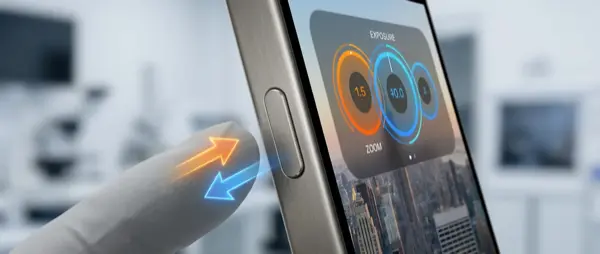
Beyond the Action Button, the iPhone 16 series introduces an entirely new button: Camera Control. Located on the lower right side of the device, it's a capacitive touch sensor. It's not just a button — it recognizes pressure, light touch, and sliding gestures. Its capabilities include:
- Single press: Opens the camera
- Second press: Takes a photo or starts video
- Light press: Shows camera settings (zoom, exposure, depth, etc.)
- Slide: Changes values (e.g., zoom in/out)
- Double light press: Switches between settings
Essentially, Camera Control transforms the iPhone 16 into a camera with physical controls, giving photographers the hands-on experience they've wanted for years. Apple says future software updates will add even more capabilities, including object recognition through Visual Intelligence.
Important: If the Camera Control or Action Button isn't responding properly, it may need cleaning or repair. At OnOff.gr, we handle iPhone button diagnostics and repairs at affordable prices.
How to Configure the Action Button
The setup process is straightforward:
- Go to Settings
- Tap Action Button
- Swipe left or right on the carousel to see all options
- Select your desired function
- For certain functions (e.g., Camera, Focus, Shortcut), tap below for further configuration
Changes take effect immediately — no restart needed. You can change the setting as often as you like based on your needs.
Which Function Should You Choose?
The ideal setting depends on how you use your iPhone:
- Photographers: Camera or Camera Control (iPhone 16)
- Travelers: Translate
- Professionals: Voice Memos or Focus Mode
- Music enthusiasts: Shazam Shortcut
- Power users: Shortcuts or Dual Action
- Everyday use: Flashlight or Silent Mode
"The Action Button represents Apple's philosophy: one button, unlimited possibilities. Its true value isn't in the hardware but in the software that powers it."
— MacRumors Analysis, 2024Frequently Asked Questions
Which iPhones have the Action Button?
iPhone 15 Pro, iPhone 15 Pro Max, and all iPhone 16 models (16, 16 Plus, 16 Pro, 16 Pro Max). Also the iPhone 16e, released in February 2025.
Can I have two functions on the Action Button?
Not officially, but through a clever Shortcut you can alternate between two actions (see use #10).
Does translation require internet?
No, as long as you download the offline language packs beforehand.
What if the Action Button stops working?
First, restart your device. If the problem persists, it may need hardware repair. At OnOff.gr, we offer free diagnostics and iPhone button repairs starting from €30.
What is the Camera Control button?
A new capacitive button exclusive to iPhone 16 models, located on the lower right side, that controls camera functions through pressure, touch, and sliding gestures.