The iPhone keyboard is something we use dozens of times every day — yet most users only know the basics. Hidden behind simple gestures and long presses, there are dozens of tricks that can make typing on your iPhone faster, more precise, and much easier. From trackpad mode to secret symbols and swipe typing, this guide covers every keyboard trick you should know in 2026.
📖 Read more: Call Screening on iPhone: See Who's Calling Before Answering
1. Trackpad Mode — The Precision Cursor
This is arguably the most useful hidden keyboard trick. When you need to move the cursor precisely within text, you don't have to tap between letters and hope you land in the right spot.
Simply long-press the Space bar and the keyboard transforms into a trackpad. The letters disappear and you can drag your finger to move the cursor with pinpoint accuracy. This is perfect for fixing a typo in the middle of a sentence or placing the cursor at a specific location.
On iPhones with 3D Touch (iPhone 6S through XS), you can press firmly anywhere on the keyboard. On newer models, a long press on the Space bar does exactly the same thing. If you press a second finger while in trackpad mode, you'll start selecting text — incredibly useful!
💡 Tip: For even faster text selection, double-tap a word (selects the word) or triple-tap (selects the entire sentence).
2. One-Handed Keyboard
If you're carrying groceries in one hand and need to type a message with the other, the one-handed keyboard is a lifesaver. It shrinks the keyboard and shifts it left or right, depending on which hand you're using.
To activate it, long-press the globe icon (🌐) at the bottom-left of the keyboard. A menu appears with three keyboard options: normal, left, and right. Choose whichever suits you. To return to full size, tap the arrow on the empty side.
This feature works brilliantly on larger models (iPhone Pro Max, iPhone Plus) where the screen is too wide to reach across with your thumb. Many users don't even realize this option exists!
3. Swipe Typing (QuickPath)
Since iOS 13, the keyboard supports swipe typing (Apple calls it QuickPath). Instead of tapping each letter individually, slide your finger across the letters without lifting it. iOS automatically recognizes the word you're trying to type.
This method can be 2-3 times faster than regular typing, especially for longer words. It works beautifully in messaging apps, email, and notes. If you don't like it, you can disable it in Settings → General → Keyboard → Slide to Type.
For best results, don't worry about precision — just swipe quickly toward the general area of each letter. The iOS algorithm is remarkably accurate at recognition. You can even alternate between swipe typing and regular tapping within the same sentence.
💡 Tip: Swipe typing works best when you have “Auto-Correction” enabled — check Settings → Keyboard to make sure it's on.
4. Hidden Symbols and Special Characters
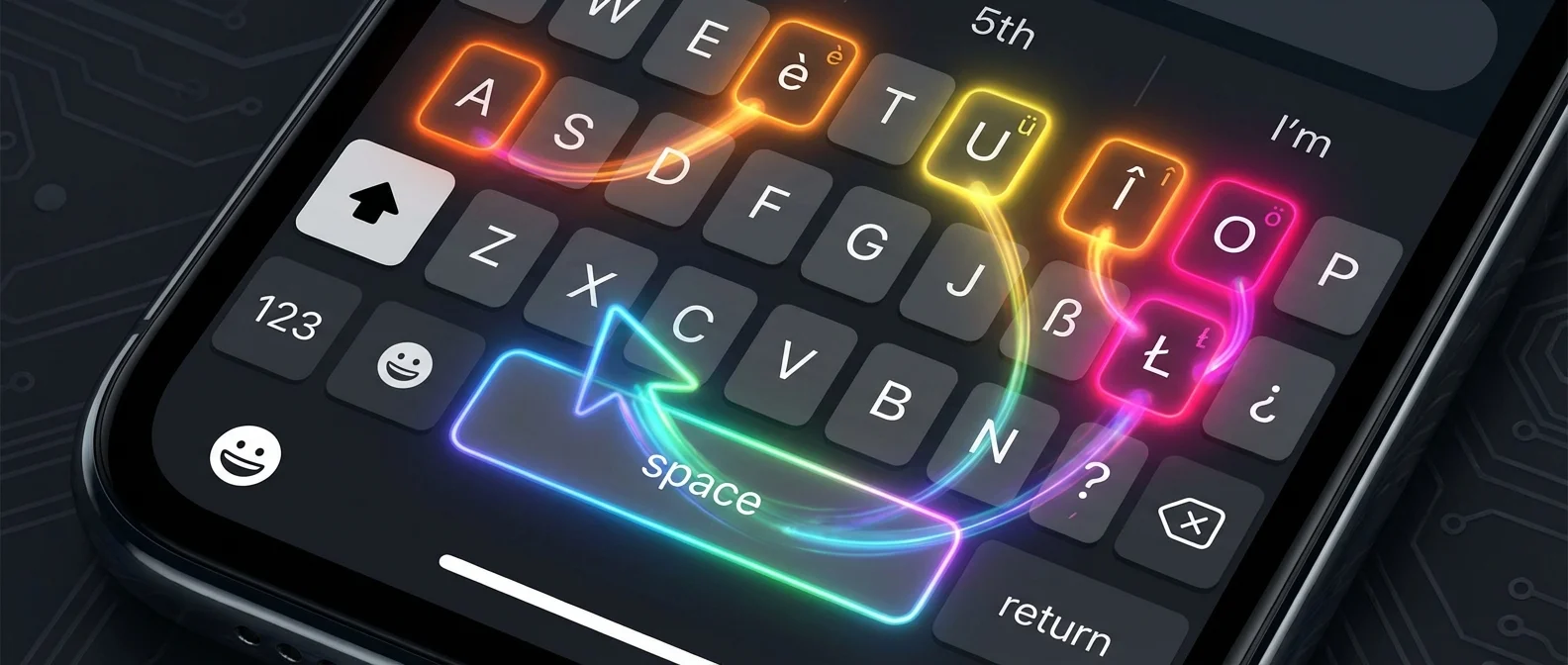
Did you know every key on the keyboard hides additional characters? If you long-press a letter, you'll see variations with accents, umlauts, and special symbols. For example, long-pressing “e” reveals: è, é, ê, ë, ē, ė, ę.
This works with punctuation too. Long-press the period (.) and you'll see the ellipsis (…). Long-press 0 for °, - for en dash (–) and em dash (—), $ for €, £, ¥, ₩ and other currencies. Long-press & for §.
Another trick: long-press the " (quotation marks) and you'll see French quotation marks (« »), German quotation marks („ "), and smart quotes (" "). These are incredibly useful if you write in multiple languages.
5. Shake to Undo
Made a mistake and want to undo it? Simply shake your iPhone like you're saying “no” and you'll see an “Undo Typing” option. This works in virtually every app — from Notes to Mail and Messages.
If you prefer not to shake your phone, there's an alternative: swipe three fingers left on the screen for undo, or right for redo. These three-finger gestures are more discreet if you're in a public setting. You can also double-tap with three fingers on the screen for redo.
6. Dictation — Talk Instead of Typing
Dictation on iPhone has improved dramatically in iOS 19. Tap the microphone icon on the keyboard and start speaking. The iPhone converts your speech to text in real time, with automatic punctuation (periods, commas, question marks, exclamation points).
In iOS 19, you can seamlessly switch between dictation and typing — speak a sentence, then type a word, then continue speaking. The keyboard remains active during dictation. You can even add emoji via dictation: just say “smiley face emoji” or “heart emoji” and it appears automatically.
📖 Read more: Shortcuts iPhone 2026: 15 Must-Have Automations
For punctuation while dictating, say “period,” “comma,” “question mark,” or “new paragraph.” Dictation works offline on models with A12 Bionic chip and newer — no internet connection required.
7. Text Replacement — Type with Shortcuts
If you frequently type the same phrases (email addresses, home address, phone numbers), Text Replacement saves you tons of time. Go to Settings → General → Keyboard → Text Replacement and tap "+" to create a new shortcut.
For example: set "@@" to expand to your full email address, or “addr” to expand to your complete home address. You can create dozens of these shortcuts. They sync via iCloud across all your Apple devices (iPad, Mac).
8. Quick Language Switching
If you type in multiple languages (e.g., Greek and English), quick switching is essential. Long-press the globe icon (🌐) and you'll see your list of installed keyboards. Slide to the language you want without lifting your finger.
For even faster switching, simply tap the globe — each tap cycles to the next keyboard in sequence. If you only have two languages, one tap is all you need. You can reorder your keyboards in Settings → General → Keyboard → Keyboards → Edit.
9. Caps Lock and Quick Period
Many users don't know how to activate Caps Lock on iPhone: double-tap the Shift key (↑). You'll see an underline beneath the arrow, indicating Caps Lock is active. Tap Shift once more to deactivate it.
Another quick trick: if you tap Space twice quickly at the end of a sentence, the iPhone automatically inserts a period and space, and capitalizes the next letter. This works when enabled in Settings → General → Keyboard → "." Shortcut.
10. Quick Numbers Without Page Switching
Instead of tapping "123″ to switch to numbers, typing the number, and tapping “ABC” to switch back, there's a much faster way: long-press "123″, slide to the number or symbol you want, and lift your finger. The keyboard automatically returns to letters!
This means you never need three taps (123 → number → ABC) — one fluid motion does it all. The same works with symbols: long-press "#+='" to slide to the symbol you need.
💡 Tip: This slide-for-numbers technique is the fastest way to enter numbers — try it when typing passwords or phone numbers and you'll never go back!
11. Three-Finger Copy-Paste Gestures
iOS supports three-finger gestures for copy, cut, and paste: Pinch three fingers together for copy. Double-pinch for cut. Reverse pinch (spread three fingers) for paste. These gestures work in every app.
If you want to see a formatting toolbar for undo, redo, cut, copy, and paste, simply tap with three fingers on the screen without moving. A toolbar appears at the top giving you full control without any menus.
12. Emoji Search
Instead of scrolling through hundreds of emoji, use the search bar at the top of the emoji keyboard. Type “dog,” “heart,” “cake,” or any word and relevant emoji appear instantly.
Even faster: if you type a word on the regular keyboard (e.g., “dog”) and then switch to the emoji keyboard, the predictive text bar shows related emoji. Tap them to replace the word or add them alongside it.
"Mastering the iPhone keyboard is like a superpower — once you learn these tricks, you can't imagine life without them."
— OnOff.gr Team