Your iPhone is far more than a phone — it's a productivity powerhouse, creativity tool, and daily companion. Yet most people only scratch the surface of what it can do. In 2026, with iOS 19 and the latest updates, there are dozens of hidden features and shortcuts that can completely transform how you use your device. Here are 20 must-know tips every iPhone owner should master — from hidden settings to advanced productivity hacks.
Productivity & Speed
1. Back Tap — Double/Triple Tap the Back
One of the most underrated iPhone features is Back Tap. Go to Settings → Accessibility → Touch → Back Tap, and you can assign actions to a double or triple tap on the back of your iPhone. You can set it to take a screenshot, lock the screen, toggle the flashlight, or even trigger a Shortcuts automation. It's perfect for users who want quick access to functions without unlocking the screen or digging through menus.
2. Flashlight with Adjustable Brightness
Did you know you can adjust the flashlight's brightness? Open Control Center, long-press on the flashlight icon, and a slider with four brightness levels will appear. From dim light for nighttime reading to maximum intensity for dark spaces. This saves battery when you don't need full brightness and protects your eyes in dark environments.
3. Shake to Undo — Instantly Reverse Changes
If you accidentally deleted text or something went wrong, simply shake your iPhone and the “Undo” option will appear. This works in virtually every app — Notes, Mail, Messages, Safari, and many third-party apps. You can also swipe left with three fingers on the screen to undo, or swipe right to redo — which is much more convenient for daily use.
💡 Pro Tip: If you don't like the Shake to Undo feature, you can disable it from Settings → Accessibility → Touch → Shake to Undo. The three-finger gesture will continue to work.
4. Turn Your Keyboard into a Trackpad
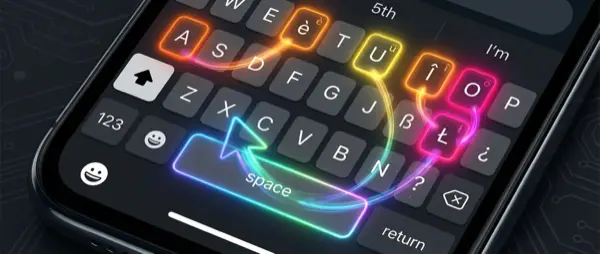
Long-press on the space bar and your keyboard instantly transforms into a trackpad. You can now move the cursor precisely through text without awkwardly tapping on words. This is incredibly useful when you need to correct a typo in the middle of a long sentence. If you press with two fingers while using the trackpad, it starts selecting text.
5. Focus Modes — Smart Notification Management
Focus Modes let you create customized notification profiles. You can set up a “Work” mode that only allows calls from colleagues, a “Sleep” mode that silences everything, or a “Gym” mode that shows only music. Each Focus can have a different home screen, Lock Screen, and Apple Watch face. Activate them automatically based on location, time, or app.
Camera & Photography
6. Take Photos with the Volume Buttons
You don't always need to tap the on-screen button to take a photo. The Volume Up and Volume Down buttons work as shutter buttons. This is ideal for selfies, one-handed shots, or steady photos where you don't want to shake the phone by tapping the screen. Hold down Volume Down to start recording video (QuickTake).
7. Scan Documents with the Notes App
You don't need a third-party scanner app. Open Notes, tap the camera icon, and select “Scan Documents.” The camera automatically detects the document edges, corrects the angle and brightness, and produces a clean PDF. You can scan multiple pages, sign digitally, and share or save instantly. Perfect for receipts, contracts, and school notes.
8. Live Photo to Long Exposure
If you've taken a Live Photo (enabled by default), you can convert it into a stunning Long Exposure. Go to Photos, find a Live Photo (ideally with water, lights, or motion), tap the “Live” icon at the top left, and select “Long Exposure.” The result looks like professional photography with a specialized technique. Perfect for waterfalls, cars at night, or party lights.
📸 Photography Tip: For best Long Exposure results, keep your iPhone steady or use a tripod. Make sure there's movement in the frame (water, cars, lights) for an impressive motion blur effect.
Security & Privacy
9. Lock Apps with Face ID
Since iOS 18, you can lock individual apps with Face ID or Touch ID. Long-press on an app icon and select “Require Face ID.” Now, even when someone unlocks your iPhone, they'll need Face ID again to open that specific app. Ideal for banking apps, notes, photos, or anything you want to keep private even if someone is holding your unlocked phone.
10. Hidden Photos & Hidden Album
You can hide photos or videos you don't want visible in your main feed. Select the photos, tap the three dots, and choose “Hide.” These are moved to the “Hidden” folder, which is now protected with Face ID. Additionally, you can completely hide the “Hidden” folder itself from Settings → Photos, so it doesn't even appear in the app.
11. Mail Privacy Protection
Apple automatically protects your email with Mail Privacy Protection. Going to Settings → Mail → Privacy Protection, you can enable this feature that prevents senders from knowing when you opened an email, what your IP address is, and whether you forwarded the message. This is extremely important against marketing trackers that use invisible pixel tracking in their emails.
Text & Communication
12. Text Replacement — Automatic Text Shortcuts
Go to Settings → General → Keyboard → Text Replacement, and you can create short phrases that automatically expand into longer text. For example, typing "@@" can automatically display your email address, or typing “addr” can insert your full home address. This saves enormous time in daily typing, especially if you fill out forms or send similar messages frequently.
13. Live Voice Transcription with Voice Memos
The Voice Memos app now features automatic transcription. Record a note or meeting and your iPhone will convert the words to text automatically. You can search within transcriptions, copy them as text, or share them. This is particularly useful for students in lectures, journalists in interviews, or professionals who want meeting notes without writing.
14. Search Within Messages
In the Messages app, swipe down on the conversation list to reveal the search bar. You can search for text, photos, links, or even files sent in a specific conversation. There are also filters for unread messages, known senders, or messages with attachments. This saves time scrolling through large conversation histories.
📝 Productivity Tip: Combine Text Replacements with Focus Modes: create professional shortcuts ("ty" → “Thank you for your email. I'll get back to you shortly.”) and activate them only during work hours.
Battery & Optimization
15. Optimized Battery Charging
Settings → Battery → Battery Health → Optimized Charging. This feature learns your daily charging habits and stops charging at 80% until you actually need it to reach 100%. This significantly protects your battery health long-term. If you leave it charging overnight, your iPhone will complete charging just before you wake up, instead of sitting at 100% for hours.
16. Find Apps That Drain Battery
Go to Settings → Battery and view detailed per-app consumption charts, both for the last 24 hours and the last 10 days. If you notice an app you rarely use is consuming significant background battery, you can disable Background App Refresh for it (Settings → General → Background App Refresh). This can save 1-2 extra hours of battery daily.
Secret Tips & Tricks
17. Slide for Numbers & Symbols Without Switching Keyboards
When typing, you don't need to tap "123″ to type numbers and then “ABC” to go back. Instead, press and slide from the "123″ button to the number or symbol you want, then release your finger. The keyboard will automatically switch back to letters. This nearly doubles your number-typing speed within text.
18. Quick Timer from Control Center
In Control Center, if you long-press on the Timer icon, a slider appears that lets you quickly set a timer without opening the Clock app. You can select from 1 minute to 2 hours. Ideal for cooking, laundry, or short work breaks. You can also ask Siri “Set a 15-minute timer” without even touching the screen.
19. Visual Look Up — Object Recognition in Photos
Open a photo in Photos, tap the “i” icon or swipe up, and if stars appear on the icon, it means Apple recognized something. It could be plants, animals, landmarks, books, food, or even laundry symbols on clothing labels. Tapping gives you information, Wikipedia links, or recipes. This turns your camera into a mini encyclopedia tool.
20. Lift Subject from Photo Background
An impressive feature: long-press on an object or person within a photo, and it “detaches” from the background. You can then copy, drag, or share it — without the background, like a sticker. It even works in videos (pause only). Perfect for creating memes, iMessage stickers, or professional presentations without hidden editing tools.
"The iPhone gets more powerful every year, but the real power lies in the small details most users ignore. These tips can radically change your daily experience."
— OnOff.gr Tech TeamBonus: Settings Worth Checking Now
Storage Optimization: Settings → General → iPhone Storage. Here you can see which apps take up the most space and enable “Offload Unused Apps,” which automatically removes apps you don't open while keeping their data.
Quick Camera Settings: Settings → Camera → Preserve Settings. Enable preserving the last camera mode, filters, and Live Photo setting, so you don't have to change them every time.
Emergency SOS & Medical ID: Settings → Emergency SOS. Set up your emergency contacts and medical ID. In case of an accident, someone can see your allergies, blood type, medications, and contact information without unlocking the iPhone.
🔧 Need help? If you're having trouble with any of these tips or your iPhone needs repair, the OnOff.gr team in Thessaloniki is here for you. We offer free diagnostics and express repairs at our stores.