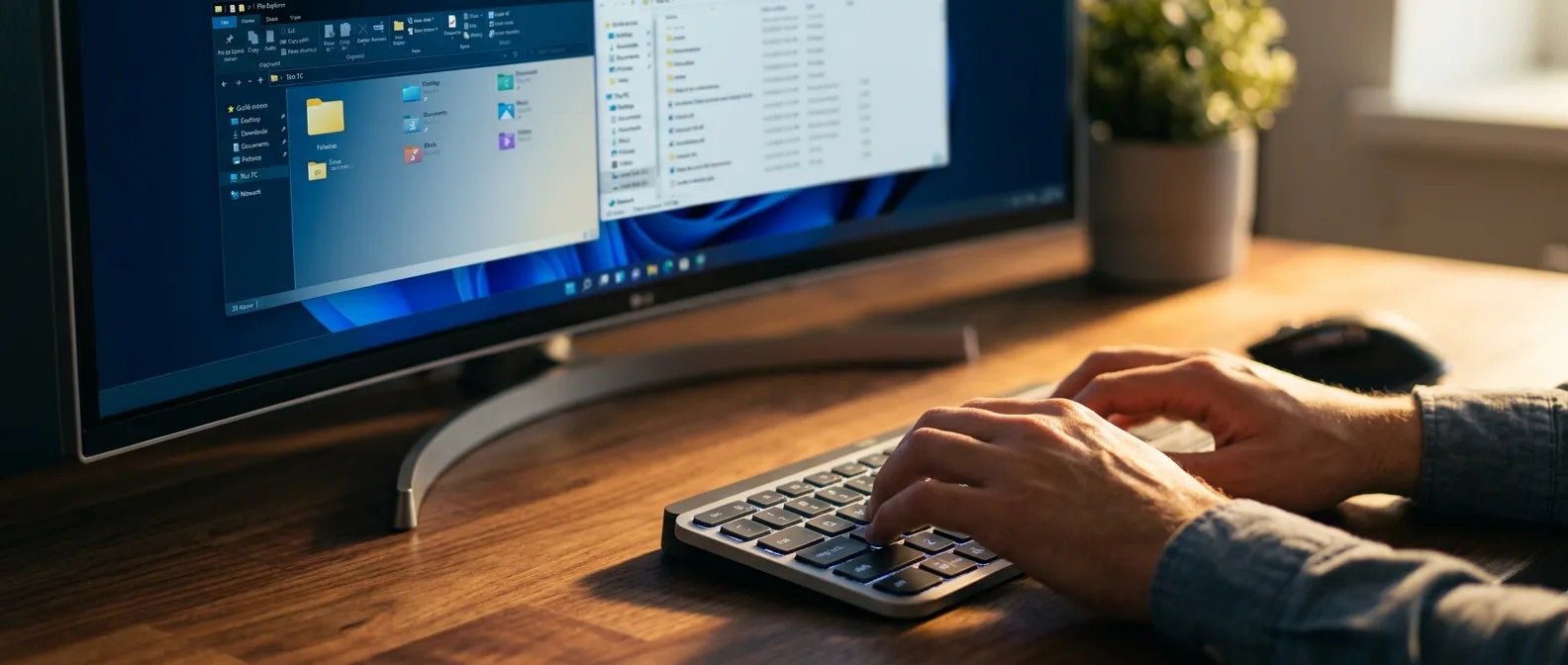
Twelve keystrokes: Ctrl+L, F2, Alt+Enter. Just these shortcuts will transform your workflow. File Explorer in 2026 packs dozens more tricks into menus and toolbars most users never touch.
Windows productivity lives in keyboard shortcuts, not mouse clicks. Most users know Ctrl+C and Ctrl+V, but there are combinations that can make you three times faster. Some are so useful that after a week, you'll wonder how you ever worked without them.
🗂️ Alt + Arrow Keys: The Secret Navigation Power
File Explorer navigation doesn't need a mouse. At all.
Hold Alt and press Up Arrow to climb one level in the folder hierarchy. If you're in "C:\Documents\Projects\WebApp", this shortcut takes you to "C:\Documents\Projects". Skip the multiple breadcrumb clicks.
Pro tip: Alt+Left Arrow returns you to the previous folder you visited — works like a browser's back button. Alt+Right Arrow does the exact opposite.
After visiting dozens of folders, you can press Alt+Left Arrow repeatedly to return to any previous destination. Perfect when you need to find that folder you saw ten minutes ago but can't remember where it was.
📍 Ctrl+L: The Shortcut That Solves Every Navigation Problem
The address bar is possibly File Explorer's most underrated tool.
Press Ctrl+L and the current folder path gets selected instantly. From there you can Ctrl+C to copy it — useful when you need to send someone the exact location of a file. Or type a new path directly for instant navigation.
Try typing "%userprofile%\Desktop" after Ctrl+L. You'll jump straight to the Desktop, regardless of where you started. Environment variables work everywhere in Windows — something many people still don't know.
✏️ F2: The World's Fastest Rename
Select file, press F2, type new name, Enter. Done.
Sounds simple but the speed difference is stunning. Instead of right-click → Rename → type → Enter, you do F2 → type → Enter. Two moves instead of four. When renaming dozens of files, this saves minutes.
Made a mistake? Escape key and everything returns to the previous state. No drama, no undo commands.
📝 Batch Renaming with Smart Patterns
Select multiple files (Ctrl+Click for specific ones or Shift+Click for ranges), press F2 and type a new name. Windows automatically adds numbers at the end: "Document (1)", "Document (2)", etc.
🔍 Alt+Enter: Properties in Record Time
When do you need to see file properties? More often than you think.
File size, creation date, permissions, metadata — it's all there. But instead of right-click → Properties, you select the file and press Alt+Enter. Instant access to every technical detail you need.
This is especially useful for developers checking file sizes, photographers hunting for image metadata, or anyone trying to understand why a file takes up so much space.
Quick File Details
Size, type, modified date in one keystroke
Security Properties
Permissions and access rights without hunting
⚡ Ctrl+Shift+N: New Folder in Milliseconds
Creating folders is one of the most common file management actions. Right-click → New → Folder is slow and tedious.
Ctrl+Shift+N instantly creates a new folder with "New folder" selected. Type the name you want, press Enter and you're done. When organizing large projects with multiple folder structures, this eliminates the tedious right-click dance entirely.
🔎 Ctrl+F: Search That Saves Lives
The search box isn't just for when you've lost a file.
Press Ctrl+F and the cursor jumps straight to the search field. You can search file types (*.pdf), content inside files, or even filters like size:>10MB for large files. Windows Search in 2026 has become remarkably smart.
Downloads folder with thousands of files? Doesn't bother me. Ctrl+F and the name I remember — I find what I need in seconds.
— Power user with 15 years experience
🎯 Advanced Search Patterns
Some search tricks that change everything:
- kind:music — Music files only
- modified:today — What changed today
- size:empty — Empty files (for cleanup)
- *.log created:last week — Log files from last week
🖼️ Ctrl+Alt+Plus/Minus: View Control Without Mouse
Switching between thumbnail view and file lists happens constantly — especially when working with images or videos.
Ctrl+Mouse Wheel is well-known, but Ctrl+Alt+Plus or Ctrl+Alt+Minus works just as well for zooming in/out on icons. Useful when you don't want to leave the keyboard or when the trackpad isn't responsive.
Bonus tip: Ctrl+Shift+6 changes the view mode (Details, Large Icons, etc.) without hunting through menus.
🎮 Poweruser Combinations That Make the Difference
Real productivity problems get solved when you combine shortcuts. Some patterns that professionals use:
Quick File Organization: Ctrl+A → Ctrl+X → Ctrl+Shift+N → [folder name] → Enter → Ctrl+V. All files into a new folder in 5 seconds.
Speed Navigation: Windows+E → Ctrl+L → [path] → Enter. From desktop to any folder instantly.
Bulk Operations: Ctrl+F → [search term] → Ctrl+A → F2 for mass renaming or Delete for mass cleanup.
🚀 The Secret Weapons of Professionals
Two shortcuts rarely mentioned but absolutely magical:
Ctrl+Shift+E: Shows/hides the folder tree on the left. When working with deep hierarchies, this is essential for navigation.
Alt+P: Preview pane on/off. See file contents instantly without opening them — from Word docs to images and videos.
🎯 Frequently Asked Questions
Do these shortcuts work in Windows 11?
Yes, all these shortcuts are compatible with both Windows 10 and Windows 11. In fact, Windows 11 has improved the responsiveness of many of these, especially search and file preview.
Can I customize keyboard shortcuts?
The basic File Explorer shortcuts can't be changed from Settings, but you can use tools like PowerToys Keyboard Manager to create custom mappings or modify existing shortcuts.
What if I forget a shortcut?
File Explorer shows tooltips with shortcuts when you hover over buttons. Also, the Alt key highlights underlined letters in menus that you can press for quick access.
These seven shortcuts are just the beginning. File Explorer has dozens of other hidden tricks waiting to be discovered. The difference is that the ones we've covered here you'll use every day — and once you get used to them, working on a computer becomes a completely different experience. Faster, smoother, more human.
Sources: