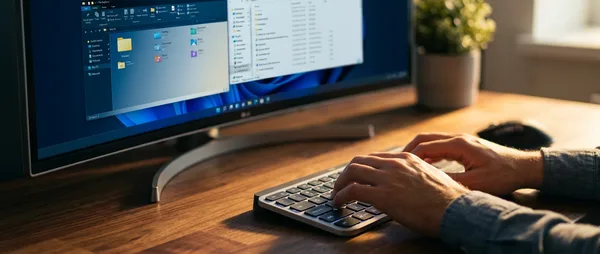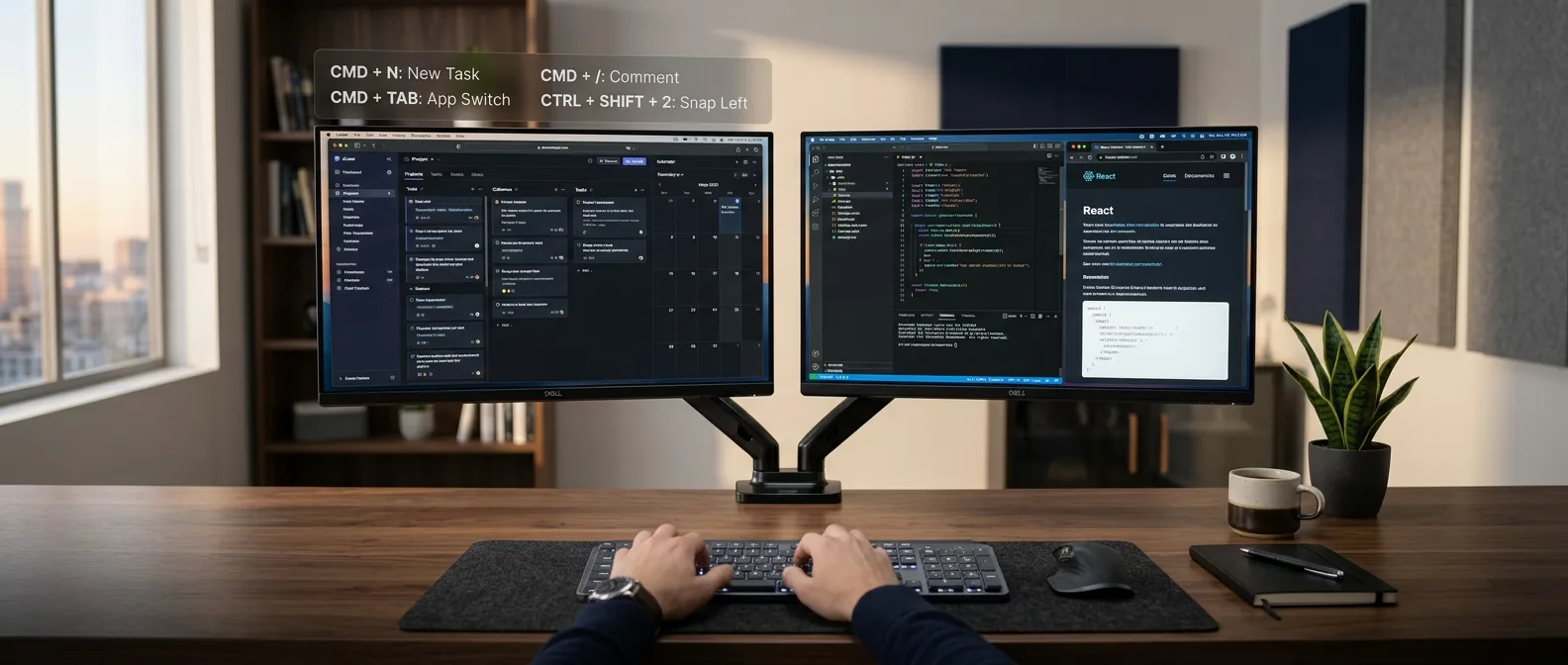
Your second monitor can do more than just display extra windows. With the right keyboard shortcuts, it becomes a speed tool — but most users never discover these tricks.
When you set up a second monitor in 2026, you probably think about extra workspace first. But there's another dimension — **dual monitor shortcuts** that transform your setup from decorative to genuine productivity weapon.
Windows 11 includes dozens of keyboard shortcuts. Some are designed specifically for **second monitor** workflows — but Microsoft doesn't advertise them much. Why? Nobody knows.
📖 Read more: 10 Hidden Windows 11 Tools Nobody Knows About (2024)
🖥️ The Essential Trick: Window Movement
**Win + Left/Right Arrow** is your first lesson. But it's not just for snapping. Open any app — say, your browser. Hit **Win + Right Arrow** once. The window snaps to the right side of your primary display. Hit it again. The window jumps to the left side of your second monitor.Pro Tip: The logic is weird but consistent — Windows imagines your monitors as one giant desktop and the arrows move you in a circle.
Why It Beats Mouse Dragging
Drag & drop with your mouse has a problem — you need to find the screen edge at the right angle. With keyboards, you press two keys and you're done. Especially with large monitors, the difference is obvious.⚡ Virtual Desktop Magic
Here's where things get interesting. **Win + Ctrl + D** creates a new virtual desktop. But why would you need it when you already have two monitors? Think of it this way: Two monitors × three virtual desktops = six "screens" total. Use one virtual desktop for work, another for personal projects, and the third for entertainment. 40% Productivity increase with dual monitors
6 Virtual desktop + second monitor combinations
Virtual Desktop Shortcuts
- **Win + Ctrl + D**: New virtual desktop - **Win + Ctrl + F4**: Close current virtual desktop - **Win + Ctrl + Left/Right**: Switch between virtual desktops - **Win + Tab**: See all virtual desktops and windows together📖 Read more: 15 Android Tips, Tricks & Hacks You Need to Know in 2024
📺 Display Mode Switching: Win + P
**Win + P** opens a small menu with four options. Most people know "Extend" for dual monitors. But the other three options are equally useful. **Duplicate** is perfect for presentations where you want to see exactly what your audience sees. **Second screen only** turns off your main display — useful when working in a dark room and you want to reduce light intensity.PC Screen Only
Use only the main display — for power saving
Duplicate
Same content on both — perfect for presentations
Extend
Desktop extension across two monitors — classic dual monitor use
Second Screen Only
Only the second monitor — for focus or power saving
🎯 Advanced Window Management
There are shortcuts most people never discover. **Win + Shift + Left/Right** moves the current window directly to the other monitor — no snapping, no size changes. What happens when you want to move a fullscreen app? Normal shortcuts don't work. But **Alt + Enter** takes most apps out of fullscreen mode, then you can use **Win + Shift + Arrows**.The Secret of Win + Tab
Forget **Alt + Tab**. **Win + Tab** is the future. It shows all open windows on both monitors simultaneously, with thumbnails. You can click on any one or use arrows for navigation."Since I learned dual monitor shortcuts, I work 30% faster. Especially Win + Shift + Left/Right for quick window movement."
— Power user on Reddit
📖 Read more: 21 Hidden iPhone Tips & Tricks You Wish You Knew Sooner
💡 Secret Tips for **Productivity Shortcuts**
Here are some tricks you won't find in other guides: **Snap Fill**: When you snap a window to half the screen, Windows automatically suggests other open windows for the other half. Use **Tab** to select instead of your mouse. **Quick Display Switch**: If you have a laptop with external monitor, **Fn + P** (on some laptops) does the same as **Win + P** but faster. **Resolution Shortcuts**: In Windows 11, **Win + Alt + R** opens Xbox Game Bar, but if you press **Win + Alt + G** while a window is selected, it screenshots only that window.Custom Shortcuts with PowerToys
Microsoft **PowerToys** (free from Microsoft Store) adds extra dual monitor functionality. **FancyZones** lets you create custom layouts and activate them with **Win + \`** (backquote).🔧 Troubleshooting Common Problems
**"The window disappeared"**: Sometimes windows get lost off-screen. Press **Win + Shift + M** to minimize all windows, then **Win + D** to restore them. **"The shortcut doesn't work"**: Check if the app you're using has locked Windows shortcuts. Games often do this. Try **Alt + Tab** to exit fullscreen. **"Second monitor not recognized"**: Press **Win + P** and **P** again to refresh. If that doesn't work, **Win + X** → **Device Manager** and check display drivers.📖 Read more: 25 Hidden Apple Notes Features You Didn't Know Existed