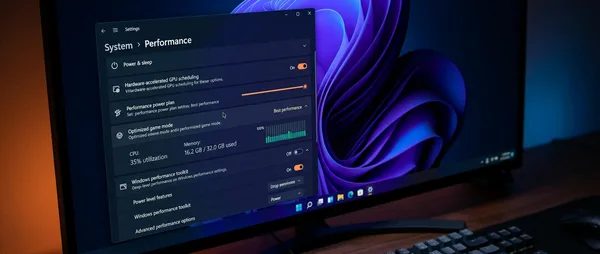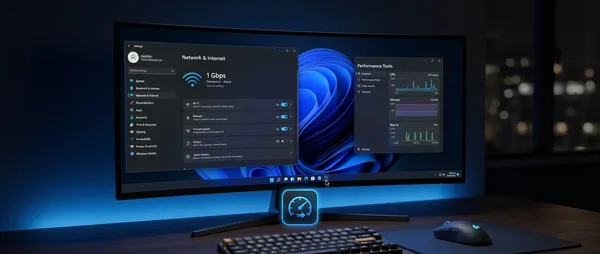
Four commands hide inside Windows 11's blue terminal that can transform how you work. PowerShell looks like programmer territory, but you need just a handful of cmdlets to automate tasks that currently eat hours of your day. We're talking literal hours.
🚀 Windows 11's Hidden Weapon
That first glimpse of PowerShell — black screen, blue prompt — scares most users away from a tool that handles twenty tasks while they handle one. This intimidation factor keeps people locked into clicking through File Explorer when they could be orchestrating their entire system with a few keystrokes.
Microsoft built PowerShell on the .NET framework, so it doesn't just shuffle strings like the old Command Prompt. It manipulates objects with properties and methods — meaning you can process data in ways File Explorer never imagined.
Picture renaming 1,000 files in 3 seconds. Or updating every program on your computer with one command. In PowerShell, this isn't fantasy — it's Tuesday.
🔧 The First Command That Changes Everything
Forget downloads and click-click-next for every program. The winget command is Netflix for apps — but for syncing and updates.
Type winget upgrade --all and your system scans every installed application. It finds the latest versions, downloads them, and installs them automatically. No annoying prompts, no closing programs, no waiting around.
The contrast is stark. Instead of burning 30 minutes weekly on updates, you let PowerShell run in the background while you keep working.
Express Program Installation
Need Chrome? winget install Google.Chrome. Visual Studio Code? winget install Microsoft.VisualStudioCode. By 2026, winget's database contains thousands of applications from major companies to specialized tools.
The best part? You can create a program list in a file and install everything together on a fresh computer. One script, 50 programs, zero intervention.
📋 Bulk Operations That Save Months
The second command is Get-ChildItem combined with pipeline operations. Sounds technical, but it's actually simple.
Imagine needing to find all photos over 5MB on your computer. File Explorer would take hours. PowerShell takes seconds:
Get-ChildItem -Recurse *.jpg | Where-Object {$_.Length -gt 5MB} | Select-Object Name, Length
This line scans your entire system, finds jpeg files over 5MB, and gives you a list with names and sizes. Instantly.
File Organization with Metadata
Got thousands of unorganized photos? PowerShell can read EXIF data and sort them into folders by year and month. Automatically. While you drink coffee.
The Move-Item command can relocate files based on criteria that would take months to filter manually. Creation date, size, type — everything becomes criteria for automatic organization.
⚡ Scripts That Work Like Personal Assistants
The third command involves creating .ps1 files — scripts that can automate even the most complex procedures.
PowerShell isn't just command line. It's a complete programming language running on top of Windows objects.
Microsoft Developer Documentation
Build a script that opens your work programs every morning: browser with specific tabs, email client, note-taking app, even a Spotify playlist. Everything in the right screen positions, everything ready for a productive day.
Such a script is 10-15 lines of code that saves 10 minutes every morning. Over a year, that's 60+ hours back in your life.
System Automation
Advanced scripts can monitor disk usage and send emails when free space drops below a threshold. Or automatically backup specific folders every night.
Time Tracking
Scripts that log how much time you spend in different applications
Security Scanning
Automatic checks for unwanted programs and services
🔍 Diagnostics That Prevent Problems
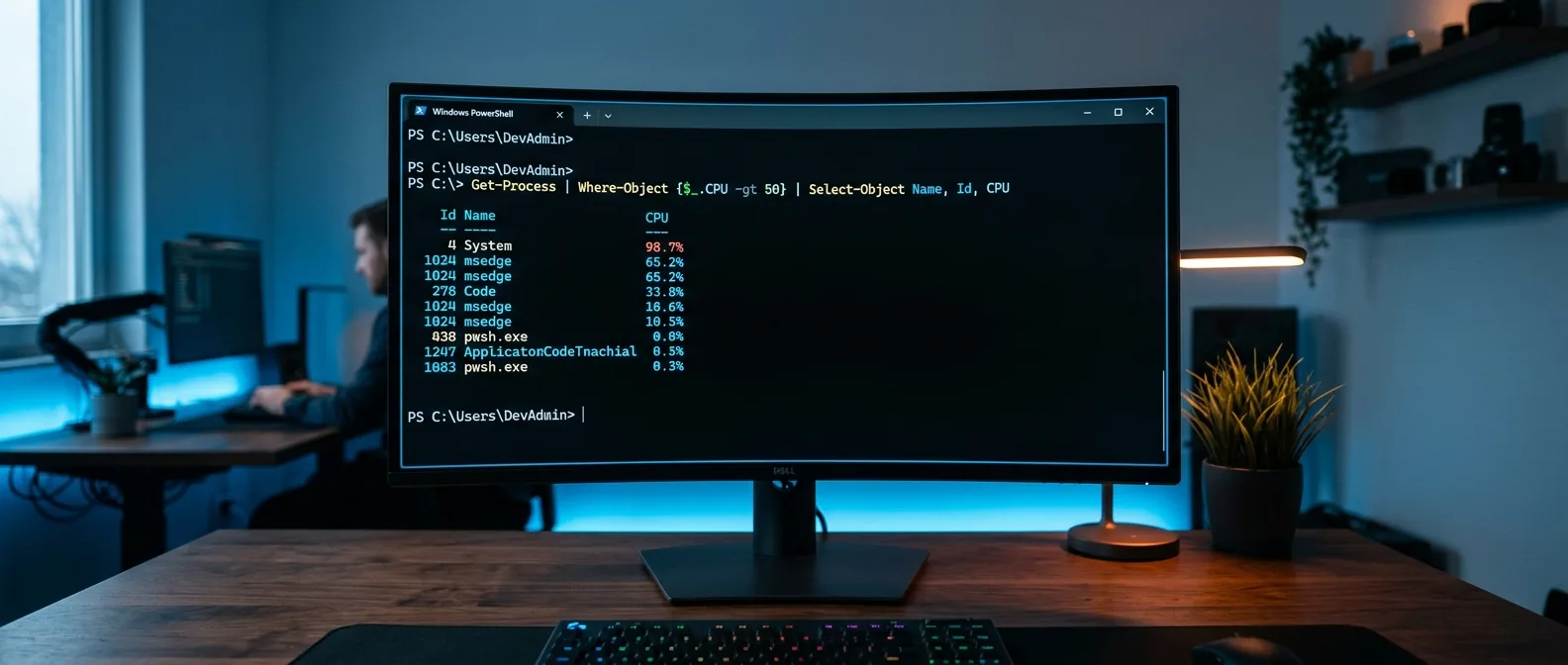
The fourth command is Get-Process combined with filtering and export functions. This gives you x-ray vision into what's happening on your system.
Instead of clicking through Task Manager trying to figure out which process is eating RAM, you can write one line that delivers a detailed report in CSV format.
Get-Process | Sort-Object WorkingSet -Descending | Export-Csv ProcessReport.csv
This command sorts all running processes by memory usage and exports them to a spreadsheet. You can spot patterns, identify memory leaks, track performance over time.
Express Network Monitoring
Test-Connection with scripted loops can monitor your internet connection and log outages. If you work from home and have WiFi issues, such a script gives you concrete data to discuss with your internet provider.
You can also check if specific websites or services are available, measure response times, even send notifications when something goes wrong.
🎯 Frequently Asked Questions
Is it safe to run scripts I find online?
Not automatically. Always read the code first and understand what each line does. PowerShell has execution policies that protect against malicious scripts, but your first defense is understanding.
What if I make a mistake and delete something important?
PowerShell doesn't send files to the Recycle Bin like File Explorer. Always backup and test commands on test folders first. Use the -WhatIf parameter to preview results.
Can I use PowerShell on Mac or Linux?
Yes! PowerShell Core is cross-platform and works on all major operating systems. Many commands are identical, though some Windows-specific functions don't exist.
PowerShell isn't just for system administrators. It's a productivity tool every Windows 11 user should have in their toolkit. The four commands we covered — winget, Get-ChildItem with pipelines, custom scripts, and process monitoring — can change how you interact with your computer. Give the blue terminal a chance, and you might discover that automation isn't just for geeks — it's for anyone who wants more free time.
Sources: