📖 Read more: Windows 11 January 2026 Update: Fix Boot Failures Fast
🚀 Why Windows Chokes on Single-Drive Setups
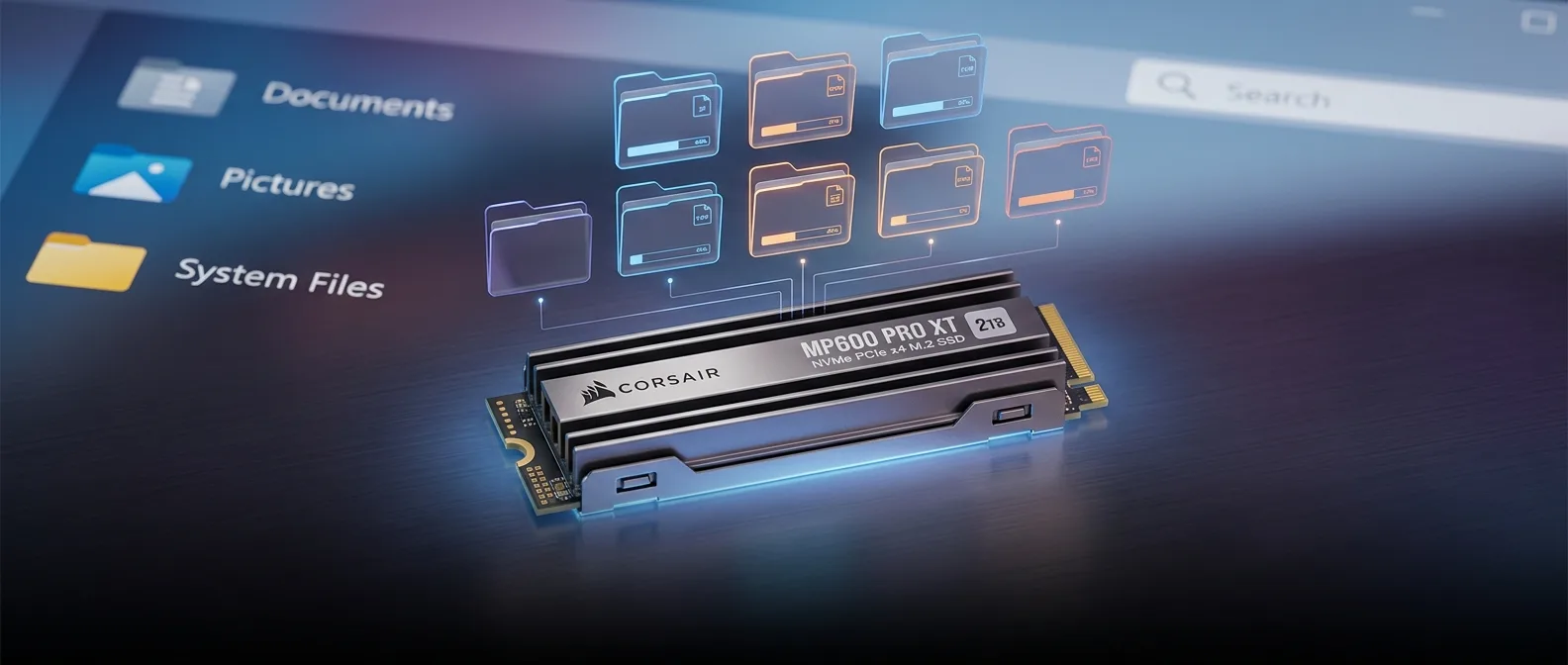
Windows 11 in 2026 handles resources brilliantly, but it has one hidden enemy: simultaneous disk activity. When your system tries to download updates, sync cloud files, generate thumbnails, and run applications from the same SSD, you get a bottleneck that no benchmark will reveal. The problem isn't drive speed — it's process collision. When Windows Explorer searches for images in Documents while Steam downloads a 50GB update and OneDrive syncs folders, everything waits in line. Your NVMe SSD becomes a traffic jam.⚡ The Migration That Actually Makes a Difference
Sounds simple in theory — in practice, there are details that make or break the result. The secret isn't copying folders but moving them properly through Windows' built-in tools.The Right Method (Built-in Windows Way)
Every user folder (Documents, Downloads, Desktop, Pictures) has a Location tab in its Properties. Right-click → Properties → Location → Move. This method preserves application references, permissions, and library mappings. The copy-paste approach you'll think of first is a trap. Applications will keep looking in C: and create new folders there. You'll end up with duplicates and confused programs.Registry Tweaks for Advanced Users
For those who aren't afraid of the Registry, the path HKEY_CURRENT_USER\SOFTWARE\Microsoft\Windows\CurrentVersion\Explorer\User Shell Folders holds the real locations. Here you can change paths in bulk, but one wrong letter and you'll be crying.📖 Read more: Windows 11 Virtual Desktops: Complete Work-Life Separation
🎯 Which Drive Setups Actually Make a Difference
Not all migrations are created equal. If you move folders from a fast SSD to a slow HDD, you'll get a slower PC — not faster.The Ideal Setup
**Primary drive (C:)**: NVMe SSD with Windows and applications **Secondary drive**: SATA SSD or second NVMe for user folders **Third option**: Large HDD for archives and backup If you only have one fast SSD, migration will give you space but not necessarily speed. If you have a dual-SSD setup, you'll feel the difference under load."The trick isn't having faster hardware — it's not making everything fight for the same hardware."
— Basic principle of system optimization
🛠️ Step-by-Step Windows Folder Migration
The process looks simple, but preparation determines the outcome.Preparation
1. **Backup first**: Don't skip this — shit happens 2. **Space check**: Calculate how many GB you're moving 3. **OneDrive pause**: Stop sync temporarily 4. **Close applications**: Anything with open files from the foldersThe Process
**Step 1**: Create structure on target drive (e.g., D:\Users\YourName\Documents) **Step 2**: Win + R → %HOMEPATH% to reach user folders **Step 3**: Right-click first folder → Properties → Location **Step 4**: Move → select new location → Apply **Step 5**: Wait for migration (can take minutes or hours)Time Frame
5-15 minutes for small folders, 2+ hours for TB of data. The bottleneck is the read speed of the old drive.
Common Pitfalls
Don't shut down during migration. Don't move the AppData folder — you'll break applications.
After Migration
Windows will update shortcuts and library paths automatically. Most programs will work normally, but some might need reconfiguration.📖 Read more: Windows Repair Toolbox: Free Tool for Instant PC Diagnosis
📊 What Actually Changes in Practice
The difference doesn't show in synthetic benchmarks — it shows in daily use. When you download files while browsing photos, the system doesn't freeze.Measurable Improvements
- **Boot time**: Stays the same (Windows loads from same SSD) - **File operations**: 2-3x faster under load - **Multitasking**: Fewer freezes during downloads/syncing - **Free space**: More room on system drive⚠️ Problems Nobody Mentions
It's not all roses. There are edge cases that can bite you if you don't know about them.Hard-coded Paths
Some older applications (especially games) hardcode paths like C:\Users\Username\Documents. After migration they can't find their saves. Solution: symlinks or manual reconfiguration.Drive Letter Changes
If the target drive changes letters (e.g., from D: to E:), everything breaks. On desktop systems this rarely happens, but on laptops with external drives it's a risk.Cloud Sync Confusion
OneDrive, Google Drive, Dropbox — all need to reconfigure for new locations. OneDrive especially complains and wants complete reinstall in some cases.The Rollback Option
If you regret it, the process reverses. Location tab → Restore Default. But some apps might have already created local folders — manual cleanup required.🎯 Frequently Asked Questions
Can I move just the Downloads folder?
Yes, and it's the best place to start. Downloads is usually the "dirtiest" folder — torrents, installers, temporary files. Moving it first shows immediate results.
What if I only have one SSD?
You won't see speed boost, but you'll organize your space better. Only worth it if C: drive is very full or you have specific organization needs.
Does this affect backup?
Most backup tools (File History, third-party solutions) will need reconfiguration to point to new locations. Worth checking after migration.
Moving Windows user folders isn't a magic bullet, but it's one of the few free optimizations that delivers measurable results. On the right setup — dual SSD system with one drive relatively full — the difference is noticeable from day one. The trick is doing it right the first time, because Windows doesn't forgive rushed jobs.Sources: