Five seconds. That's how long it took for a webpage to load on my fresh Windows 11 installation. I switched browsers, tried a third option — same sluggish result. Everything felt slow, like the system was waiting for something behind the scenes.
The problem wasn't the browser. It was the operating system itself — specifically, how Windows 11 handles DNS queries. One buried setting changed everything: **DNS over HTTPS**. Not only did pages load faster, but they became more secure too.
📖 Read more: Windows 11 Annoying Features: 9 Tricks for Clean Desktop
🔍 Why You're Looking in the Wrong Place
Most people fix DNS in the wrong spot — inside their browser. They enable DNS over HTTPS in Chrome or Firefox and think they're done. Big mistake. Windows 11 runs a service called DNS Client service (Dnscache) that handles all DNS lookups at the operating system level. It's completely independent of browser settings. Even if you enable DoH in Chrome, every other app — Teams, Slack, Windows Update — continues sending unencrypted DNS queries. What does this mean in practice? Your browser might be secure, but the rest of your system remains exposed. It's like locking your front door while leaving every window wide open.
Run a DNSLeakTest and you'll see the difference — your browser might show as encrypted while other applications leak plain-text DNS queries. In 2026, this shouldn't be happening.
📖 Read more: Windows 11 Smart App Control: Hidden Security That Blocks Malware
⚙️ How to Enable Windows 11's Hidden DNS over HTTPS
The setting is buried deep in Windows Settings, but once you find it, the process is straightforward. Let's walk through it step by step.For Wi-Fi connections:
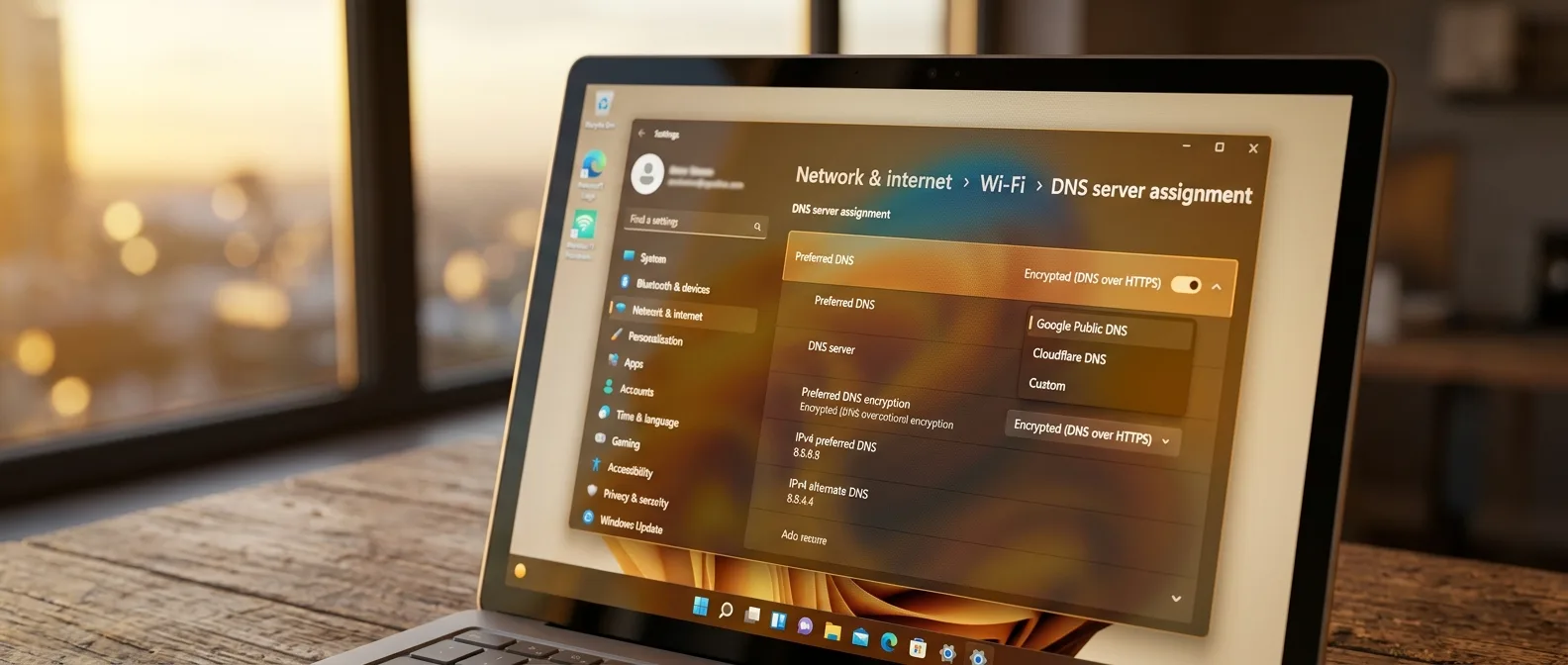
Open **Settings** and navigate to **Network & Internet > Wi-Fi**. Click on your active connection (not the "Properties" button at the top — that's a trap). On the page that opens, select **"Hardware Properties"**. Scroll down until you find **"DNS Server Assignment"** and click the **"Edit"** button. From the dropdown menu, select **"Manual"** and enable **IPv4**. Now comes the critical part — choosing your DNS server: 1.1.1.1 Cloudflare - Fastest
8.8.8.8 Google - Easy setup
9.9.9.9 Quad9 - Malware protection
The magic option:
In the **"DNS Over HTTPS"** dropdown, select **"On (automatic template)"**. This is the setting that makes all the difference — it encrypts every DNS query from your system. For Ethernet connections, the process is identical, just select "Ethernet" instead of "Wi-Fi" in the first step.🚀 What Actually Changes After Enabling DoH
After enabling DNS over HTTPS, the improvements were immediate but subtle. Cold-cache page loads became noticeably faster. Using the nslookup tool, the reduction in DNS lookup times was just a few milliseconds — but they add up. DNSLeakTest confirmed that all applications now use encrypted DNS. Not just the browser.The privacy angle:
Your ISP can no longer see which domains you visit. Combined with Encrypted Client Hello (ECH) support in modern browsers, the encryption becomes even more effective.Think of it as an invisible shield protecting every DNS request from your system — not just what your browser sends.
From a tech reviewer who's used this technique for 2+ years
📖 Read more: Windows 11 File Transfer Speed: 7 Ways to Triple Performance
🔧 Advanced Options and Troubleshooting
If you want more control, there's also the **"On (manual template)"** option. This lets you add custom DoH URLs — useful for self-hosted resolvers or services like NextDNS that offer system-wide ad blocking. To ensure everything works correctly, run this in Command Prompt: ``` ipconfig /flushdns ``` This clears old cached queries that might still be sent as plain text.VPN conflicts:
Watch out if you use a VPN — some services might conflict with DoH if both try to handle DNS. Usually the VPN wins this battle. If you notice connectivity issues, double-check that you've typed the IP addresses correctly. One wrong digit and everything stops working.📖 Read more: 5 Hidden Windows 11 Settings for Instant PC Speed Boost
📊 Which DNS Resolver to Choose
The resolver choice makes a huge difference. They're not all created equal.Cloudflare (1.1.1.1)
Fastest option for most users. Usually under 20ms latency. No logging. Good for balanced speed + privacy.
Google (8.8.8.8)
Similar speed to Cloudflare, but keeps IP addresses for 48 hours. Good if you're already in the Google ecosystem.
Quad9 (9.9.9.9)
Offers malware blocking without logging. Speed is slightly lower (~25ms), but the protection is worth it.
🎯 Why This Setting Changes Everything
DNS over HTTPS in Windows 11 isn't just a technical improvement — it's a fundamental change in how your system communicates with the internet. Before this setting, every time you opened an app — even Spotify — your system sent plain text DNS queries. Anyone monitoring network traffic could see exactly which services you used. Now everything is encrypted. Beyond the privacy benefits, there's practical improvement — less delay in DNS lookups means faster loading for websites and applications. It's one of those settings that after a while you wonder why it's not enabled by default. Until Windows makes it default — which could take years — it's worth enabling yourself. Five minutes of setup for years of better browsing experience.Sources: