Microsoft has invested heavily in Windows 11 productivity features, and virtual desktops might be its most overlooked tool. As 2026 finds more professionals working hybrid schedules — bouncing between office and home — the need for digital separation becomes critical.
Most Windows 11 users completely ignore the Task View button on their taskbar. That's a mistake. Behind that innocuous icon lies one of the most powerful multitasking features Microsoft has ever built.
🖥️ How Windows 11 Virtual Desktops Actually Work
The concept is simple: create separate work environments on the same computer. Each virtual desktop functions like an independent space with its own apps, windows, and even different wallpapers.
To activate the feature, click the Task View icon (or press Windows + Tab). From there, "New desktop" instantly creates a fresh virtual desktop. Alternatively, Windows + Ctrl + D does the same job without opening the Task View menu.
Pro Tip: If you don't see the Task View icon in your taskbar, go to Settings > Personalization > Taskbar and enable the "Task view" option.
The magic happens when you understand the philosophy behind separation. Instead of cramming all your apps into one chaotic space, Desktop 1 might host only work applications (Microsoft Teams, Excel, Outlook), while Desktop 2 stays dedicated exclusively to personal activities (Spotify, Netflix, gaming platforms).
Visual Separation That Actually Works
Windows 11 allows different wallpapers for each virtual desktop — and this isn't just aesthetic trickery. It's psychological programming. When you see a specific background, your brain prepares for the tasks associated with that space. Work with corporate wallpaper, relaxation with something more casual.
To change a virtual desktop background, right-click on it in Task View and select "Choose background". Settings automatically opens to the correct tab.
⚡ PowerShell Automation for Seamless Switching
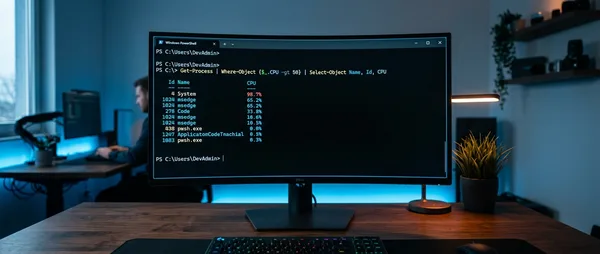
PowerShell changes everything. While virtual desktops solve the visual separation problem, manually closing and opening dozens of applications remains tedious. Enter PowerShell.
You can write scripts that completely automate the transition from work to personal mode. A work-start script might open specific browser profiles, launch Microsoft Teams or Slack, and simultaneously terminate gaming launchers or social media apps using the Stop-Process command.
Work Mode Start
Script that opens work applications and closes personal ones
Work Mode End
Reverse process — closes corporate tools, opens entertainment
Learning basic PowerShell commands takes time, but it requires adjusting execution policies to run local scripts safely. The initial time investment pays dividends in daily efficiency.
Practical Script Example
A simple PowerShell script can close all applications ending in "-game" or "-entertainment" and open specific work applications. The reverse script does exactly the opposite process at day's end.
🕒 Task Scheduler: Digital "Office Closing Time"
The next level of automation involves Windows Task Scheduler. Instead of relying on your own discipline, you program the computer to automatically respect your schedule.
Create a basic task that triggers at 9:00 AM, Monday-Friday, and executes your work-mode PowerShell script. The moment your shift begins, the computer closes personal applications and opens the professional environment. No compromise, no "just a little longer".
The corresponding task at 5:00 PM does the reverse process — ruthlessly terminates all work applications and activates personal mode. It's like physically closing the office door.
This forced termination works exceptionally well for remote workers who struggle to disconnect. You no longer need to consciously decide to stop checking emails — the operating system simply removes those tools from the active screen when scheduled hours end.
🎯 Shortcuts and Navigation Tricks
The speed of switching between virtual desktops determines whether you'll use this feature regularly or abandon it. Windows 11 offers several navigation methods:
Windows + Ctrl + arrows (left/right): Instant desktop switching without opening the Task View menu. This is the fastest method.
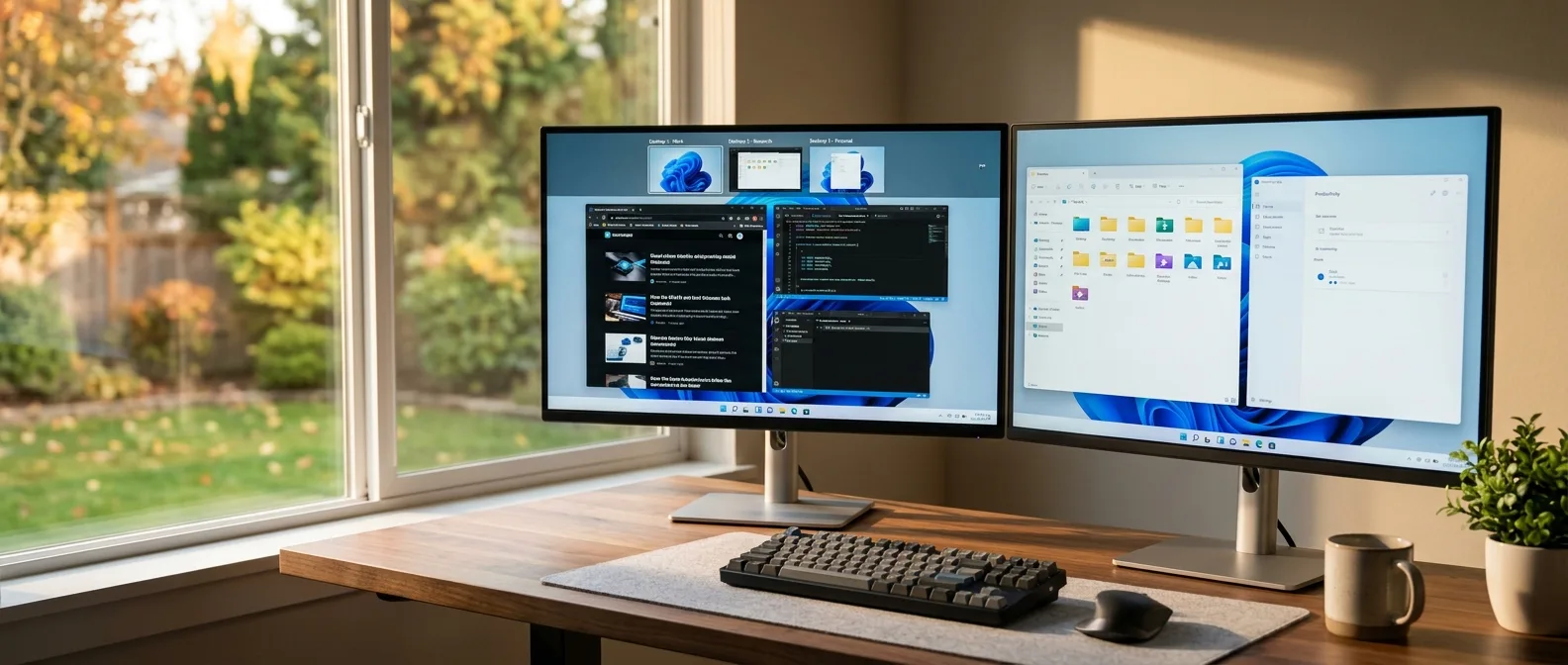
Windows + Tab: Opens Task View with previews of all virtual desktops. Useful when you have more than two desktops and want to see what's running on each.
Task View hover: Simply place your cursor over the Task View icon for quick preview without clicking.
Warning: If you use many virtual desktops, you might lose track of what's running where. Use descriptive names and different wallpapers for each desktop.
Customization and Settings
Each virtual desktop can have its own name — just right-click in Task View and select "Rename". Something like "Work", "Personal", "Gaming", or "Side Projects" makes a difference when you have 3-4 active desktops.
Windows 11 also allows drag-and-drop of applications between virtual desktops. If an app is on the wrong desktop, simply drag it from Task View to the desired destination.
🔧 Limitations and Alternative Solutions
Despite Microsoft's progress, Windows 11 virtual desktops aren't perfect. You can't set an application to always open on a specific desktop, nor have different settings per desktop in multi-monitor setups.
For more advanced needs, Microsoft PowerToys offers FancyZones — a window manager that enables complex layouts and custom snap zones. It's ideal for users who want precise control over application arrangement.
The psychological impact of visual separation is underestimated. When you change desktops, you mentally change states too.
— Productivity Study, Stanford HCI Lab
Other useful additions include pinning frequently used applications to the taskbar (right-click from Start menu > Pin to Taskbar) and using Clipboard History (Windows + V) for copying text between desktops.
📈 Measurable Benefits in Daily Life
After implementing a systematic workflow with virtual desktops, results become immediately apparent. Context switching decreases dramatically — you don't need to minimize/maximize dozens of windows to find what you're looking for.
Notifications become less disruptive. When working on the work desktop, you won't see notifications from gaming platforms or social media. Conversely, when relaxing, work emails remain "hidden" on the inactive desktop.
Mental decompression is equally important. The fact that you can completely "leave" the work environment with a keyboard shortcut creates psychological closure that many remote workers lack.
The Minimal Desktop Strategy
An effective strategy is maintaining one "clean" desktop with no open applications. This functions as a neutral zone between work and personal activities. Its only purpose is reminding you that you can "escape" from everything when you need a break.
🚀 The Future of Virtual Workspaces
Microsoft isn't stopping here. Future Windows updates are expected to bring per-desktop wallpaper animations, better multi-monitor support, and possibly even AI-powered suggestions for application organization.
Meanwhile, third-party developers are creating tools that extend virtual desktop capabilities. From automatic application grouping to time-based desktop switching, the ecosystem around this feature is growing.
In 2026, with hybrid work becoming more norm than exception, such productivity tools shift from "nice to have" to "essential". Companies investing in better digital workspace tools see measurable improvements in employee satisfaction and performance.
Windows 11 virtual desktops aren't a magic cure for all productivity problems. But they're a powerful tool that, when used systematically and combined with other organization techniques, can fundamentally change how you interact with your computer. Maybe it's time to stop ignoring that little button on your taskbar.
Sources: