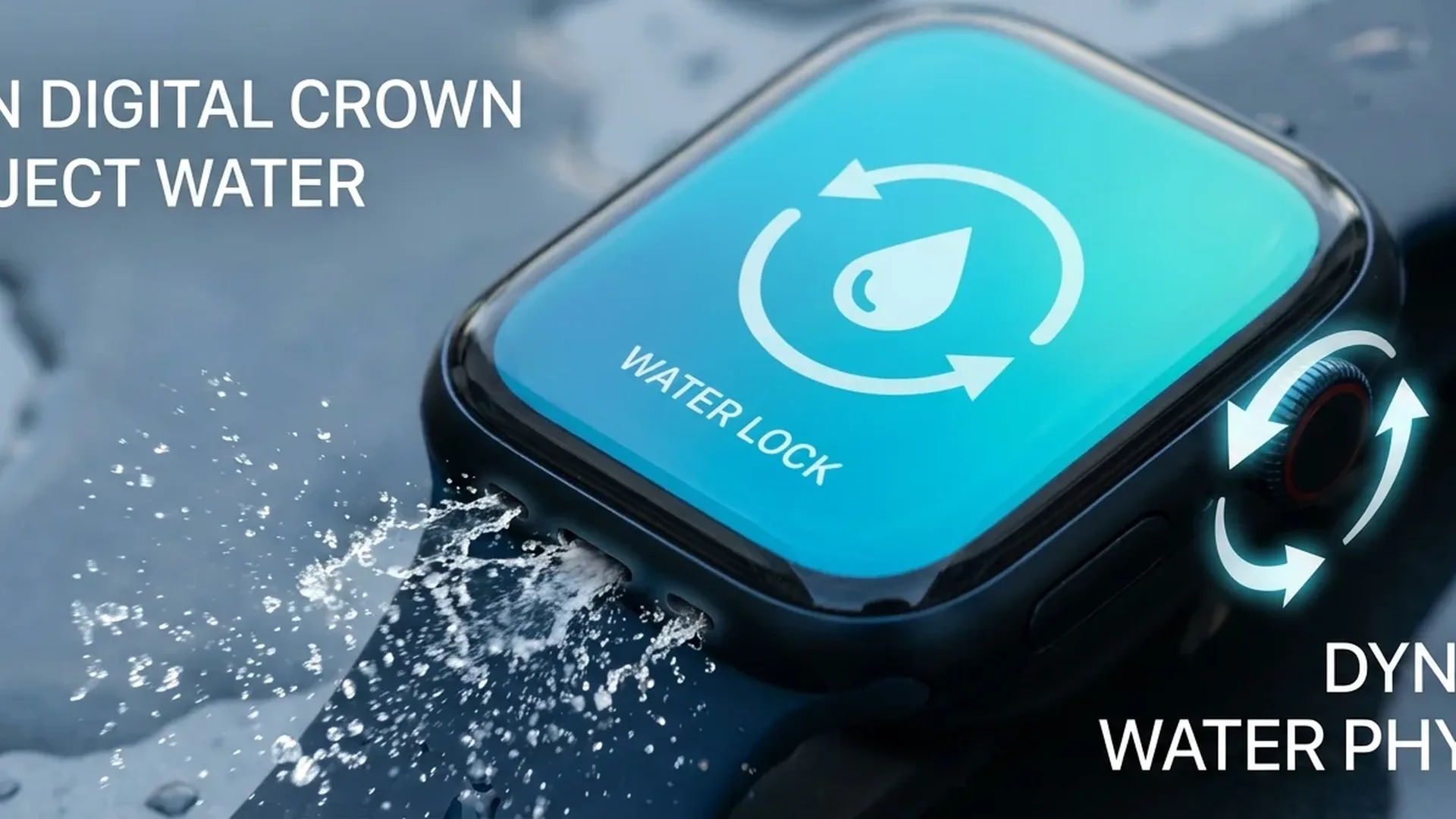
Water Lock is one of the most practical features on the Apple Watch for anyone who swims, showers, or spends time around water. It locks the touchscreen to prevent accidental taps, and when you turn it off, the watch uses sound waves to expel water from its speakers. In this complete guide, you will learn exactly how Water Lock works, how to enable and disable it, which activities are safe, and how to properly care for your watch after every encounter with water.
📖 Read more: Apple Watch Swimming: What It Tracks in Water
What Is Water Lock
Water Lock is a dedicated feature that locks the Apple Watch touchscreen, preventing any accidental input while the watch is in contact with water. The screen remains on and continues to display information, but it ignores all touch input completely. This means you will not accidentally launch an app, send a message, or change settings while swimming or showering.
The feature first appeared in 2016 alongside watchOS 3 and the Apple Watch Series 2, which was the first model with genuine WR50 water resistance. Since then, Water Lock has been a core feature of every Apple Watch, and it has become considerably more reliable and efficient over the years. As of February 2026, the water ejection mechanism is faster and more effective than ever on the latest models.
How to Enable Water Lock
Manual activation via Control Center
The fastest way to activate Water Lock is through the Control Center. Press the Side Button on watchOS 11 and later, or swipe up from the bottom of the screen on older versions. Look for the water drop icon and tap it. A blue water drop icon will immediately appear at the top of the display, confirming that Water Lock is active and the screen is locked against touch input.
Automatic activation during swim workouts
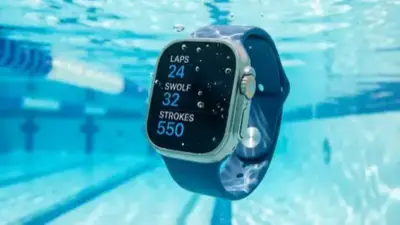
When you start a Pool Swim or Open Water Swim workout, Water Lock activates automatically without any action on your part. The moment you tap “Start Workout,” the screen locks and the watch begins tracking your swim data — laps, distance, calories, and even your stroke type. You do not need to think about enabling Water Lock separately when you swim through the Workout app.
Pro Tip
Swimming in the ocean, a lake, or any open body of water? Choose “Open Water Swim” instead of “Pool Swim.” Open water mode uses GPS to track your distance, while pool mode relies on the accelerometer and the pool length you set (typically 25 or 50 metres).
How to Unlock — The Water Ejection Process
To disable Water Lock, turn the Digital Crown — the round dial on the side of the watch. Rotate it slowly or press and hold until you feel a haptic vibration and hear a distinctive sound. That sound is not merely a notification — it is the actual water ejection mechanism at work.
The Apple Watch speaker produces sound waves at a specific frequency that physically push water out through the speaker grille. You can actually see tiny droplets being ejected from the watch during this process. The sound lasts a few seconds, and once the ejection is complete, the screen unlocks automatically and you can use the watch normally.
📖 Read more: Double Tap: Complete Gesture Guide
If you suspect water remains in the speakers — for example, if audio sounds muffled — simply repeat the process. Activate Water Lock again, then unlock it by turning the Digital Crown. You can also gently tap the watch with the speaker facing down against a soft surface to help dislodge trapped water.
Water Resistance by Model
Each Apple Watch model offers different levels of water resistance. As of February 2026, here is what you need to know:
- Apple Watch Series 11: WR50 — rated for pressure equivalent to < 50 metres depth, suitable for pool swimming and shallow-water activities
- Apple Watch Ultra 3: WR100 + EN13319 certification — rated for < 100 metres depth, suitable for recreational diving with a compatible depth app
- Apple Watch SE 3: WR50 — same baseline water resistance as the Series lineup
What does WR50 actually mean in practice? The rating refers to static water pressure in laboratory conditions. In real-world use, the watch is safe for swimming, showering, and rain, but it is not suitable for scuba diving or high-velocity water exposure. Dynamic forces from fast movement or impacts can exceed the rated pressure, even at shallower depths.
Safe Activities with Water Lock
With Water Lock enabled, the following activities are completely safe for your Apple Watch:
- Pool swimming: The watch automatically tracks laps, time, calories, and recognises stroke types — freestyle, breaststroke, backstroke, butterfly
- Ocean or lake swimming: Use the Open Water Swim workout for GPS-based distance tracking
- Showering: You can absolutely shower with your Apple Watch. Enable Water Lock beforehand to avoid accidental taps from water droplets
- Rain: No need to activate Water Lock — the watch handles rain without any issue
- Snorkelling: Shallow snorkelling is fine with any Series model. For deeper snorkelling, the Ultra is the safer choice
Activities to Avoid
Despite the water resistance rating, certain activities pose a risk to the watch seals:
- Water skiing and jet skiing: High-velocity water creates dynamic pressure far exceeding WR50 limits. A direct water impact at speed can breach the seals
- Deep scuba diving: Only the Ultra supports recreational diving down to < 40 metres with a depth app. All other models are not rated for diving
- Sauna and steam rooms: High temperatures and steam can degrade the rubber seals over time, compromising water resistance
Important
Water resistance is not a permanent condition. Over time, drops, impacts, and normal wear can reduce the effectiveness of the seals. Apple does not cover water damage under the standard warranty. AppleCare+ offers better protection, but prevention remains the best strategy.
📖 Read more: Apple Watch Mindfulness App: Breathing & Calm Guide 2024
After-Swim Care
Proper post-swim care significantly extends the life of your Apple Watch. Follow these steps after every swim session:
- Rinse with fresh water: Always rinse the watch with clean (non-salty) water after ocean swimming. Salt corrodes metal components and can clog the Digital Crown
- Air dry naturally: Let the watch dry at room temperature. Never use a hair dryer, compressed air, or any heat source
- Clean the Digital Crown: Hold the Crown under running fresh water and rotate it several times. This removes any salt, sand, or debris that may have entered the mechanism
- Avoid chemical exposure: Soap, shampoo, sunscreen, and lotions can degrade the rubber seals. Rinse them off immediately if they come into contact with the watch
"Apple Watch water resistance was designed for real-world everyday conditions — swimming, rain, showering. It does not replace a professional dive computer, but for the vast majority of users, it offers confidence in every interaction with water."
— Jeff Williams, COO AppleHow Water Lock Affects Notifications
With Water Lock active, notifications still arrive on the watch. You will feel haptic feedback for incoming alerts, but you cannot open, dismiss, or interact with any notification until you unlock the screen. This is intentional — it prevents water droplets on the display from registering as unintended taps that could open apps or respond to messages.
During a swim workout, the screen displays real-time stats (time, distance, current lap, pace) but does not accept touch input. To pause or end a workout, press the Digital Crown and Side Button simultaneously.
Does Water Lock Drain Battery?
No. Water Lock does not consume additional power. In fact, because it disables the touch sensor, it may theoretically save a tiny amount of energy. The main battery drain during swimming comes from the heart rate sensor and GPS tracking, not from the Water Lock feature itself.
📖 Read more: Apple Watch and Life Insurance: How Exercise Saves You Money
History of Apple Watch Water Resistance
The evolution of water resistance across Apple Watch generations tells a compelling story:
- 2015 — Apple Watch (1st generation): IPX7, splash-resistant only. No Water Lock feature
- 2016 — Series 2: WR50, introduction of Water Lock, first truly swim-proof model
- 2017-2021 — Series 3 through 7: Maintained WR50 with incrementally improved seals and speakers
- 2022 — Ultra: WR100 + EN13319, the first time an Apple Watch qualified as a dive instrument
- 2024-2026 — Series 10/11, Ultra 2/3: Improved durability, faster and more efficient water ejection
Third-Party Swimming Apps
Beyond Apple's built-in swim workouts, several excellent third-party apps offer enhanced tracking:
- Swim.com: Detailed swim analytics, stroke technique analysis, workout sharing with a community of swimmers
- MySwimPro: Personalised training plans, technique videos, full integration with Apple Health
- Swim Today: Simple lap logging with a clean, minimal interface
Pool Swim vs Open Water Swim
The two swim modes differ significantly in how they measure distance. Pool Swim requires you to set a pool length (25 or 50 metres) and counts laps using the accelerometer. It automatically detects stroke type. Open Water Swim uses GPS for distance tracking, but accuracy can vary depending on arm position during each stroke — the GPS only receives a signal when your wrist breaks the surface.
Frequently Asked Questions
Can I use Water Lock in the shower?
Yes, absolutely. Water Lock works perfectly in the shower. Enable it before you step in to prevent accidental taps from water droplets. Just be careful not to leave soap or body wash on the watch — rinse it thoroughly afterwards.
What if water remains in the speakers?
If audio sounds muffled after the water ejection process, repeat the cycle — activate Water Lock again and unlock it by turning the Digital Crown. You can also gently tap the watch with the speakers facing down. If needed, leave the watch at room temperature for several hours to dry naturally.
Which models support Water Lock?
Water Lock was introduced with the Apple Watch Series 2 in 2016. Every model since then — Series 3 through Series 11, SE, Ultra, Ultra 2, and Ultra 3 — fully supports it. The original Apple Watch (1st generation) did not have Water Lock.
Do I need Water Lock for rain?
Not necessarily. In light or moderate rain, droplets typically do not cause problems. However, in very heavy rain, enabling Water Lock can prevent unwanted screen interactions.
How much does water damage repair cost?
Apple does not offer a standalone seal repair service. If the watch sustains water damage outside warranty, replacement can cost < 350€ depending on the model. With AppleCare+ (starting at < 79€), accidental damage coverage is significantly more affordable.
Can I take underwater photos?
Not directly through the Apple Watch, as Water Lock disables the touchscreen. You can, however, use the watch as a remote Camera shutter for iPhone — but only while out of the water, before or after your swim.