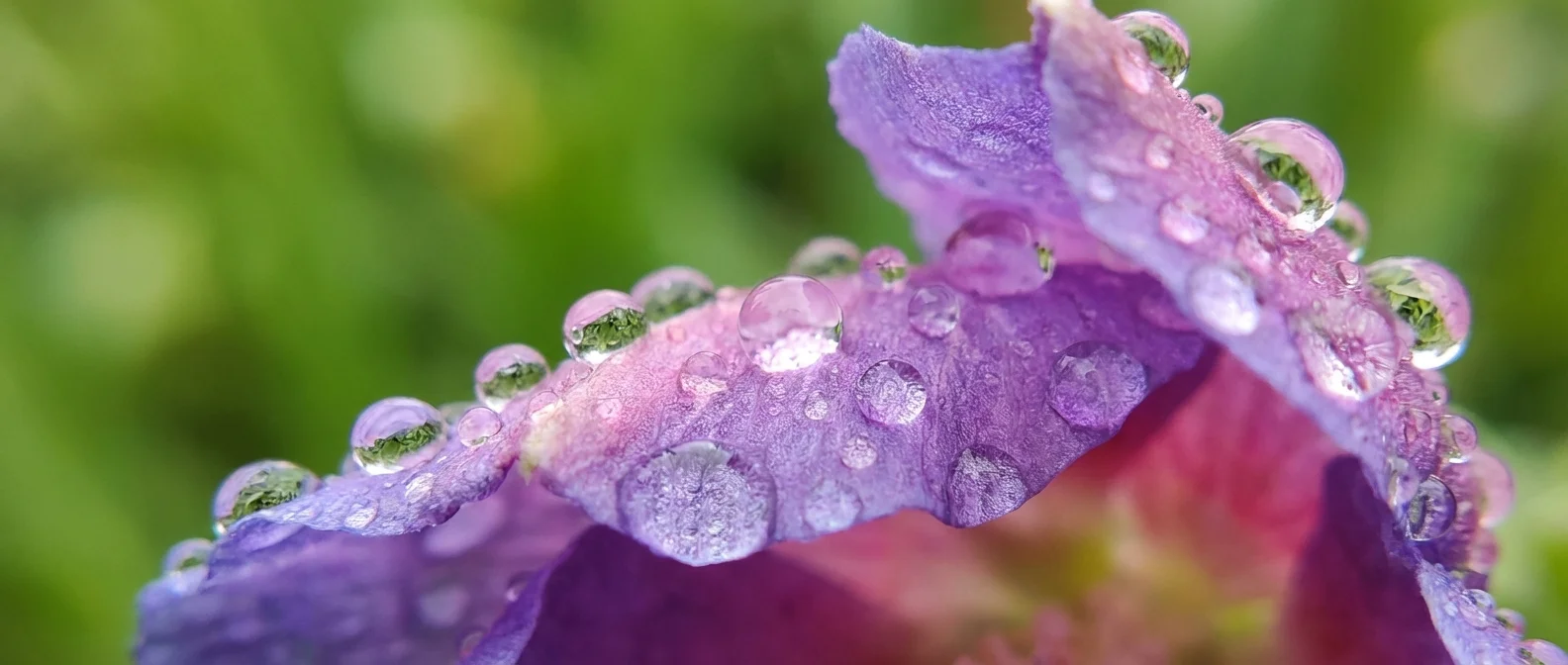
The tiny world is stunning — and your iPhone gives you access to it without an external lens. With automatic macro mode, you can photograph flowers, insects, textures, and water droplets in incredible detail, from as close as 2 centimeters away.
📖 Read more: iPhone 17 Pro 8× Zoom: Is the Telephoto Worth It?
How Macro Works on iPhone
When you get close to a subject, the iPhone automatically switches to the ultra wide lens for macro. The minimum focus distance is just 2cm from the subject. Macro mode is supported on iPhone 13 Pro and all later Pro models, as well as the iPhone 16 (the first non-Pro model with a 48MP ultra wide and macro). No external lens needed — just open the Camera app in Photo Mode and get close to your subject.
Macro Control — Manual Override
By default, macro switching happens automatically. If you want to control when it activates, go to Settings → Camera → Macro Control. Once enabled, a flower icon appears in the camera when you're within macro range. Tap it to disable auto-switching. For a permanent setting, also enable Preserve Settings so the camera remembers your choice.
📖 Read more: 10 iPhone Camera Tricks Nobody Knows About
Best Subjects for Macro
Flowers and Plants
Petal details, dew drops, and leaf veins make stunning subjects. Shoot early in the morning when there's natural dew, or lightly mist with a spray bottle for artificial droplets.
Insects
Bees, butterflies, and ants look incredible in macro. Use burst mode (hold down the shutter button) because insects move fast. Stability is key — brace your elbows or use a tripod.
📖 Read more: iPhone 17 Pro: 10 Tips for Professional Photography
Water Drops & Textures
Drops on leaves, metallic surfaces, fabric — the tiny world is everywhere. Even everyday objects (coins, keyboard, wood) reveal stunning textures in macro.
7 Techniques for Perfect Macro Photos
- Lock focus (AE/AF Lock) — long-press the focus point until the indicator appears. Prevents autofocus from jumping elsewhere
- Natural light — your best ally. Avoid the flash which creates harsh shadows at such close range
- Diffuser — a white sheet of paper in front of the light softens shadows
- Clean background — clutter is distracting. Move the subject or change your angle
- Tripod — at this magnification, the slightest movement shows. A mini tripod (~€15-25) makes a huge difference
- Don't get too close — below 2cm, the image blurs. Crop in editing instead of getting too near
- Shoot in ProRAW — on Pro models, ProRAW gives much more editing latitude for contrast, colors, and sharpness
📖 Read more: iPhone vs DSLR 2026: Which Camera Actually Wins?
Editing Macro Shots
In the Photos app, use crop to focus on the subject. Increase sharpness to bring out details. Play with contrast and saturation for more vivid colors. For advanced editing, apps like Snapseed (free) or Lightroom Mobile offer levels, curves, and selective adjustments.
"Macro photography teaches you to see the world differently. Every surface hides an entire universe of details."
— Shotkit, iPhone Macro Photography GuideSources:
📖 Read more: Portrait Mode iPhone 2026: Tips for Perfect Portraits
Shotkit — Essential iPhone Macro Photography Tips for Beginners