📸 1. Enable ProRAW & HEIF Max for Maximum Quality
The first move of any serious photographer is to go to Settings → Camera → Formats and select Apple ProRAW. Unlike HEIF, ProRAW retains all sensor data — dynamic range, color depth, shadow detail — giving you incredible freedom in post-processing. If you don't need RAW, the alternative HEIF Max (48MP) gives you full resolution at a much smaller file size.
💡 Pro Tip: A 48MP ProRAW file takes up ~75MB. If you shoot intensively, make sure you have enough storage space or use iCloud Photos for automatic backup.
🎯 2. Leverage the Full 48MP Resolution
The iPhone 17 Pro shoots by default at 24MP (pixel-binning) for better low-light performance. However, in good lighting conditions, you can enable the full 48MP from the camera settings. This gives you enormous cropping headroom without losing detail — ideal for architecture, landscapes, and product photography.
Go to Settings → Camera → Formats → Resolution Control and select 48MP as the default for the main lens. Remember: 48MP only works on the main 1x lens.
🎨 3. Photographic Styles: Create Your Own “Film Look”
Photographic Styles are not just filters — they are applied in real-time at the sensor level and preserve natural skin tones while changing other colors. On the iPhone 17 Pro, you can manually adjust Tone and Warmth, creating a unique look that makes your photos instantly recognizable.
🌅 Rich Contrast
Ideal for landscapes and street photography. Enhances shadows and highlights, adding dramatic depth to your images.
🌸 Vibrant
Perfect for food, nature, and lifestyle photography. Boosts colors without making them overly saturated.
🏛️ Cool Tone
Gives a cinematic feel, ideal for architectural photography and urban landscapes.
🎞️ Warm Tone
Excellent for portraits and golden hour. Adds warmth and an inviting character to your images.
🌙 4. Night Mode: Master Night Photography
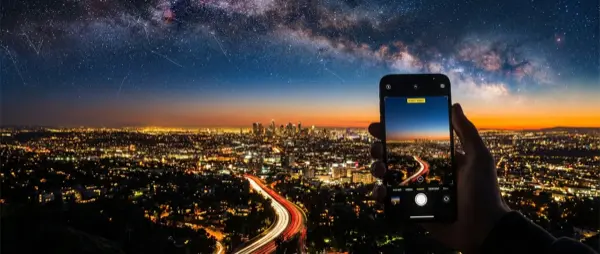
Night Mode on the iPhone 17 Pro activates automatically in low light, but you can control it manually for even better results. Tap the Night Mode icon (yellow moon) and increase the exposure time to 3–10 seconds for incredible detail in the dark.
The secret? Stability. Rest your phone on a stable surface or use a tripod. With a 10-second exposure and a tripod, the iPhone 17 Pro captures night photos that rival those of far more expensive cameras.
⚠️ Warning: Avoid using flash in night shots — it destroys the atmosphere and creates harsh shadows. Let Night Mode do its job!
👤 5. Portrait Mode: Control the Depth of Field
Portrait Mode on the iPhone 17 Pro isn't just for faces. You can use it on objects, food, flowers — anything you want to stand out from the background. The f-number is now adjustable after the shot: tap Edit → Depth and slide from f/1.4 (maximum blur) to f/16 (everything in focus).
For the most realistic portraits, use the 2x lens (48mm) — it simulates a classic portrait lens and reduces facial distortion compared to the wide-angle.
🔍 6. Macro Photography: Discover the Micro World
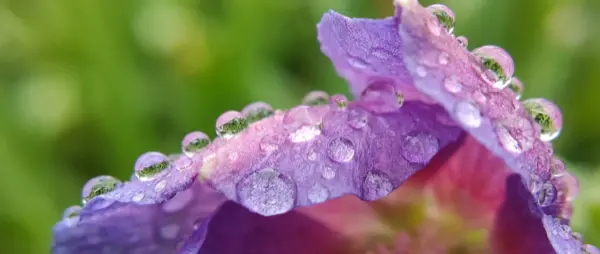
The ultra-wide lens on the iPhone 17 Pro focuses as close as 2cm from the subject, revealing details invisible to the naked eye. Get close to flowers, insects, fabric textures, or water droplets and you'll be amazed by the results.
To control when macro mode activates, go to Settings → Camera → Macro Control. A flower icon will appear whenever macro is activated, giving you the option to turn it off if you don't want it.
"The best camera is the one you always have with you. And with the iPhone 17 Pro, that camera is truly exceptional."
⏳ 7. Long Exposure: Create Magical Images
One of the most impressive tricks of the iPhone 17 Pro is the ability to create Long Exposures via Live Photos. Take a Live Photo of a waterfall, river, or car traffic at night, open it in the Photos app, swipe up, and select "Long Exposure". The result? Silky smooth water and light trails that look like they came from a DSLR.
For even better results, use a tripod and third-party apps like Slow Shutter Cam that give you full control over exposure time.
🎬 8. ProRes Video & Cinematic Mode
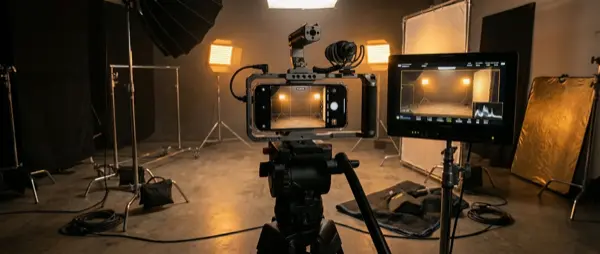
The iPhone 17 Pro records video in ProRes 4K at 120fps — a capability that until recently required cameras costing thousands of euros. ProRes is ideal for professional editing, as it maintains quality even after extensive post-processing.
Combined with Cinematic Mode, which now works at 4K 30fps, you can create videos with Hollywood-grade focus transitions. Rack focus happens automatically between faces, but you can tap anywhere in the frame for manual focus changes.
🏃 9. Action Mode: Stable Video on the Move
Running, biking, or chasing kids at the playground? Action Mode uses advanced image stabilization (OIS + EIS) to eliminate shake. Enable it by tapping the running person icon in the camera.
💡 Pro Tip: Action Mode requires good lighting because it slightly crops the image. In low light, the result can be noisy. Use it mainly outdoors.
📐 10. Rule of Thirds & Grid Overlay
The simplest way to dramatically improve your composition: enable the Grid in Settings → Camera. Place the key elements of your photo at the grid intersections (power points) instead of the center. This simple rule — the “rule of thirds” — makes a huge difference in the final result.
Also enable the Level to make sure the horizon is always straight — especially important in landscape and architectural photography.
🌅 11. Golden Hour: The Golden Hour of Photography
Professional photographers know it: natural light is the most important factor in an exceptional photograph. The “golden hour” — the 30–60 minutes after sunrise and before sunset — provides warm, soft light that literally flatters everything.
Use apps like Golden Hour One or Sun Surveyor to find the exact sunrise/sunset times in your area. Combined with the “Warm” Photographic Style, your photos will look otherworldly.
🏔️ 12. Panoramic Photos: Tricks for Perfect Results
The panoramic mode on the iPhone 17 Pro creates images with resolutions up to 63MP. For perfect results: hold the phone vertically (portrait orientation), move slowly and steadily, and avoid nearby objects that cause distortion. Little secret: you can move from right to left if you tap the direction arrow!
✏️ 13. Editing in the Photos App: Make the Most of Apple's Tools
Before rushing to third-party apps, explore the built-in editing tools in iOS. The Photos app delivers stunning results:
- Auto Enhance: One tap that automatically improves lighting, colors, and contrast
- Selective Color: Adjust individual color channels
- Curves: Full tonal range control — like professional Lightroom
- Vignette & Noise Reduction: Final touches that make the difference
- Copy/Paste Edits: Apply the same settings to multiple photos in bulk
💡 Pro Tip: Editing in Photos is always non-destructive. You can revert to the original photo at any time by tapping “Revert.”
📱 14. Third-Party Apps: Halide, ProCamera & Lightroom
If you want absolute control, there are third-party apps that turn the iPhone 17 Pro into a professional camera:
📊 Photography App Comparison
🌐 15. Spatial Photos & Camera Control Button
New on the iPhone 17 Pro: Spatial Photos capture spatial depth using LiDAR data and can be viewed in 3D via Apple Vision Pro. Even if you don't have a Vision Pro, it's worth enabling them — they are the “photo archive of the future.”
The Camera Control button on the side of the iPhone gives you quick access to key functions: one press opens the camera, a light swipe changes zoom or exposure, and a double press toggles between modes. Learn the gestures and you'll react instantly to every moment.
⭐ Bonus Tips: Small Details, Big Difference
🧹 Clean Lens
It sounds obvious, but a dirty lens ruins the photo before you even press the button. Wipe it with a soft cloth before every important shot.
🔒 AE/AF Lock
Long-press on the screen to lock exposure and focus. Ideal for scenes with high contrast lighting.
📏 Burst Mode
Swipe the shutter button to the left for a burst of photos. Perfect for sports events, kids, and animals in motion.
🔇 Volume Button
Use the volume buttons as a shutter button. More natural grip, less shake, just like a real camera.
"You don't need the most expensive gear for exceptional photos. You need knowledge, practice, and an iPhone 17 Pro in your pocket."
🛡️ Take Care of Your Photography Equipment
The iPhone 17 Pro is a serious investment — both as a smartphone and as a photography tool. To keep it in top condition:
- Use a case with lens protection — scratches on the glass affect your photos
- Avoid extreme temperatures that can affect the battery and sensor
- If the camera develops issues — blurring, OIS malfunction, or focus lag — don't ignore it
At OnOff.gr we handle iPhone camera repairs, lens replacement, sensor cleaning, and any hardware issue. Also, find photography accessories in our store — tripods, clip-on lenses, lighting, and lens protection cases for your iPhone 17 Pro.
📍 OnOff.gr — Specialized iPhone repairs & photography accessories. Visit us at onoff.gr or call us to book an appointment!