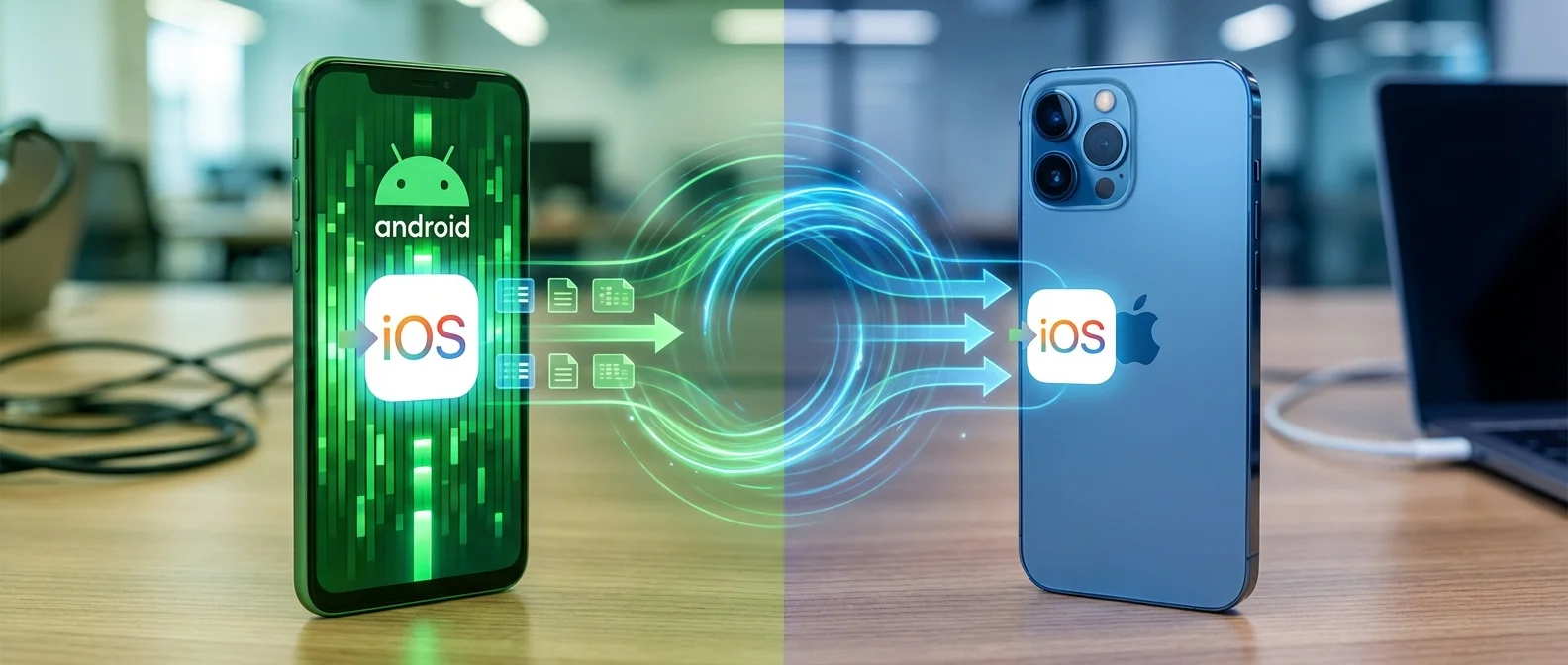
Switching from Android to iPhone can feel daunting, especially if you've been using Android for years. However, Apple has made the process easier than ever with Move to iOS and the improvements coming in 2026. In this comprehensive guide, you'll find step-by-step data transfer instructions, what transfers and what doesn't, common problems with solutions, and practical tips for your first days with a new iPhone.
Before You Switch — Preparation
Before starting the transfer, there are some preparation steps that will make the process smoother:
1. Back Up Your Android
Create a complete backup of your Android phone. Go to Settings > Google > Backup and make sure everything is synced: contacts, calendar, photos, and app data. If you're using a Samsung device, you can also back up through Samsung Cloud.
2. Update Your Android
Make sure your Android is running the latest available version. Move to iOS requires Android 4.0 or newer, but the best results come with Android 12+.
3. Charge Both Devices
Data transfer consumes battery. Make sure both devices are charged to at least 50%, or better yet, connected to chargers during the process.
4. Free Up Space
If you have many GB of data on Android, make sure your new iPhone has enough storage. iPhones come in 128GB, 256GB, 512GB, and 1TB options. If your data exceeds capacity, clean up before transferring.
5. Download Move to iOS
Download the Move to iOS app from the Google Play Store on your Android phone. It's free and developed by Apple.
Important: Move to iOS only works during the initial iPhone setup. If you've already set up your iPhone, you'll need to factory reset it (Settings > General > Transfer or Reset iPhone > Erase All Content) to start over.
Move to iOS — Step by Step
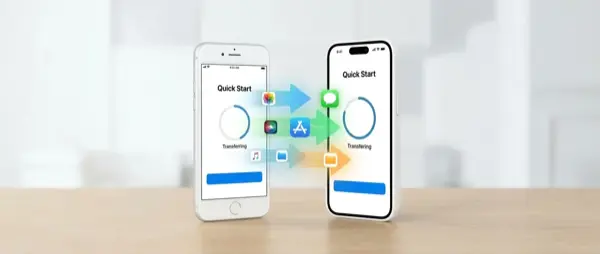
The Move to iOS transfer process works as follows:
Step 1: iPhone Setup
Turn on your new iPhone and follow the setup steps until you reach the "Apps & Data" screen. Select "Move Data from Android".
Step 2: Pairing Code
Your iPhone will display a unique 6 or 10-digit code. You'll enter this code into the Move to iOS app on your Android device.
Step 3: Open Move to iOS on Android
Open the Move to iOS app, accept the terms and conditions, and tap “Continue.” When prompted, enter the code displayed on your iPhone.
Step 4: Device Connection
The two devices will create a private peer-to-peer Wi-Fi connection. No router is needed — the transfer happens directly between the two phones.
Step 5: Select Data
Choose which data you want to transfer:
- Contacts — Transferred completely with all details
- Message history — SMS and MMS
- Photos and videos — From your Gallery
- Email accounts — Email settings
- Calendars — All events
- Chrome bookmarks — Transferred to Safari
- Apps — Free versions are downloaded from the App Store (if available)
Step 6: Wait
The transfer can take anywhere from 15 minutes to several hours, depending on data volume. Don't close any apps or disconnect the devices until the process completes. A progress bar appears on both screens.
What Transfers and What Doesn't
Transfers:
- Contacts and contact groups
- Message history (SMS/MMS)
- Photos and videos (Camera Roll)
- Web bookmarks (Chrome → Safari)
- Email accounts
- Calendars
- WhatsApp chat history (from 2023+)
- Free apps (if available on the App Store)
Does NOT Transfer:
- Purchased apps from Play Store (need to repurchase)
- Music not on a streaming service
- Ringtones and notification sounds
- In-app data (e.g., game saves, unless the app uses cloud sync)
- PDF files and documents (use Google Drive)
- System settings
- Call logs
Alternative Transfer Methods
Google Drive / Google Photos
If you don't want to use Move to iOS, you can transfer your data through the cloud. Upload your photos to Google Photos, your contacts to Google Contacts, and your files to Google Drive. Then download the corresponding Google apps on iPhone and sign in with the same account. Access is instant.
Manual Transfer via Computer
Connect your Android to a computer, copy your photos and files locally. Then connect your iPhone and use iTunes (Windows) or Finder (Mac) to transfer the files. This method gives you full control but takes more time.
Third-Party Apps
Apps like AnyTrans, Dr.Fone, and MobileTrans offer data transfer between Android and iPhone. Cost ranges from €20 to €50 per year. Useful if you want to transfer specific data that Move to iOS doesn't support.
Setting Up Your New iPhone
After the transfer, there are several steps you should complete:
Apple ID
If you don't have an Apple ID, you'll be prompted to create one during setup. Use your email or create a new @icloud.com address. Your Apple ID is your account for all Apple services: App Store, iCloud, iMessage, FaceTime, and more.
Face ID / Touch ID
Set up biometric security. On newer iPhones, Face ID scans your face in 3D. The setup takes under a minute and is significantly more secure than a fingerprint.
iCloud
Enable iCloud storage. Apple offers 5GB free, but if you have many photos you'll need more. iCloud+ plans start at €0.99/month (50GB), €2.99/month (200GB), and €9.99/month (2TB).
SIM / eSIM Transfer
Modern iPhones support eSIM. If your carrier supports eSIM, you can transfer your number digitally without a physical SIM. Otherwise, insert your nano-SIM card into the iPhone using the ejection tool (included in the box).
Apps — What Changes
Most popular apps exist on both platforms:
- WhatsApp: Available — chat history transfer supported via Move to iOS
- Instagram, TikTok, Facebook: Same experience
- Google Maps, Gmail, YouTube: Fully available on iOS
- Spotify, Netflix: Sign in with the same account
- Banking apps: Most banks have apps on both platforms
However, some apps are platform-exclusive:
- iMessage: Replaces SMS with encrypted messages between Apple devices (free via Wi-Fi/data)
- FaceTime: High-quality video calls between Apple devices
- AirDrop: Replaces Nearby Share for file sharing
- GarageBand, iMovie: Free creative apps from Apple
Common Problems and Solutions
Problem: Transfer stuck on “Connecting”
Solution: Disable Bluetooth on your Android. Close any apps using Wi-Fi (e.g., Sprint Smart Manager). Restart both devices. Make sure both phones are close together (within one meter).
Problem: “Unable to migrate” error
Solution: Make sure your iPhone has sufficient storage capacity. Free up space on Android if needed. Update Move to iOS to the latest version.
Problem: Some photos didn't transfer
Solution: Photos on SD cards or in cloud storage (outside Camera Roll) don't transfer automatically. Move them to internal storage first or use Google Photos.
Problem: Some apps not found
Solution: Some Android apps don't exist on the App Store. Search for alternatives. For example, if you used Files by Google, use the built-in iOS Files app instead.
Problem: WhatsApp transfer fails
Solution: Make sure you're using the same phone number. Update WhatsApp to the latest version on both devices. WhatsApp transfer happens through Move to iOS — you can't do it afterward.
Key Differences: Android vs iOS
If you're coming from Android, you'll notice some differences:
- Closing apps: Swipe up from the bottom (or swipe up and hold for multitasking) to close an app
- Back gesture: Swipe from left to right (instead of a dedicated Back button)
- Notifications: Swipe from top-left (notifications) or top-right (Control Center)
- App Drawer: Doesn't exist in the same way — use App Library (swipe to the last Home Screen page)
- Default apps: You can now change default browser, email, and map apps (iOS 18+)
- Widgets: Full Home Screen support since iOS 14+
- File management: The Files app replaces your File Manager
"The biggest adjustment isn't technical — it's the mindset change. After a week of use, most users find iOS simpler and more consistent."
— OnOff Team, based on hundreds of customer transitionsTips for Your First Days
- Don't rush to erase your Android: Keep it for 2-3 weeks until you confirm everything transferred correctly
- Explore Settings: Spend time in Settings — you'll discover features you didn't know about (e.g., Focus modes, Screen Time, Downtime scheduling)
- Learn the gestures: Start with the basics: swipe up (home), swipe up and hold (multitasking), swipe from left (back)
- Set up iMessage: If your friends have iPhones, your messages will appear in blue bubbles — that means encrypted iMessage
- Try AirDrop: For sending files to nearby Apple devices, it's faster than anything else
- Download Google apps: Gmail, Google Maps, Google Photos, Google Drive — they all work perfectly on iOS
- Deregister RCS/SMS: If you have trouble receiving messages, transfer your number or deregister from Google RCS at messages.google.com
Cost of Switching
The data transfer itself is free. However, there may be some costs:
- iPhone purchase: Prices start from €549 (iPhone 16e) up to €1,999 (iPhone 16 Pro Max 1TB)
- iCloud+: €0.99/month (50GB), €2.99/month (200GB), €9.99/month (2TB)
- App repurchases: Some premium apps will need to be bought again (€10-€30 average)
- Accessories: Case (€10-€50), USB-C charger (€15-€45), MagSafe (€39+)
Need help with the transfer? At OnOff.gr, we handle complete data transfers from Android to iPhone in-store. Bring both phones and leave the rest to us. Starting from €15.
Frequently Asked Questions
Will I lose my photos?
No, if you follow the steps correctly. Photos transfer via Move to iOS or Google Photos. In any case, keep a backup on your computer.
Can I transfer data after the initial setup?
Yes, but only through cloud services (Google Drive, Google Photos). Move to iOS only works during the initial setup.
What about my subscriptions (Spotify, Netflix)?
Subscriptions are tied to your account, not the device. Download the apps and log in. Exception: if you pay through Google Play, you may need to change your payment method.
How long does the transfer take?
It depends on data volume. For 50GB of data, expect 30-45 minutes. For 100GB+, it may take 1-2 hours.