📖 Read more: PowerShell Get-ComputerInfo: Hidden Windows Data Exposed
🔍 The breakthrough: Get-ComputerInfo
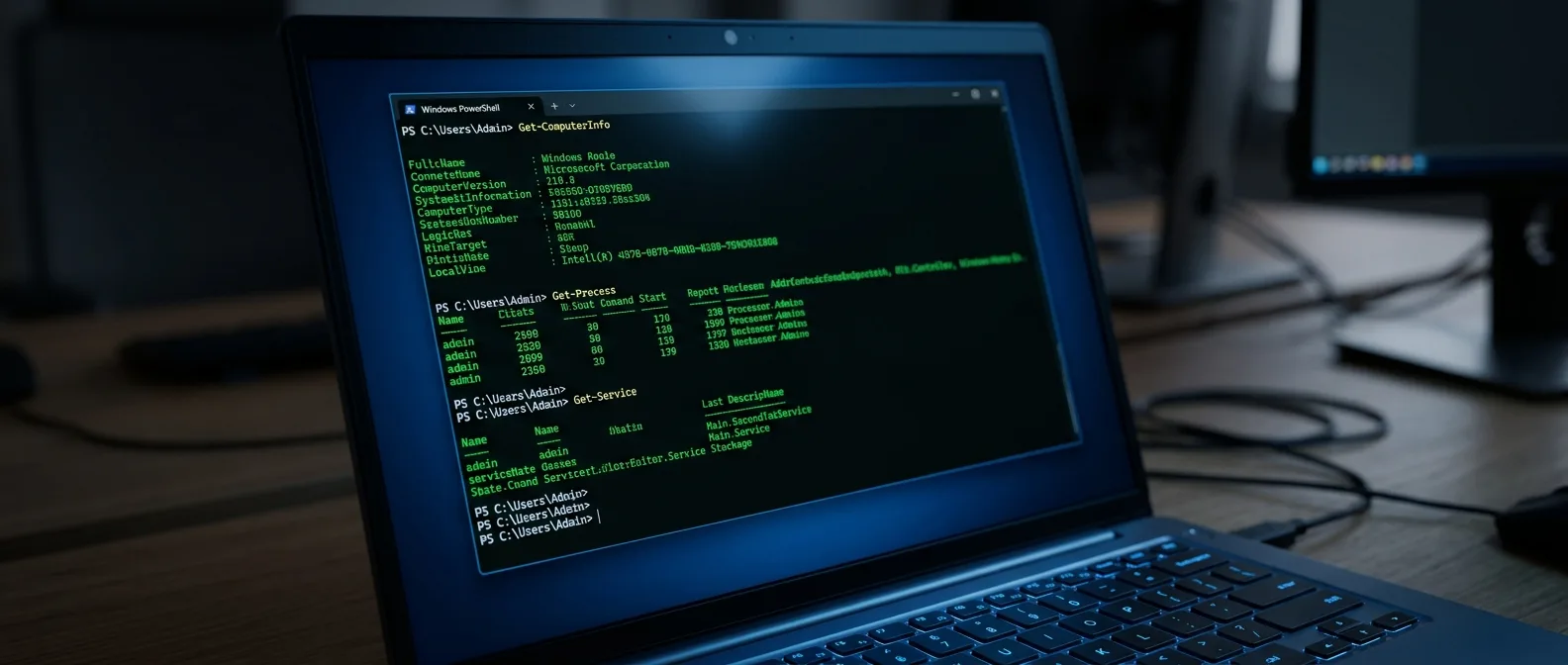
Open PowerShell. Type this absurdly simple command: ``` Get-ComputerInfo ``` That's it. No downloads, no third-party tools, no menu hunting. Windows 2026 dumps every piece of information it's been hiding about your PC — details that normally require hunting through multiple system dialogs. The first time you watch it run, you'll feel like you're seeing your computer's classified files. There's the exact Windows installation date that's buried somewhere in the registry. The BIOS version that normally requires a reboot to check. Security details like Secure Boot status. Even your motherboard model number.💎 What Get-ComputerInfo Actually Reveals
Prepare for information overload. This command doesn't just show the "basics" — it shows EVERYTHING Windows knows about your machine.Hardware and BIOS Details
The hardware information is where Get-ComputerInfo truly shines. You'll see: - **BIOS Version and Firmware**: The exact BIOS version, something that usually requires a reboot to find - **Motherboard Details**: Model and manufacturer of your mainboard - **CPU Architecture**: Processor details that Task Manager doesn't always show clearly - **Memory Configuration**: Total RAM and memory layout - **Secure Boot Status**: Whether Secure Boot is enabled (critical for security) - **Virtualization Support**: If your hardware supports virtual machinesOperating System History
The operating system details go deeper than expected. It doesn't just show your Windows version — it shows your system's **history**: - **Installation Date**: Exactly when Windows was installed - **Windows Version & Build Number**: Not just "Windows 11", but the precise build - **Edition Details**: Home, Pro, Enterprise — with every specification - **Timezone and Regional Settings**: Time zone and language configurations These timestamps prove crucial when tracking down system issues or verifying update status.📖 Read more: iPhone Wallpapers: 5 Hidden Features & Pro Tips for 2026
⚡ How to Use It Smart (Without Drowning in Data)
Your first impression of Get-ComputerInfo might be overwhelming. You'll see hundreds of lines of text scrolling at breakneck speed. But that's what makes it so powerful — the ability to filter.Filtering Specific Information
If you want just the essentials, you can filter: ```powershell Get-ComputerInfo | Select-Object CsModel, WindowsVersion, BiosVersion, CsTotalPhysicalMemory ``` This variant gives you only the computer model, Windows version, BIOS, and total RAM. Clean and useful.Searching for Specific Terms
You can search for specific words within the output: ```powershell Get-ComputerInfo | findstr /i "bios" Get-ComputerInfo | findstr /i "memory" ``` This is much faster than manually scrolling through hundreds of lines.Smart Filtering
Use wildcards (*) to find all properties containing a specific word. Example: Get-ComputerInfo -Property "*version"
Quick Search
Findstr works like Ctrl+F for command output. Add /i for case-insensitive searching.
🎯 Real-World Examples That Solve Problems
Let's see when this command becomes essential in actual troubleshooting scenarios.Compatibility Issue Diagnosis
When software won't run, the problem is often architecture or version mismatch. Get-ComputerInfo immediately tells you if you have 32-bit or 64-bit, which exact Windows version you're running, and if you support specific technologies.System Security Auditing
In 2026, security is more critical than ever. The command shows you: - If Secure Boot is active - What TPM version you have (if any) - If your CPU supports security features like DEP (Data Execution Prevention)Enterprise Inventory Management
If you manage multiple computers, you can automate data collection. Imagine a script running on 50 machines, delivering complete hardware reports for each one.📖 Read more: Nintendo Switch 2: 15+ Hidden Features & Pro Tips (2024)
🔧 Advanced Techniques and Automation
If Get-ComputerInfo impressed you, there are ways to make it even more useful.Exporting to Files
You can send the output to files for later analysis: ```powershell Get-ComputerInfo | Out-File C:\system-info.txt Get-ComputerInfo | Export-Csv C:\system-report.csv -NoTypeInformation ``` CSV is ideal if you want to open the data in Excel for further analysis.Comparison with Other Commands
Get-ComputerInfo is relatively new (from PowerShell 5.1). Before it, we used: - **Get-WmiObject**: More targeted, but requires knowledge of WMI classes - **systeminfo.exe**: Command-line tool that's been around for years, but less flexible - **Get-CimInstance**: The "newer" version of WMI Get-ComputerInfo is like the "suite" of all these combined — fewer details than each individually, but everything in one place."If there's one PowerShell command every Windows user should know, it's this one. Not because it's complex — because it's incredibly simple."
— Experienced System Administrator
⚠️ The Downsides (Yes, They Exist)
This wouldn't be an honest analysis without mentioning the problems.Information Overload
The biggest weakness is that it bombards you with data. If you don't know what you're looking for, you might feel lost. The interface is pure text — no GUI, no grouping, no hierarchy.No Real-Time Monitoring
The command gives you a snapshot. You don't see live data like in Task Manager. If you want to monitor performance in real-time, you need other tools.Learning Curve for Beginners
If you don't understand what most of the displayed properties mean, the command becomes more confusing than helpful. "BiosEmbeddedControllerMajorVersion" sounds important, but what does it mean for the average user?📖 Read more: Safe Data Transfer: Complete Guide for 2026 (iPhone &
🚀 Complementary Commands Worth Knowing
Get-ComputerInfo is excellent for overview, but sometimes you need more targeted information.For System Performance
```powershell Get-Process | Sort-Object CPU -Descending | Select-Object -First 10 Get-Counter "\Processor(_Total)\% Processor Time" ```For Disk Space
```powershell Get-WmiObject -Class Win32_LogicalDisk | Select-Object DeviceID, Size, FreeSpace ```For Active Services
```powershell Get-Service | Where-Object {$_.Status -eq "Running"} ``` These commands complement the picture Get-ComputerInfo provides, offering live data and more focused analysis.🎯 Frequently Asked Questions
Does Get-ComputerInfo work on older Windows versions?
The command was introduced in PowerShell 5.1, which is included from Windows 10 onwards. On older systems (Windows 7, 8) it won't work unless you manually install a newer PowerShell version.
Why does the command run slowly on some computers?
Usually the problem is on systems with many hardware components or domain-joined machines where PowerShell tries to retrieve information from the network. In enterprise environments it might take 10-15 seconds.
Can I use the command for remote computers?
Not directly — Get-ComputerInfo only works locally. For remote diagnosis you need PowerShell Remoting or commands like Get-WmiObject with the -ComputerName parameter.
Get-ComputerInfo changes how you approach Windows troubleshooting. Instead of visiting six different places to gather information, you have it all in one spot. It's the key to understanding what's really happening under the surface of your system — and the best part is it's already on your computer, waiting to be discovered.Sources: