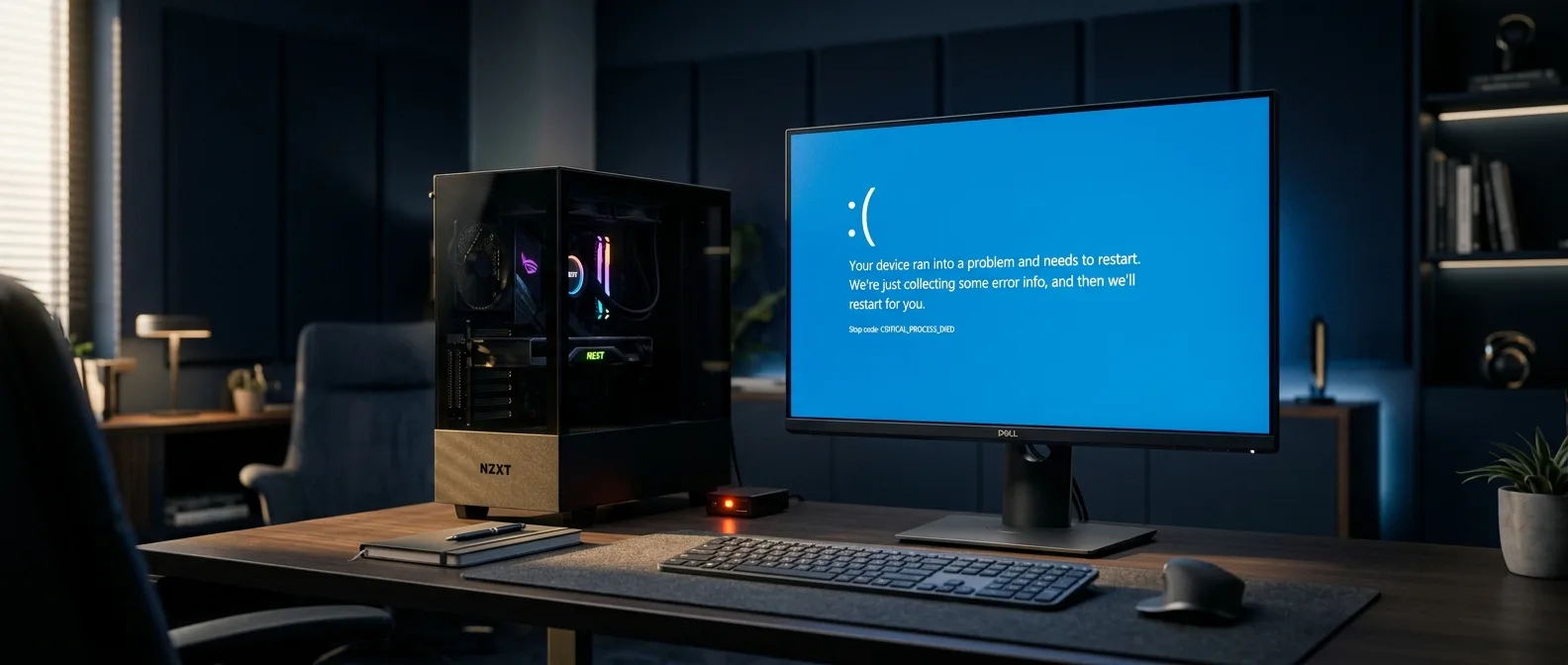
Thousands of PCs refusing to boot after the latest Windows 11 update. This isn't hyperbole — it's reality. Microsoft confirmed that the January 2026 Security Update (KB5074109) creates serious boot problems on Windows 11 systems. We're talking about the infamous "UNMOUNTABLE_BOOT_VOLUME" error that leaves your computer staring at a black screen of death.
The update rolled out on January 13, 2026 as part of the monthly Patch Tuesday cycle. Three patches later, the problem persists. Neither the emergency patch KB5077744 nor KB5078127 managed to fully resolve the issue.
If your computer stopped working after this Windows 11 update, don't panic. The fix exists — it just requires patience and the right steps.
📖 Read more: Windows 11 Virtual Desktops: Complete Work-Life Separation
🔧 What Exactly Went Wrong with KB5074109
Microsoft officially admitted receiving "a limited number of reports" about systems failing to boot. But reports across social media and forums suggest the Windows 11 boot problems are more widespread than they're letting on.
The UNMOUNTABLE_BOOT_VOLUME error code appears when Windows can't access the system's main drive. Like it suddenly forgot where its own files live.
Affected versions: Windows 11 25H2 and all Windows 11 24H2 editions. Only physical machines — virtual machines remain safe for some reason.
The Boot Failure Symptoms
Black screen with the classic message: "Your device ran into a problem and needs a restart." The restart doesn't lead anywhere though — it just repeats the cycle endlessly.
Some users also report random "flickers" — black screens for 1-2 seconds that return to normal. Looks like hardware failure, but it's actually a driver bug from the January 2026 update.
⚡ Method 1: Windows Recovery Environment Route
The first approach leverages Windows Automatic Repair to reach the Recovery Environment. Sounds complex? It's not — just requires persistence with the boot process.
You start the computer and force-shut it the moment you see the Windows logo. Repeat this 3-4 times until the "Preparing Automatic Repair" message appears.
- Power on the computer
- As soon as you see the blue Windows logo, press the power button to shut down
- Repeat steps 1-2 several times
- Windows Recovery Environment will appear
- Select your account and enter password
- Click "Continue"
- Click "Advanced Startup"
Inside the Recovery Environment
Once you're there, the process is straightforward:
- Troubleshoot → Advanced options
- Uninstall Updates
- "Uninstall latest quality update"
- Provide administrator credentials if requested
- Confirm with "Uninstall quality update"
The system will remove the problematic KB5074109 and return to the previous state. If everything goes well, it'll boot normally to the desktop.
📱 Method 2: Bootable USB Media Recovery
If the first method fails — which can happen with severely damaged systems — you need Windows 11 installation media to fix the boot problems.
You'll need to create a bootable USB from another computer. Download the Windows 11 Media Creation Tool from Microsoft and create the USB drive.
UEFI Boot Order Configuration
Before proceeding, ensure your computer will boot from USB. The setup varies by manufacturer — Dell, HP, ASUS have different keys for BIOS/UEFI access.
Usually it's F2, F12, or Delete during startup. Some machines also offer a boot menu with F8 or F11.
USB Boot and Windows 11 Repair Process
- Connect the Windows 11 USB
- Boot from USB (press whatever key it requests)
- Select language and format
- On the next screen: "Repair my PC" instead of Install
- Troubleshoot → Uninstall Updates
- "Uninstall latest quality update"
- Select target OS (Windows 11)
- Credentials and confirmation
The entire process can take 15-30 minutes depending on disk speed. Don't interrupt the procedure — let it complete fully.
🛡️ How to Protect Against Future Windows 11 Updates
Once you're back on the desktop, your first move should be pausing automatic updates. At least until Microsoft releases a proper fix for the boot problems.
Settings → Windows Update → Pause updates for 7 days. You can extend this up to 5 weeks if needed.
"Better to have a working system with old patches than one that won't boot at all."
— Every IT administrator ever
Alternative: Disable Windows Update Completely
For the more adventurous, there's the option to completely disable Windows Update through Group Policy or Registry. I don't recommend this long-term, but in crisis mode it can save situations.
Services.msc → Windows Update → Properties → Startup type: Disabled. Restart required.
🔍 Microsoft's Official Response to Boot Failures
The company confirms they're investigating the Windows 11 boot problems. They're asking affected users to send feedback through Feedback Hub — which is difficult when your PC won't boot.
According to inside sources, the issue appears related to changes in how Windows handles storage drivers. Certain hardware configurations — especially on older SSDs — don't play nice with the new registry entries from KB5074109.
Emergency Patches
Microsoft has already released two out-of-band updates (KB5077744, KB5078127) but neither fixes the boot issue.
Timeline
The problem appeared immediately after the January 13, 2026 release. No ETA exists yet for the fix.
💡 Bonus: Outlook Issues from January Update
Alongside the boot problems, KB5074109 also created issues with Outlook Classic. The app gets stuck in "zombie state" — appears to be running in Task Manager but won't open.
The solution is simple: Ctrl + Shift + Esc for Task Manager, find outlook.exe in Processes and End Task. Then you can open it normally.
This mainly happens with PST files located on OneDrive or legacy POP email accounts. Microsoft is working on a patch for this too.
🎯 Frequently Asked Questions
Will I lose my files if I uninstall the update?
No. The uninstall only removes the system files from the update, not your personal data. Documents, photos, apps remain untouched.
Why aren't virtual machines affected by the boot problems?
VMs use virtualized storage drivers that don't interact with the physical hardware interfaces causing the problem. It's one of the weird aspects of this bug.
When will the fix be released?
Microsoft hasn't provided a timeline. Usually emergency fixes roll out in 7-14 days, but this problem seems more complex than usual.
If you're among the lucky ones who haven't hit the update yet, pause it for a few weeks. If you're already stuck in the boot loop, the steps above will get you out of trouble. Shame that in 2026 we still experience such regression bugs in production updates.