Apple has been a pioneer in accessibility for decades, and the iPhone is arguably the most accessible consumer device in the world. Accessibility features aren't just for people with disabilities — many of them can enhance the daily experience for every user. From VoiceOver and AssistiveTouch to Live Captions and Personal Voice, the iPhone offers tools that make technology truly universal. In this comprehensive guide, we explore every key accessibility feature with practical usage examples.
Vision Features
VoiceOver — Screen Reading with Voice
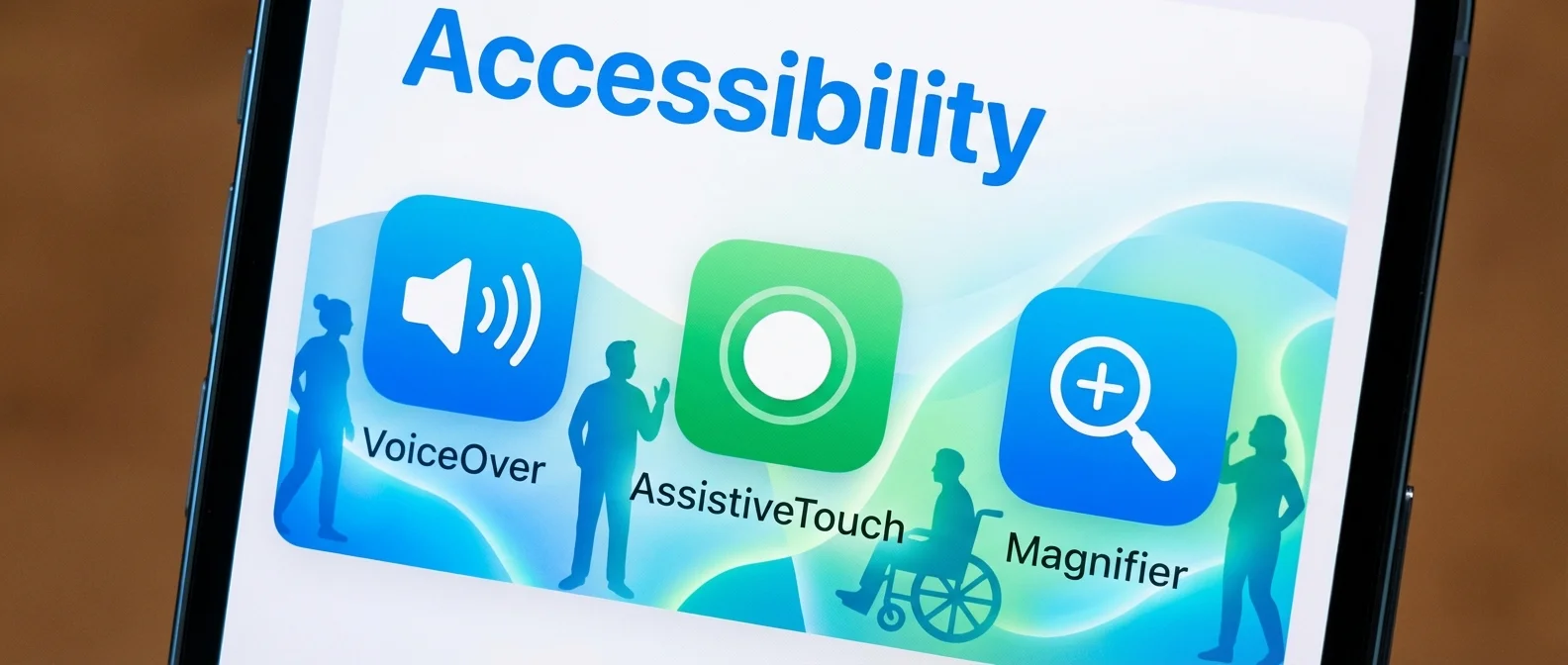
VoiceOver is the flagship of Apple's accessibility features. It's a screen reader that reads aloud everything displayed on screen, allowing blind or severely visually impaired users to fully operate their iPhone. When enabled (Settings → Accessibility → VoiceOver), it completely changes the interaction model: a single tap selects and reads, a double tap activates.
VoiceOver supports over 40 languages, with the ability to download Enhanced Quality voices (approximately 100 MB per voice) that sound remarkably natural. You can adjust the speaking rate, pitch, and even add multiple languages for automatic switching. It works everywhere — in apps, on the web, and even in third-party apps that follow accessibility guidelines.
💡 Practical Example: A blind user can navigate the iPhone, compose messages with the help of a Bluetooth Braille display, listen to notifications, use Maps with voice guidance, and even take photos — VoiceOver describes what the camera sees.
Magnifier
The Magnifier turns the iPhone's camera into a digital magnifying glass. Go to Settings → Accessibility → Magnifier to enable it, then find it in Control Center or with a triple-click of the side button. It's ideal for reading small text, medicine labels, restaurant menus, or any small object. It supports color filters, contrast adjustments, and brightness for better readability, even in challenging lighting conditions.
Zoom — Screen Magnification
The Zoom feature (Settings → Accessibility → Zoom) magnifies the entire screen or a portion of it. You can choose between Full Screen Zoom (entire screen magnified) or Window Zoom (a small lens window you can move). Supports magnification from 1.2x up to 15x. Ideal for users with reduced vision who don't need a full screen reader but struggle with small text.
Display & Text Size Settings
Beyond Zoom, you can increase text size system-wide. Settings → Accessibility → Display & Text Size gives you options for Bold Text, Larger Text (up to very large sizes), Increase Contrast, Reduce Transparency, and Smart Invert Colors. These settings dramatically improve readability without needing a magnifying glass.
Hearing Features
Live Captions — Real-Time Subtitles
Live Captions (Settings → Accessibility → Live Captions) automatically generate subtitles in real-time for any audio on the iPhone. They work during FaceTime calls, videos, podcasts, music, and even in-person conversations. The subtitles appear on-screen in real time and you can customize the size, font, and colors.
This feature is transformative for deaf or hard-of-hearing users, but it's equally useful for anyone in a noisy environment. Imagine being on the subway and being able to “read” a video or call without headphones.
Sound Recognition — Identify Sounds Around You
Sound Recognition (Settings → Accessibility → Sound Recognition) is an exceptional feature that continuously listens for specific sounds and notifies you. It can recognize: doorbells, baby crying, fire alarms, dogs barking, running water, alarm clocks, appliances, and many more. Each sound can be mapped to a vibration, notification, or flash alert.
🔔 Practical Use: A deaf parent can set their iPhone to notify them with vibration and flash when their baby cries in another room. An elderly user can receive notifications when the doorbell rings while wearing headphones.
Live Listen — Hearing Amplification with AirPods
The Live Listen feature turns AirPods into a hearing amplifier. Activated from Control Center, it uses the iPhone's microphones to amplify sounds around you and send them to your AirPods. This is exceptionally useful in loud restaurants, large lecture halls, or conversations with soft-spoken people. AirPods Pro 2 and later also support a clinically validated Hearing Aid feature that has received FDA authorization.
Mobility & Interaction Features
AssistiveTouch — Virtual On-Screen Buttons
AssistiveTouch (Settings → Accessibility → Touch → AssistiveTouch) creates a virtual floating button on the screen that gives you access to functions without pressing physical buttons. You can fully customize what each tap, long press, or gesture does. You can even create custom gestures.
This is vital for users with motor limitations who can't easily press physical buttons. But it's also useful if the Home or Volume buttons are malfunctioning — at OnOff.gr we frequently see customers using AssistiveTouch until they get their device repaired.
Voice Control — Full Control by Voice
Voice Control (Settings → Accessibility → Voice Control) lets you control the entire iPhone using only your voice. You can say “Tap Photos,” “Scroll down,” “Go back,” “Type hello,” and even “Show numbers,” which displays numbers next to every tappable element on screen. You can navigate, type, open apps, and do virtually everything without touching the screen.
It's ideal for users with quadriplegia, arthritis, or temporary hand injuries. But it's also excellent for hands-free situations — while cooking, driving (safely), or exercising.
Back Tap — Actions by Tapping the Back
Back Tap (Settings → Accessibility → Touch → Back Tap) lets you assign actions to a double or triple tap on the back of your iPhone. You can map an Accessibility Shortcut, screenshot, Control Center, magnifier, or any Shortcuts automation. This is particularly useful for people who struggle with on-screen gestures.
📱 AssistiveTouch Tip: If your iPhone's Power or Volume button is broken, enable AssistiveTouch as a temporary solution. At OnOff.gr we repair iPhone buttons in just 30 minutes, but until you visit us, AssistiveTouch has you fully covered.
Speech & Communication Features
Personal Voice — Create Your Own Voice
One of Apple's most moving features. Personal Voice (Settings → Accessibility → Personal Voice) lets you record your voice (about 15 minutes of reading phrases) and the iPhone creates a synthetic voice that sounds like you. This voice can then be used with Live Speech to “speak” by typing.
It was designed primarily for people at risk of losing their voice due to illness (e.g., ALS, laryngeal cancer). The creation happens entirely on-device using machine learning, without voice data ever leaving the device. Requires iPhone 15 Pro or later.
Live Speech — Type and Speak
Live Speech (Settings → Accessibility → Live Speech) lets you type text that is spoken aloud through the speaker or during a call. It can use either your Personal Voice or the built-in Siri voices. An invaluable tool for people with speech difficulties, but also for situations where you can't or don't want to speak aloud.
Eye Tracking — Control Your iPhone with Your Eyes
Apple introduced Eye Tracking that lets you control the entire iPhone using just your eyes. The TrueDepth camera tracks your eyes and you can navigate, select elements, and interact without touching the device at all. Available on iPhone 12 and later. This feature is life-changing for people with severe motor limitations.
"To foster true inclusion, you must not only have technological tools — they must be supported physically or digitally so people with disabilities can navigate their environments with dignity, respect, and autonomy."
— Jordyn Zimmerman, Apple Distinguished EducatorCognitive Features & Assistive Access
Assistive Access — Simplified Interface
Assistive Access (Settings → Accessibility → Assistive Access) creates a completely simplified version of iOS with large icons, fewer options, and clear navigation. Designed for people with cognitive difficulties, it's also excellent for elderly users who want simplicity. You can configure which apps appear, in what layout, and with which functions.
Guided Access — Lock to One App
Guided Access (Settings → Accessibility → Guided Access) locks the iPhone to a single app and prevents the user from leaving. Ideal for parents giving their phone to children (lock to a game), educators (lock to an educational app), or as a public kiosk. You can disable specific screen areas, buttons, and set time limits.
Useful Accessibility Settings for Everyone
Many accessibility features are useful for every user:
Reduce Motion: Reduces animations and visual effects. Ideal if you feel dizzy from parallax effects or want a faster-feeling navigation.
Display Accommodations: Color Filters can help users with color blindness (color vision deficiency). There are filters for Protanopia, Deuteranopia, and Tritanopia, as well as general color tint options.
Spoken Content: Speak Selection lets you hear any text read aloud by selecting it. Speak Screen reads the entire page by swiping two fingers from top to bottom.
Accessibility Shortcut: Set a triple-click of the side button to quickly toggle any accessibility feature you need.
🔧 Need help? If your iPhone's screen, buttons, speakers, or microphone aren't working properly and you're struggling to use accessibility features, bring it to OnOff.gr. Our team in Thessaloniki repairs screens, buttons, speakers, and microphones — everything needed for accessibility to work properly.