📖 Read more: 20 iPhone Tips You Need to Know in 2026
What Are Focus Modes
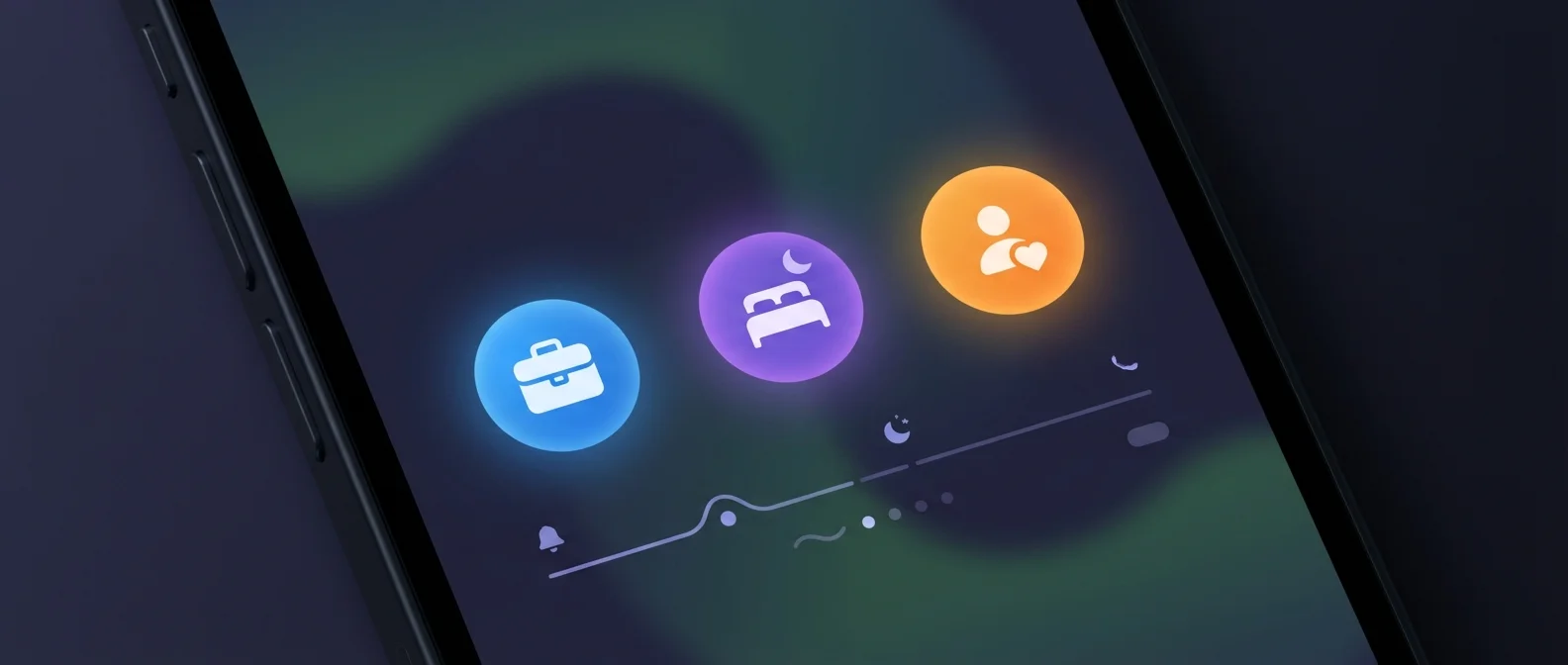
Focus Modes let you filter notifications, calls, and apps based on your activity. Each mode can be linked to a different Lock Screen, Home Screen, and Apple Watch face. They first appeared in iOS 15 as an evolution of the old Do Not Disturb, and by iOS 26 they've become far more flexible.
Apple offers 9 built-in modes, plus the ability to create custom ones:
There's also Fitness, Gaming, Mindfulness, Reading, and Do Not Disturb (full silence). iOS 26 also added "Silence During Calls" for distraction-free phone conversations.
Setting Up Work Focus
Go to Settings → Focus → Work 🔧. Choose which contacts and apps can send you notifications. Add your colleagues and apps like Slack, Mail, and Calendar. You can choose to show silenced notifications on the Lock Screen or dim the screen entirely.
Linking Lock Screen & Home Screen
Each Focus mode can have its own Lock Screen and Home Screen. Long-press on Lock Screen → Customize → Link Focus. When Work Focus activates, both your lock screen and home screen change automatically — you only see work apps and widgets 📱.
Sleep Focus
Sleep Focus activates automatically based on your sleep schedule in the Health app. It blocks all notifications except urgent calls, dims the screen, and shows only clock and alarm. Great when paired with StandBy mode on a MagSafe stand.
Tip: Enable "Time Sensitive Notifications" so important alerts (e.g., deliveries, banking notifications) can break through even during Focus mode. Settings → Focus → [Mode] → Options → Time Sensitive.
Reduce Interruptions & Intelligent Breakthrough
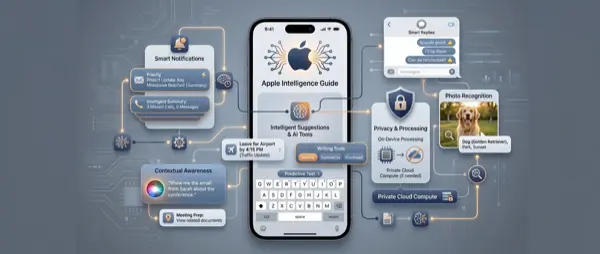
The biggest innovation in iOS 26 is Intelligent Breakthrough & Silencing, which uses Apple Intelligence to analyze the content of each notification 🧠. If a notification is genuinely important (e.g., “Your flight changed gates”), it alerts you even in Focus mode. If it's spam or irrelevant, it gets silenced automatically.
Requirements: iPhone 16 or later, iPhone 15 Pro, iOS 18.2+. Enable it: Settings → Focus → [Mode] → Intelligent Breakthrough & Silencing ⚡.
📖 Read more: iMessage 2026: Hidden Tricks & New Features
Custom Focus Modes
Create your own: Settings → Focus → + (top right) → Custom. Give it a name, color, and icon. Add allowed contacts and apps, set up time schedules or location-based triggers 📍.
Scheduling & Automation
Each Focus can activate automatically: by time (e.g., 9 AM–5 PM), location (e.g., office, gym), or app launch (e.g., when you open Kindle). Quick switching via Control Center → Focus 🔄.
Focus Status & Sharing
When a Focus mode is active, Messages automatically shows your contacts that you've silenced notifications. You can toggle this per mode. Since iOS 16+, Share Across Devices syncs your Focus settings across all Apple devices (iPhone, iPad, Mac, Apple Watch) — enable it: Settings → Focus → Share Across Devices 🔗.
"Focus Modes transformed how I use my iPhone — nothing work-related bothers me after 6 PM."
— OnOff.gr UserFocus Filters
Focus Filters hide content within apps — one level deeper. Examples:
- 📧 Mail: Show only work email accounts during Work Focus
- 📅 Calendar: Only personal calendars during Personal Focus
- 🌐 Safari: Only specific Tab Groups per mode
- 💬 Messages: Filter conversations by Focus
Set up: Settings → Focus → [Mode] → Add Filter. Important: Focus Filters don't sync across devices — you need to configure them on each device separately.