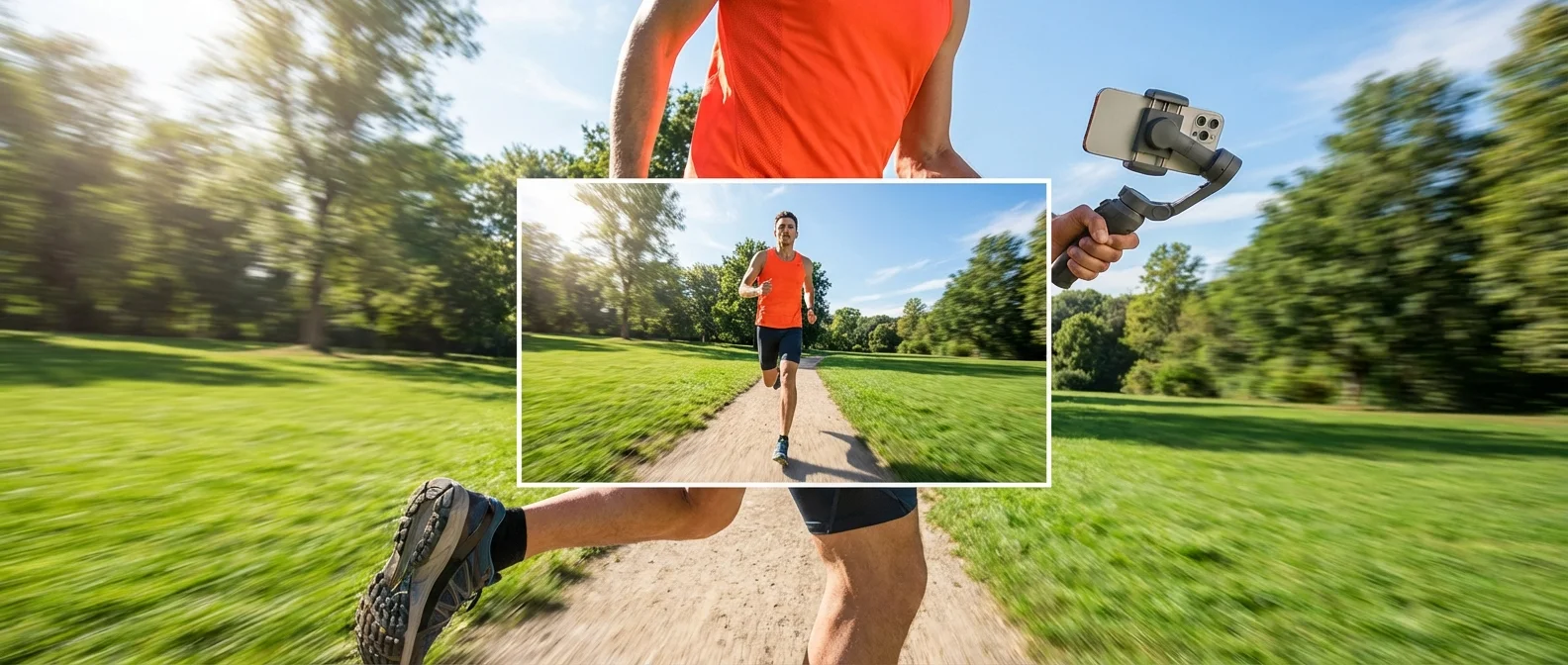
iPhone's Action Mode stabilizes your videos like a gimbal — without any external equipment. Running, biking, climbing stairs? The footage comes out impressively smooth. Apple introduced this feature with iPhone 14 in 2022, and it remains one of the most useful tools for video creators.
📖 Read more: Wireless Microphone for iPhone: Rode Direct Connect
🎬 How It Works Technically
Action Mode isn't just software stabilization. It combines sensor-shift OIS (Optical Image Stabilization), gyroscope data, and an aggressive software crop in real time. The camera records at a wider field of view than what you see, using the outer pixels as a “buffer” to absorb shake.
This means the iPhone analyzes each frame, detects motion, and compensates for shake by digitally shifting the visible field. In Tom's Guide testing, footage while running was described as “silky smooth — almost like using a gimbal.”
📱 Which iPhones Support Action Mode
Apple introduced Action Mode with the iPhone 14 lineup in September 2022. The feature is available across all models — not just Pro:
- iPhone 14, 14 Plus, 14 Pro, 14 Pro Max — first generation Action Mode
- iPhone 15 entire lineup — equal performance
- iPhone 16 entire lineup — improved sensor, same function
- iPhone 17 entire lineup — more efficient crop thanks to A19 chip
📖 Read more: Camera Control iPhone: Complete Button Guide
🎯 How to Enable It — Step by Step
- Open the Camera app
- Switch to Video mode
- Tap the Action Mode icon (running person) at the top
- When it turns yellow, Action Mode is active
- Hit record and start moving!
Action Mode only works with the main (wide) lens. You cannot use it with telephoto or ultra-wide zoom.
⚠️ Limitations & Trade-offs
Like any technology, Action Mode has certain limitations you should know about:
- Resolution: Max resolution drops to 2.8K due to cropping — you can't shoot 4K with Action Mode enabled
- Low light: In dark conditions, stabilization becomes less effective. Apple raises ISO, which increases noise
- Crop factor: You lose significant field of view — if you want a wide frame, it may not be ideal
- Zoom: Doesn't work in combination with optical zoom
- Battery: Real-time processing increases power consumption
🥊 Action Mode vs External Gimbal
The comparison depends on your use case:
- Gimbal (DJI OM, Zhiyun etc.): Costs $100-300, weighs 10-18oz, needs charging, full 4K, 3-axis stabilization. Ideal for professional shoots
- Action Mode: Free, built-in, always available, 2.8K, depends on lighting. Perfect for vlogging, travel, casual video
According to Tom's Guide testing, comparing Action Mode vs Samsung Super Steady, both phones performed equally well going uphill, while going downhill the iPhone was smoother.
📖 Read more: 10 iPhone Camera Tricks Nobody Knows About
🌟 Special Use: Action Mode & Accessibility
In December 2024, Apple showcased how Action Mode helps people with Parkinson's disease shoot stable videos. Hand tremor is almost completely neutralized, giving these individuals the ability to record their moments without assistance.
💡 Practical Tips for Perfect Results
- Lighting: Use Action Mode in well-lit environments — outdoor results are stunning
- Hold steady: Despite the stabilization, hold your iPhone with both hands for even better results
- Avoid zoom: Stay on the main lens (1x) for optimal stabilization
- Post editing: You can apply extra stabilization in iMovie/LumaFusion if needed
- Combine with 4K 120fps: On iPhone 16 Pro, shoot 4K 120fps without Action Mode and apply stabilization in post for full resolution
Sources:
Tom's Guide — iPhone 14 Pro Max Review
MacRumors — iPhone 16 Pro Roundup
9to5Mac — Action Mode & Parkinson's