

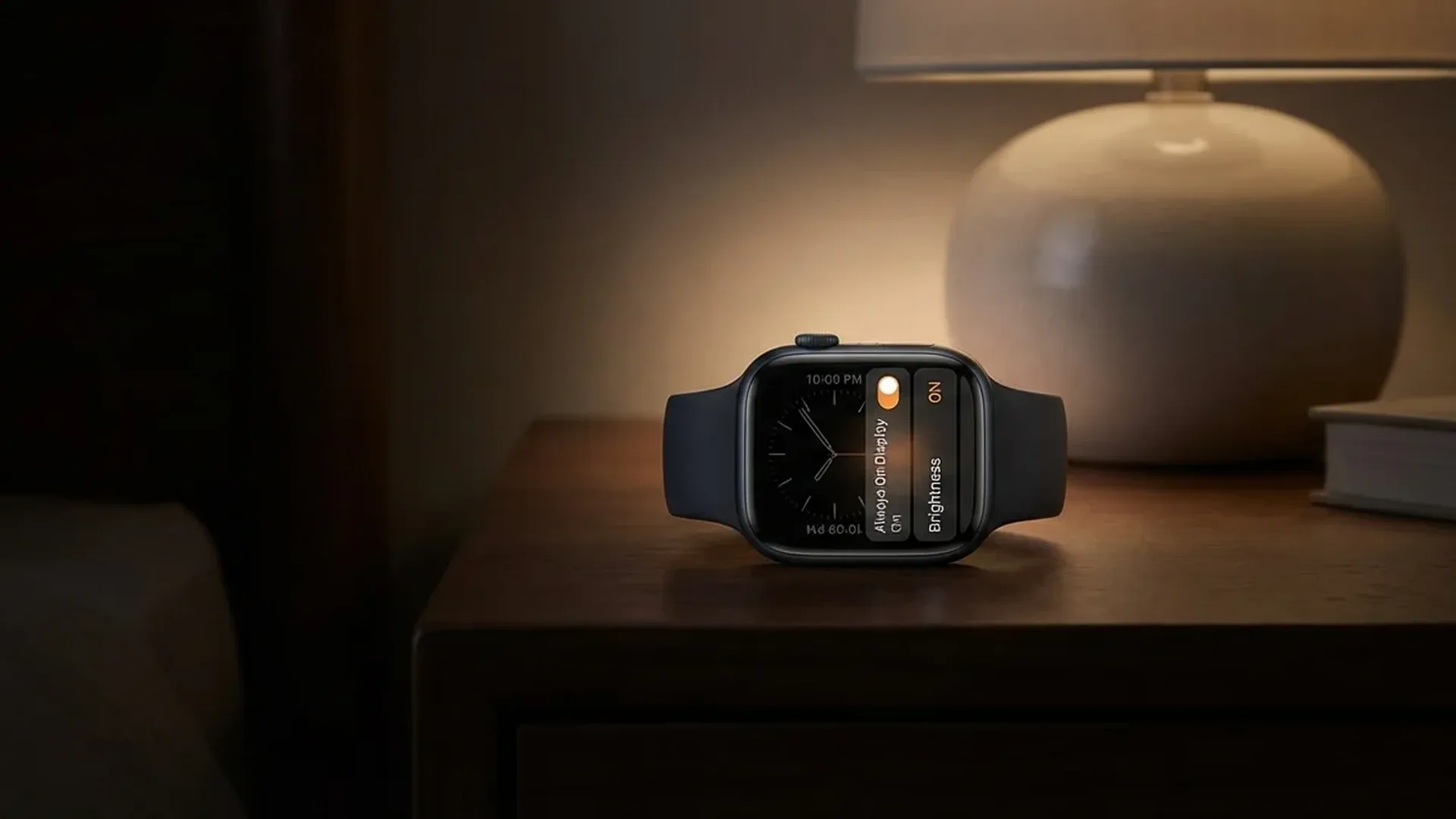
The Always-On Display fundamentally changed how we use the Apple Watch. Instead of raising your wrist every time, the time and information are always there. But are you using this feature correctly? This guide contains all the tips, settings, and tricks you need.
🔍 How AOD Actually Works
The technology behind Always-On Display (AOD) isn't simply a “screen left on.” Apple uses LTPO (Low Temperature Polycrystalline Oxide) displays that can dynamically change their refresh rate. When you lower your wrist, the screen drops to 1Hz — refreshing just once per second. When you raise your wrist, it immediately jumps to 60Hz.
On the Series 11 and Ultra 3, LTPO3 technology makes transitions faster and smoother. On the SE 3, the LTPO display works equally well but without the same level of fluidity when switching between active and passive mode.
In passive mode, the display doesn't show exactly the same as in active state. Brightness drops dramatically (down to 1-2 nits), some graphics are simplified, and the second hand stops. This saves tremendous energy while keeping essential information visible.
⚙️ Essential AOD Settings
Turning It On / Off
The basic setting is in the Watch app on iPhone: Settings → Display & Brightness → Always On. You can also configure it directly on the watch: Settings → Display & Brightness → Always On. The toggle is simple — on or off.
Hiding Sensitive Information
A critical setting many overlook: you can hide complications when the screen is in passive mode. This means someone next to you won't see your heart rate, your messages, or your calendar events. The setting is in the same menu: Always On → Show Complications.
Privacy Tip
In watchOS 26, you can choose which specific complications are hidden per watch face. This means you can keep the weather visible but hide messages and events.
Per-App Configuration
In watchOS 26, some apps support custom AOD views. Maps, for example, shows a simplified navigation view even in passive mode. The Workout app keeps your metrics visible (time, distance, heart rate) for a quick glance without raising your wrist.
🎨 Best Watch Faces for AOD
Not all watch faces are equal in Always-On mode. Some were specifically designed to look impressive in passive mode, while others lose much of their functionality.
Top Choices
- Modular: The classic choice. Keeps numbers, time, and complications visible in passive mode. Ideal for those who want information at a glance.
- Infograph: Displays 8 complications simultaneously. In AOD mode it simplifies graphics but retains data. Maximum information in minimum space.
- California: Elegant analog face with exceptional readability in passive mode. Numbers remain clear even at 1 nit.
- Wayfinder (Ultra only): Specifically designed for extreme use. Shows compass, altimeter, and barometric data even in passive mode.
- Simple/Numerals: Minimal battery consumption in AOD due to simple graphics. Ideal if battery life is your priority.
Faces to Avoid for AOD
Watch faces with many moving elements (e.g., Motion, Toy Story, Kaleidoscope) don't provide a good AOD experience. In passive mode, they display a static image that often looks “dead.” If you use AOD daily, choose a face designed with this feature in mind.
🔋 Battery Impact
The biggest concern about AOD is battery. The reality is that the impact exists but is smaller than most people think.
Real Battery Impact
In typical use, AOD consumes about 2-3 extra hours of battery per day. On the Series 11 (24 hours without AOD), this means around 21-22 hours. On the Ultra 3 (42 hours), the difference is nearly negligible — 39-40 hours. On the SE 3 (18 hours), the difference becomes more noticeable — 15-16 hours.
Tips for Better Battery with AOD
- Use simple watch faces: Faces with fewer complications and simple graphics consume less energy in passive mode.
- Reduce complications: Each complication that updates (e.g., stocks, weather) consumes energy even at 1Hz. Keep only those you truly need.
- Enable Theater Mode at night: Completely turns off the screen in dark environments. Tap the mask icon in Control Center.
- Use Sleep Focus: During sleep, the screen turns off automatically, saving battery. Set it up in the Health app.
- Update to watchOS 26: Each update further optimizes AOD energy management.
🎭 Theater Mode vs AOD
Theater Mode is your best friend if you want to temporarily disable AOD without changing the setting. At the cinema, at a concert, or in a dark room, Theater Mode turns off the screen, mutes sound, and puts the watch in silent operation.
To activate, swipe up on the watch face for Control Center and tap the two theater masks icon. You can also set it as an automation via Shortcuts — e.g., activating automatically every night after 11:00 PM.
🔒 AOD and Privacy
The Always-On screen means anyone can glance at your wrist. This can reveal information you don't want to share.
What Someone Can See
- Heart rate in real time
- Calendar events ("Doctor appointment 3:00 PM")
- Message previews
- Battery percentage
- Training Load or workout data
Privacy Settings
In watchOS 26, go to: Watch App → Display & Brightness → Always On → Show Sensitive Information. Disable for each complication separately. You can keep the weather and time visible but hide messages, heart rate, and events.
"The best AOD setup is one that gives you the information you need without revealing what you don't want to share."
💡 15 Expert Tips for AOD
- Use a dark watch face: Dark pixels on OLED screens consume almost zero energy.
- Adjust brightness: Go to Settings → Display & Brightness and reduce if you don't need maximum.
- Try a week without AOD: If you don't miss it, keep it off for maximum battery.
- Focus Modes: Set different AOD behavior per Focus. In Work Focus, hide personal messages. In Personal, hide work items.
- Modular face at night: If you sleep with the watch, Modular in night mode shows only time at minimum brightness.
- Use Watch Face Scheduling: Set automatic face changes by time or location via Shortcuts.
- Avoid live wallpapers: Animated wallpapers show no motion in AOD, just a frozen image.
- Photo face AOD: If using Photo face, the photo dims in brightness but stays visible. Choose photos with good contrast.
- Enable Low Power Mode when needed: LPM removes AOD entirely but can nearly double battery life.
- Watch in pocket: If you put the watch in a pocket, the gyroscope detection automatically turns off the screen.
- Water Lock: In Water Lock mode, AOD is automatically disabled.
- Third-party apps: Apps like WorkOutDoors and CARROT Weather support custom AOD views for more useful information in passive mode.
- Wayfinder face (Ultra): In Night Mode, the screen turns red even in AOD — ideal for nighttime use without losing night vision.
- Maximize LTPO3: On Series 11 and Ultra 3, the transition from passive to active is nearly instant. Take advantage by choosing rich faces.
- Monitor your battery: Go to Watch app → Battery for detailed consumption graphs by hour. If you see big drops, check your complications.
🆕 What's New in watchOS 26 for AOD
Apple significantly improved AOD in watchOS 26 with several changes:
- Per-complication visibility control: Choose which data hides in passive mode, per watch face.
- Improved energy management: Apple announced 15% greater AOD efficiency compared to watchOS 11.
- Smart Stack AOD: Smart Stack widgets can now display information in passive mode.
- Focus-aware AOD: The AOD appearance changes automatically based on the active Focus mode.
- New watch faces: The new watchOS 26 faces were designed from scratch with AOD in mind, featuring exceptional passive views.
❓ Frequently Asked Questions
Is it worth keeping AOD always on?
For most users, yes. The battery impact is small (2-3 hours) and the convenience is enormous. However, if you barely make it to the end of the day with battery life (mainly on the SE 3), you might prefer to turn it off.
Does AOD cause OLED burn-in?
Theoretically, prolonged display of static elements can cause burn-in on OLED. In practice, Apple uses pixel-shifting techniques that subtly move graphics in passive mode. After years of use, no significant burn-in has been reported on Apple Watch.
Can I use AOD on older models?
AOD is available on Apple Watch Series 5 and newer, all Ultra models, and now the SE 3 (the first SE series with AOD). If you have a Series 4 or older, it's not supported due to the non-LTPO display.
Conclusion
The Always-On Display is one of the most useful Apple Watch features, as long as you configure it properly. Hide sensitive information, choose the right watch face, use Theater Mode when needed, and enjoy a display that works for you without costing you in battery. With watchOS 26 improvements, the AOD experience has never been better.