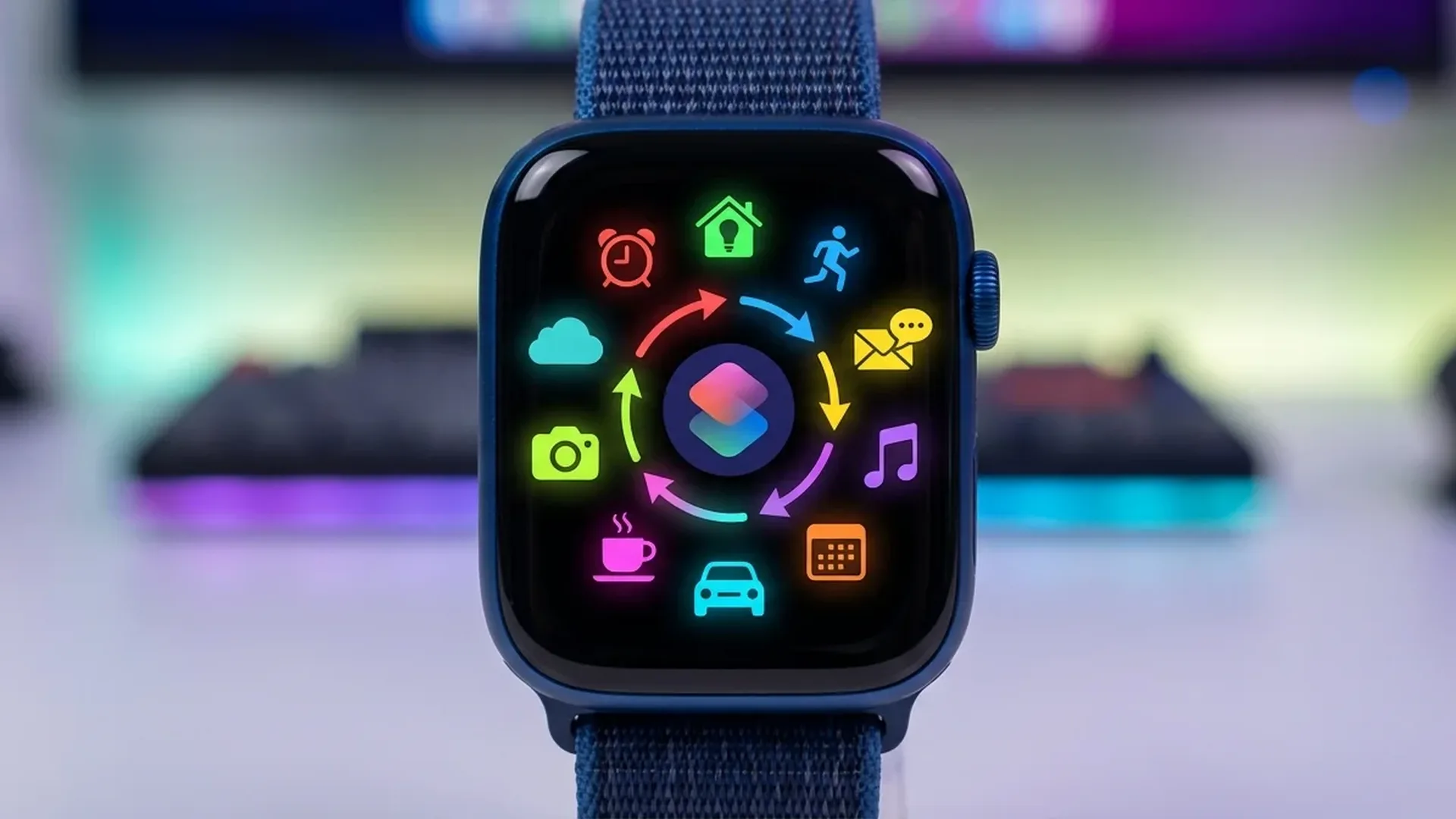
Apple Shortcuts turn the Apple Watch into a far more powerful tool than it appears at first glance. With the right automations in place, you can save time, streamline daily routines, and accomplish tasks with a single tap from your wrist. Here are the <10 automations I use every day and genuinely cannot imagine living without.
📖 Read more: Satellite SOS on Apple Watch: How It Saves Your Life
1. Morning Routine: Weather + Calendar
This first automation runs automatically every morning at 7:00 and displays a summary of your day on your Apple Watch. It includes the weather (temperature, rain probability), your next <3 calendar appointments, and a reminder about your activity goals. Instead of waking up and checking <3 separate apps, everything appears together on a single card.
To set it up, open the Shortcuts app on your iPhone, create a new shortcut, and add the actions Get Current Weather, Find Calendar Events (Next <3), and Show Result. Then set up an Automation with a “Time of Day” trigger at 7:00 AM.
2. Auto-Start Workout by Location
This automation uses geofencing. The moment you arrive at your gym, your Apple Watch automatically starts an Indoor Workout. There is no need to search for the Workout app, select the exercise type, or tap Start. Everything happens on its own the second you walk through the door.
Configuration is done through Automations in the Shortcuts app. Select “Arrive at Location” as the trigger, set your gym address, and add the “Start Workout” action with your preferred workout type, such as Traditional Strength Training or HIIT.
3. Water Lock + Start Swim Workout
If you swim regularly, this automation saves you valuable time. With a single tap, it activates Water Lock (locking the screen to prevent accidental touches underwater) and automatically starts a Pool Swim workout. Instead of making <4 separate taps across different screens, you accomplish everything in <1.
Tip: Complications for Quick Access
Add your most important shortcuts as complications on your watch face. This way you can run them directly from the main screen without opening the Shortcuts app. This approach is ideal for automations you use multiple times throughout the day.
4. Send ETA to Partner When Leaving Work
Leaving the office and want to let your partner know when you will arrive home? This automation triggers automatically when you leave your work address. It calculates travel time and sends a message automatically: “Leaving now, I'll be home in about <25 minutes.” The time updates dynamically based on current traffic conditions.
It uses the “Leave Location” automation trigger combined with Get Travel Time and Send Message actions. You can customise the recipient and message text to suit your needs.
📖 Read more: Siri 2026: New Capabilities on Apple Watch
5. Log Water Intake with One Tap
Staying hydrated matters, but few people remember to track it consistently. This shortcut automatically logs <250ml of water in the Health app with a single tap. Add it as a complication, and every time you drink a glass of water, tap once. At the end of the day, you can see exactly how much water you consumed, which helps build better hydration habits over time.
6. Bedtime Routine: DND + Dim + Alarm
The perfect bedtime routine starts with a single tap. This automation enables Do Not Disturb, reduces the watch display brightness, sets the alarm for the next morning, and activates Sleep Focus. You can also configure it as an Automation triggered at your specific bedtime.
Beyond the basic settings, you can add HomeKit actions such as turning off the lights, lowering the thermostat, and locking the front door the moment you start your bedtime routine. Everything orchestrated from one tap on your wrist.
7. Quick Timer Presets for Cooking
If you cook regularly, you know how important precise timing is. This shortcut displays a menu with preset timers: <3 minutes (soft-boiled eggs), <5 minutes (tea), <8 minutes (hard-boiled eggs), <12 minutes (pasta), <20 minutes (rice). Select your choice and the timer starts immediately. No need to remember cooking times or fiddle with settings each time you step into the kitchen.
8. Share Location with Family on Demand
This shortcut sends your current location to a family member via message. It is useful in countless situations: when someone needs to find you in a large venue, when you want to confirm you arrived safely, or whenever you need assistance. One tap and your location is shared instantly.
9. Control Smart Home from Your Wrist
If you have HomeKit devices, this shortcut gives you full control from your watch. Create scenes for different situations: “Leaving Home” (turn off lights, lower heating, lock doors), “Coming Home” (turn on lights, raise heating), or “Movie Night” (dim lights, turn on TV). Each scene runs with a single tap and transforms your Apple Watch into a smart home remote.
📖 Read more: Sleep Score in watchOS 26.2: The New Sleep Tracking Features
10. Quick Note / Voice Memo
The final automation is simple but incredibly practical. With one tap, it starts a voice recording via Voice Memos or creates a new note in Notes through dictation. Perfect for ideas that strike you while on the move, grocery lists, or quick reminders you do not want to forget. The recording syncs automatically to your iPhone and iCloud.
How to Create Shortcuts for the Watch
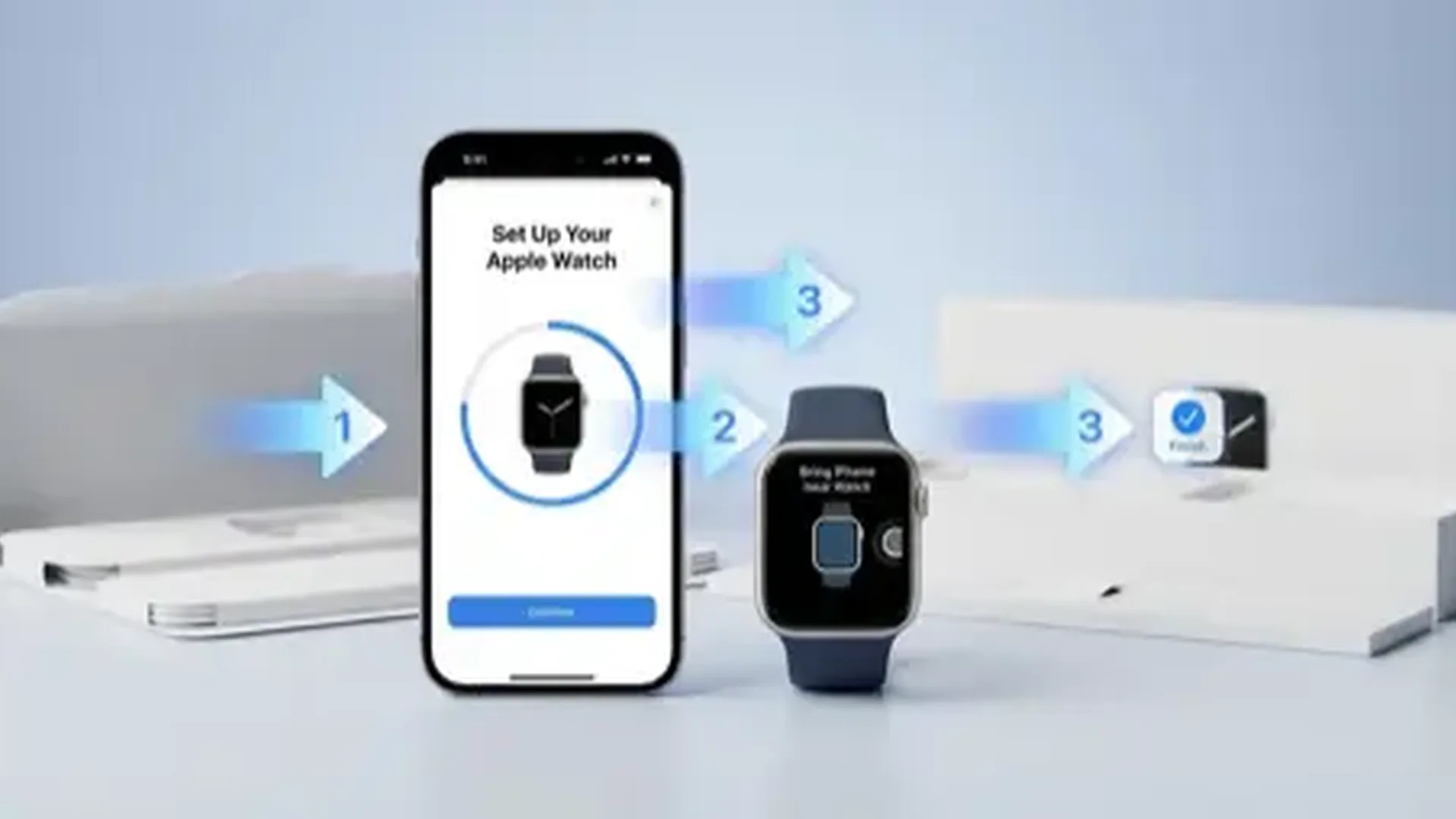
Shortcuts are created on the iPhone through the Shortcuts app and sync automatically to Apple Watch. Make sure that “Show on Apple Watch” is enabled for each shortcut. For Automations, you can choose triggers such as: Time, Location, App, Workout, NFC Tag, CarPlay Connection, Alarm, Sleep Focus, and Apple Watch Connection.
Siri Voice Triggers
Every shortcut can be activated by voice through Siri. Give each shortcut an easy-to-remember name such as “Morning briefing,” “Start gym,” “Log water,” or “Bedtime routine.” Raise your wrist, say “Hey Siri” followed by the shortcut name, and it executes immediately. This is particularly convenient while driving or cooking when your hands are occupied.
Beyond voice triggers, you can also assign shortcuts to the Action Button on Apple Watch Ultra models, or trigger them via specific watch face complications. The flexibility of the Shortcuts system means you can build automations as simple or as complex as you need, adapting your Apple Watch to fit perfectly into your unique daily workflow and routines.
Frequently Asked Questions (FAQ)
Can I create shortcuts directly on the Apple Watch?
No, shortcuts are created and edited on the iPhone. On the Apple Watch, you can only run them. Make sure to enable “Show on Apple Watch” for every shortcut you want available on your wrist.
Do automations run automatically or require confirmation?
It depends. When setting up an Automation, you can choose “Run Immediately” or “Ask Before Running.” For automations like the bedtime routine, I recommend “Run Immediately” for full hands-free automation.
What triggers are supported on Apple Watch?
The main triggers include: Time of Day, Arrive/Leave Location, Workout Start/End, App Open/Close, NFC Tag, CarPlay Connect/Disconnect, Alarm, Sleep Focus, and Apple Watch Connection. Each trigger can be combined with multiple actions.
How many shortcuts can I have on the Watch?
There is no strict limit. However, for practical reasons I recommend keeping <10 to <15 shortcuts on your watch. The rest can remain on your iPhone. Use folders for better organisation and quicker access.
Can I share shortcuts with friends?
Yes, you can share shortcuts via iMessage, AirDrop, or a shareable link. The recipient needs to accept them in the Shortcuts app. This is an excellent way to help someone get started with powerful automations immediately.
Do shortcuts drain a lot of battery?
Generally, no. Most shortcuts perform brief actions and their impact on battery life is negligible. Location-based automations consume slightly more energy due to geofencing, but the difference is minimal and well worth the convenience they offer.