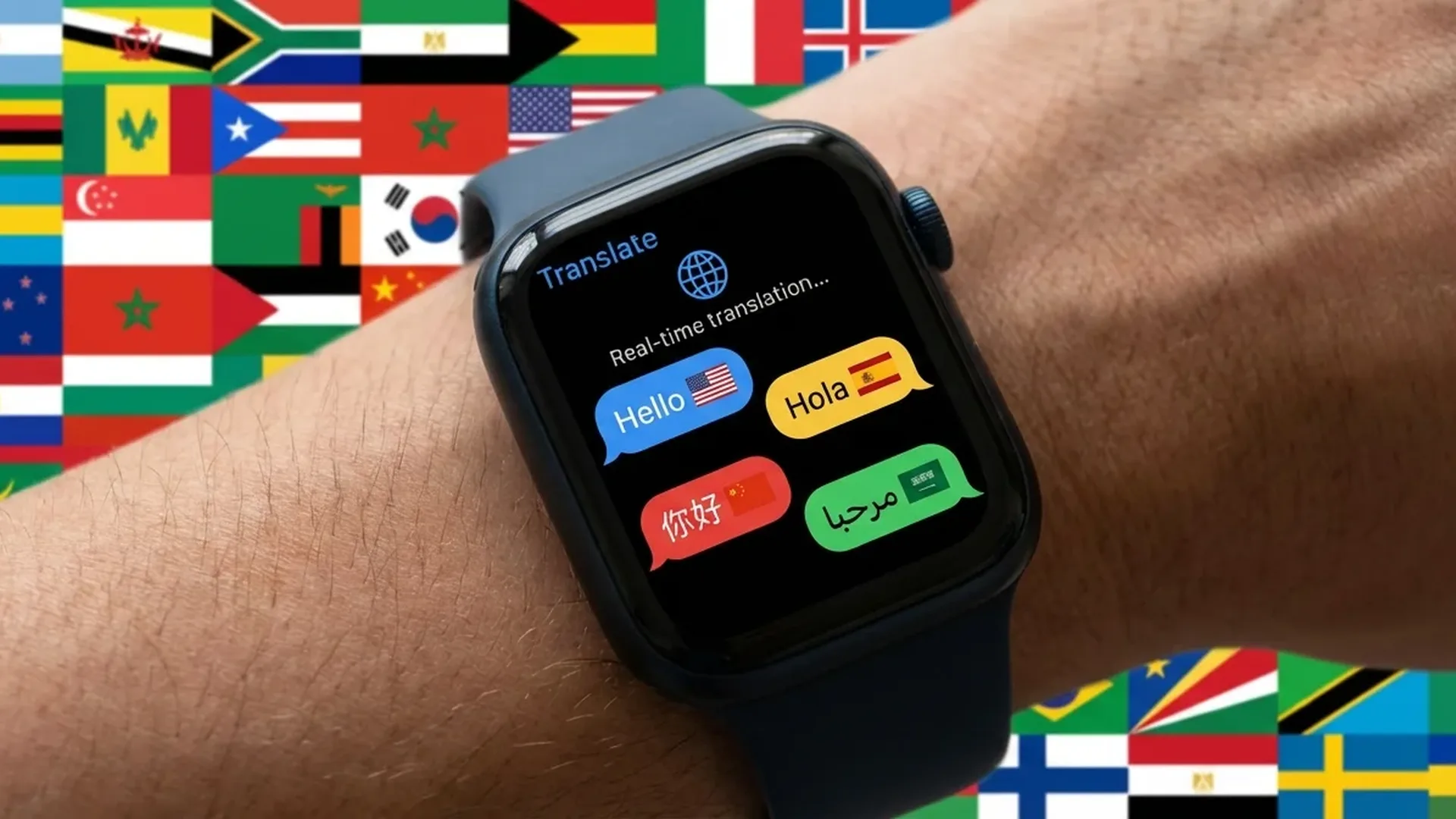
Apple Translate is one of the most useful apps you can have on your wrist. With support for over 20 languages — including Greek — you can translate by voice or text directly from your Apple Watch. In this guide, we break down its capabilities, the supported languages, and the practical scenarios where it truly shines.
📖 Read more: Apple Intelligence on Watch: What It Brings
How Apple Translate Works
Apple Translate comes pre-installed on the Apple Watch and does not require downloading from the App Store. You open the app, select the two languages you want, and speak or type the phrase you need translated. The translation appears on screen and is optionally spoken aloud through the watch speaker for the other person to hear.
The process is remarkably simple: raise your wrist, say the phrase, and see the translation within seconds. No need to pull out your phone, open an app, and type. This makes the Apple Watch ideal for quick real-time translations when you are traveling or conversing with someone who speaks a different language entirely.
Supported Languages
Apple Translate supports over 20 languages with continuous additions. The core supported languages include:
- European: English, Spanish, French, German, Italian, Portuguese, Dutch, Polish, Ukrainian, Greek
- Asian: Chinese (Mandarin/Cantonese), Japanese, Korean, Indonesian, Thai, Vietnamese, Hindi
- Other: Arabic, Russian, Turkish
Greek is fully supported, which makes Apple Translate particularly useful for Greek travelers abroad or for those hosting foreign tourists in Greece. You can translate from Greek to any other supported language and vice versa with both voice and text input methods.
Offline Translation
You can download languages for offline use through your iPhone at Settings > Translate > Downloaded Languages. After downloading, translations happen locally on the device, without internet. This is ideal for travel without roaming or data, ensuring you always have translation capability available.
📖 Read more: Apple Watch AFib After Ablation: New Clinical Study
Conversation Mode: Chat in Two Languages
The Conversation Mode feature allows two people to converse in different languages using the Apple Watch as an interpreter. You speak in your language, the watch translates and speaks it in the other language, the other person replies in their language, and your watch translates it back to yours. It is like having a personal interpreter on your wrist at all times.
There is also an Auto-Detect feature that automatically recognizes which language you are speaking. You do not need to press any button to switch languages — the system figures out on its own which language it is hearing and translates accordingly. It works surprisingly well in most everyday situations and conversations.
Practical Use Scenarios
Apple Translate on the watch truly shines in specific situations where speed and convenience are critical:
- Ordering food: At a restaurant in Tokyo or Beijing, simply raise your wrist and say “I would like the bill, please” — the translation appears and is spoken immediately in the local language.
- Asking for directions: Ask locals for directions without fumbling with your phone. Voice translation feels more natural than showing someone a phone screen with text on it.
- Shopping abroad: Ask about prices, sizes, or colors without taking your phone out of your pocket. Quick and unobtrusive.
- Hotels and transport: Communicate with reception staff or taxi drivers without barriers or awkward gestures.
- Emergencies: If you need help in a foreign country, quick translation can be absolutely critical and potentially life-saving.
The best translation tool is the one you always have with you. The Apple Watch is on your wrist 24/7 — you never forget it at home, it never runs out of battery in the middle of a conversation.
— Travel blog iLoveTravelSiri Integration
You do not even need to open the Translate app. You can simply say: “Hey Siri, translate 'good morning' to Japanese” and Siri will give you the translation immediately. This works even without raising your wrist, if you have “Hey Siri” or Raise to Speak enabled on your Apple Watch settings.
The Siri integration makes the entire process even faster. No need to press buttons, select languages, or navigate menus. Just speak naturally and get the translation in a few seconds. All translations are saved to history for future reference, so you do not lose them after the conversation ends.
📖 Read more: Apple Watch and Life Insurance: How Exercise Saves You Money
Comparison with Google Translate on Wear OS
Google Translate is available on Wear OS smartwatches and supports over over 100 languages. In terms of language count, Google wins by a significant margin. But Apple Translate has its own advantages in several key areas:
- System integration: Apple Translate is deeply embedded in watchOS and Siri, offering a smoother and more seamless user experience overall.
- Offline capability: Google Translate requires a connection on Wear OS, while Apple offers reliable offline translation with locally stored machine learning models.
- Privacy: With offline mode, your data never leaves the device — important for those who care about privacy and do not want their conversations sent to external servers.
- Voice quality: Apple's speech synthesis sounds more natural in most supported languages, though Google has made tremendous improvements in recent years as well.
Privacy and Security
One of Apple Translate's biggest advantages is privacy. When you download languages for offline use, translation happens entirely on the device. No phrases are sent to servers, no conversations are recorded or analyzed by Apple. Everything stays between you and your conversation partner.
This is particularly important for sensitive conversations — for example, medical visits abroad or business meetings. You know that what you say stays between you and your interlocutor, without third parties having access to the content of your translations.
Tips for Better Voice Recognition
Speak clearly and at a natural pace. Avoid very noisy environments — if you are on a busy street with heavy traffic noise, bring the watch closer to your mouth. Use simple phrases instead of complex sentences for better and more accurate results every time.
📖 Read more: Apple Watch Redesign 2028: Why It's Delayed
Translation History
All translations are automatically saved to the app history. This means you can look up phrases you translated previously without having to say them again. Particularly useful when you need the same phrase repeatedly — for example, your hotel address in another language when taking taxis. The history syncs between Apple Watch and iPhone via iCloud for easy access from any device you own.
You can also save specific phrases to Favorites for even quicker access. This is especially useful for phrases you use frequently while traveling, such as “Where is the nearest metro station?” or “Do you have a free room?” in various languages. That way you do not need to repeat the same phrase every time you need it, saving both time and effort during your travels abroad. The favorites list is organized by language pair, making it easy to find exactly what you need at a moment's notice.
Frequently Asked Questions (FAQ)
Is Greek supported?
Yes, Greek is fully supported in Apple Translate, for both voice and text translation. You can also download Greek for offline use from your iPhone to ensure availability without internet access.
Does it require an internet connection?
Not necessarily. If you download the languages for offline use through Settings > Translate > Downloaded Languages on your iPhone, translations happen locally on the device. This is ideal for travel without roaming or mobile data.
How accurate is the voice recognition?
Voice recognition is very good in quiet environments and handles most common phrases accurately. In noisy areas, accuracy may decrease. Bring the watch closer to your mouth and speak clearly for better results. Keep phrases simple and concise for the most reliable translations.
Can I translate without my iPhone nearby?
Yes, if you have an Apple Watch with Cellular or if you have downloaded the languages offline. With offline languages, you need neither iPhone nor internet — the watch handles everything on its own completely independently.
How much storage do offline languages take?
Each language takes approximately 100-300 MB depending on the specific language. Files are stored on the iPhone and synced with the Apple Watch. We recommend downloading only the languages you actually need for your upcoming trip to conserve storage space.
Can I use Siri for translation?
Absolutely. Simply say “Hey Siri, translate [phrase] to [language]” and Siri will instantly provide the translation without needing to open any app. It is the fastest way to translate on the Apple Watch by far.