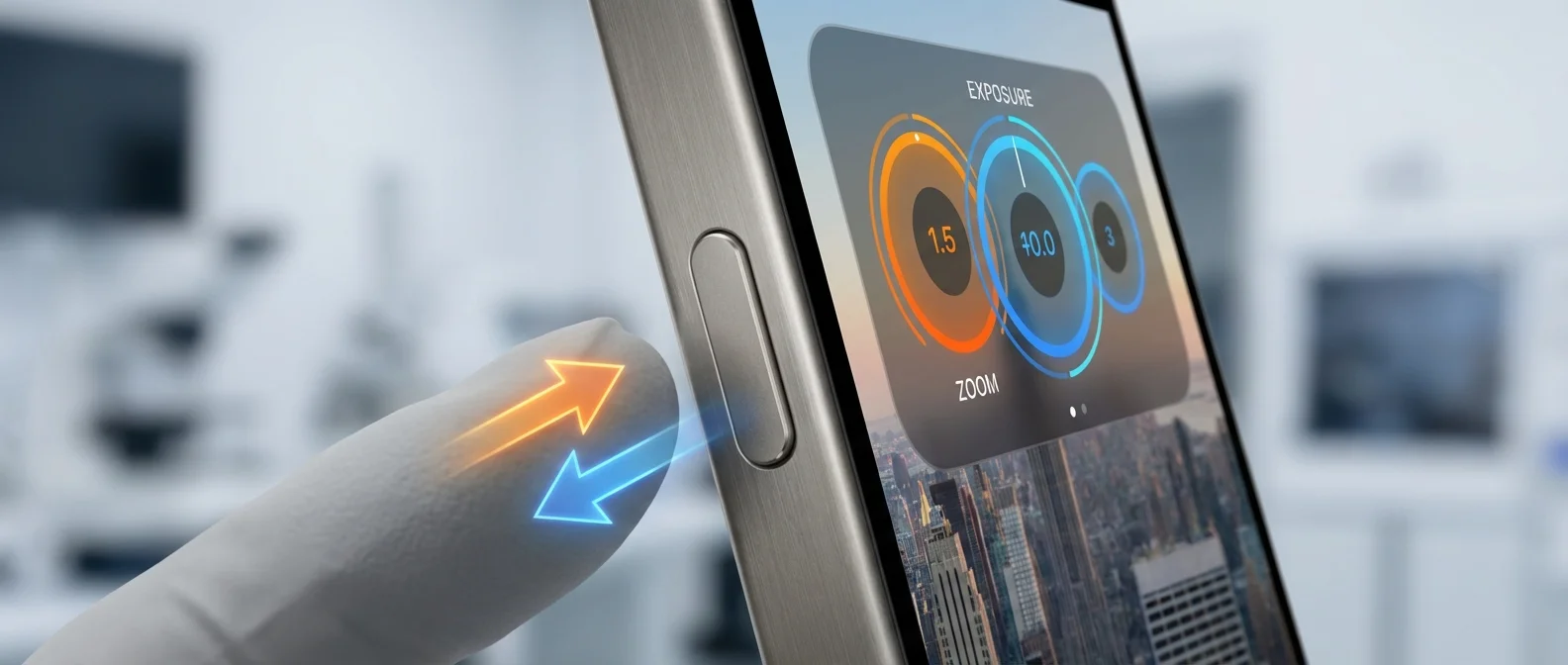
📸 What Is Camera Control?
Camera Control is a capacitive + pressure sensing button on the lower right side of the iPhone. It debuted on the iPhone 16 (September 2024) and is present on all newer models — 16, 16 Pro, 17, 17 Pro, Air. It's covered by sapphire crystal for scratch resistance, with copper conductors inside for the capacitive touch layer.
It's not just a button — it's a multi-function control: it recognises force (pressure), capacitive touch (finger contact), and swipe gestures simultaneously, with haptic feedback on every interaction 🎯.
🎯 Core Functions
Opening the Camera
A single press instantly opens the camera, even when the iPhone is locked. Press again to take a photo 📷. Hold down for video recording. Launch speed is faster than any shortcut or widget.
Swipe for Zoom
With the camera open, slide your finger left-right on the button. It controls zoom like a physical slider — from 0.5× (Ultra Wide) to 5× (Telephoto) on Pro models. The feel is remarkably precise thanks to the haptic engine 🎚️.
Double Light Press — Settings Menu
Press lightly twice (without a full click) and a settings menu appears. Swipe to change:
- Exposure: Scene brightness adjustment
- Depth: Depth of field (Portrait mode)
- Zoom: Optical zoom level
- Cameras: Switch between Wide, Ultra Wide, Telephoto
- Styles: Photographic Styles (Tone, Color, Warm/Cool)
- Tone: Fine-tune image tone
Pro Tip: Lock Exposure
After adjusting exposure via Camera Control, long-press on the screen for AE/AF Lock. This ensures consistent brightness even when you reframe — ideal for backlit scenes 🔒.
🎬 Camera Control in Video
The swipe function also works during video recording. You can do smooth zoom in/out while filming — ideal for cinematic shots without touching the screen at all. In ProRes 4K 120fps, Camera Control delivers professional-grade zoom transitions 🎬.
📱 Third-Party Apps
Camera Control isn't limited to Apple's Camera app. Third-party apps can leverage the button via API: Instagram opens directly to camera mode, Snapchat takes a snap with a single press, and photography apps like Halide and ProCamera use the swipe for manual focus or ISO control 📸.
🛠️ Customisation — Configure the Button
You can change what Camera Control does:
- Settings → Camera → Camera Control: Choose which function opens with double light press
- Accessibility → Camera Control: Adjust sensitivity, swipe speed, single/double click speed
- Clean Preview: Enable clean viewfinder without UI overlays
🔍 Visual Intelligence (iOS 18.2+)
Starting with iOS 18.2, long-press Camera Control from any screen and Visual Intelligence opens — Apple Intelligence recognises what the camera sees and provides real-time information:
- Restaurants: Reviews, hours, menus, reservations
- Text: Translation, copy, search, summarise
- Products: Prices, comparison, online purchase
- Plants/Animals: Species identification, Wikipedia info
- QR/Barcodes: Instant scanning without a separate app
"Camera Control with Visual Intelligence turns the camera into a search tool. Point at something, and your iPhone tells you what it is."
— The Verge, 2024🔄 What Changes on iPhone 18
According to MacRumors, iPhone 18 models will feature a simplified Camera Control: Apple is removing the capacitive sensor and keeping only pressure sensing. This reduces manufacturing costs while maintaining all functions — press, long press, single/double click. The swipe will operate through pressure variations instead of capacitive touch ⚡.
🔮 Conclusion
The Camera Control isn't just another button — it's a new way to interact with your iPhone. From instant photos 📷 and smooth video zoom, to Visual Intelligence and third-party app integration, it's worth mastering. Once you get used to it, you won't want an iPhone without it.